



Today we’re adding two AI capabilities to Eon Data Protection. The Eon AI Assistant is a chat assistant built into the console that answers questions and takes a threat detection through to recovery, and AI Dashboards turns a plain-language request into a live dashboard.
Both work from the same picture of your estate that Eon already keeps current: the resources it discovered, your backup policies, jobs, vaults, costs, controls and threat detections.
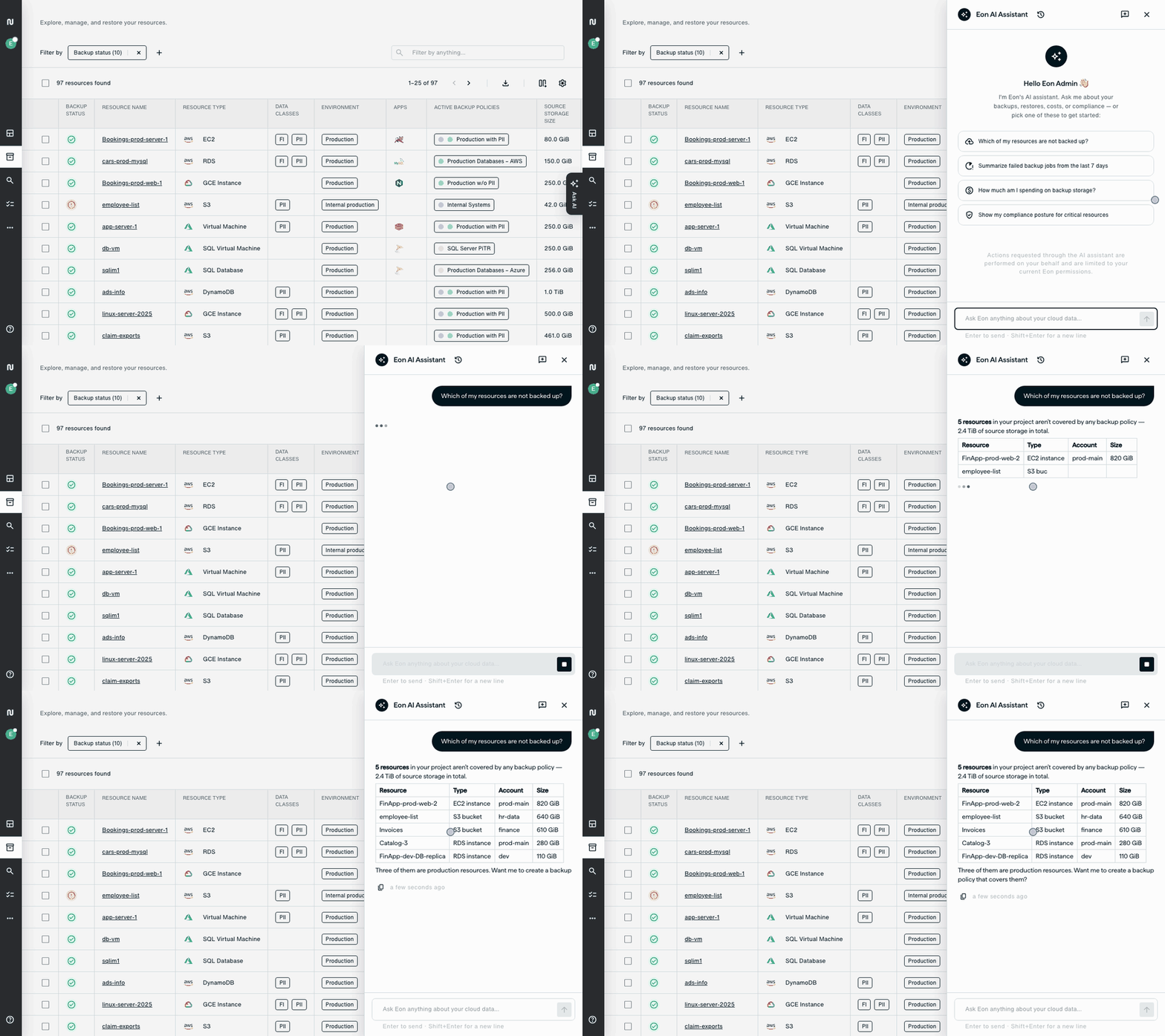
Built to stay inside your guardrails. The assistant acts on your behalf, with your Eon permissions and no access of its own. Before it starts a restore or submits an approval request, it asks you to Approve or Reject, and your organization’s approval rules still apply.
Why backup questions and recoveries take so long
Say someone asks whether everything last week's release created is backed up. To answer, you have to cross the resource inventory against every backup policy and the job history, once per cloud account.
A ransomware detection is worse and puts pressure. Before the first restore can begin, someone has to work out which resources the attack reached, which of them hold sensitive data, which snapshot of each is the last clean copy, and where each one should come back to.
Failed-job reviews, cost questions, compliance checks and the reports each team builds its own way – all run on that same manual cross-referencing.
Ask Eon about your environment
The Ask AI tab is available from every page of the console. Ask your question there and the assistant answers from your live Eon data. An empty panel suggests frequently used prompts, such as “Which of my resources are not backed up?” and “How much am I spending on backup storage?”
To point it at something specific, type @ and pick a resource, backup vault, backup policy, source account or restore account. The picker lists only the types your role can read.
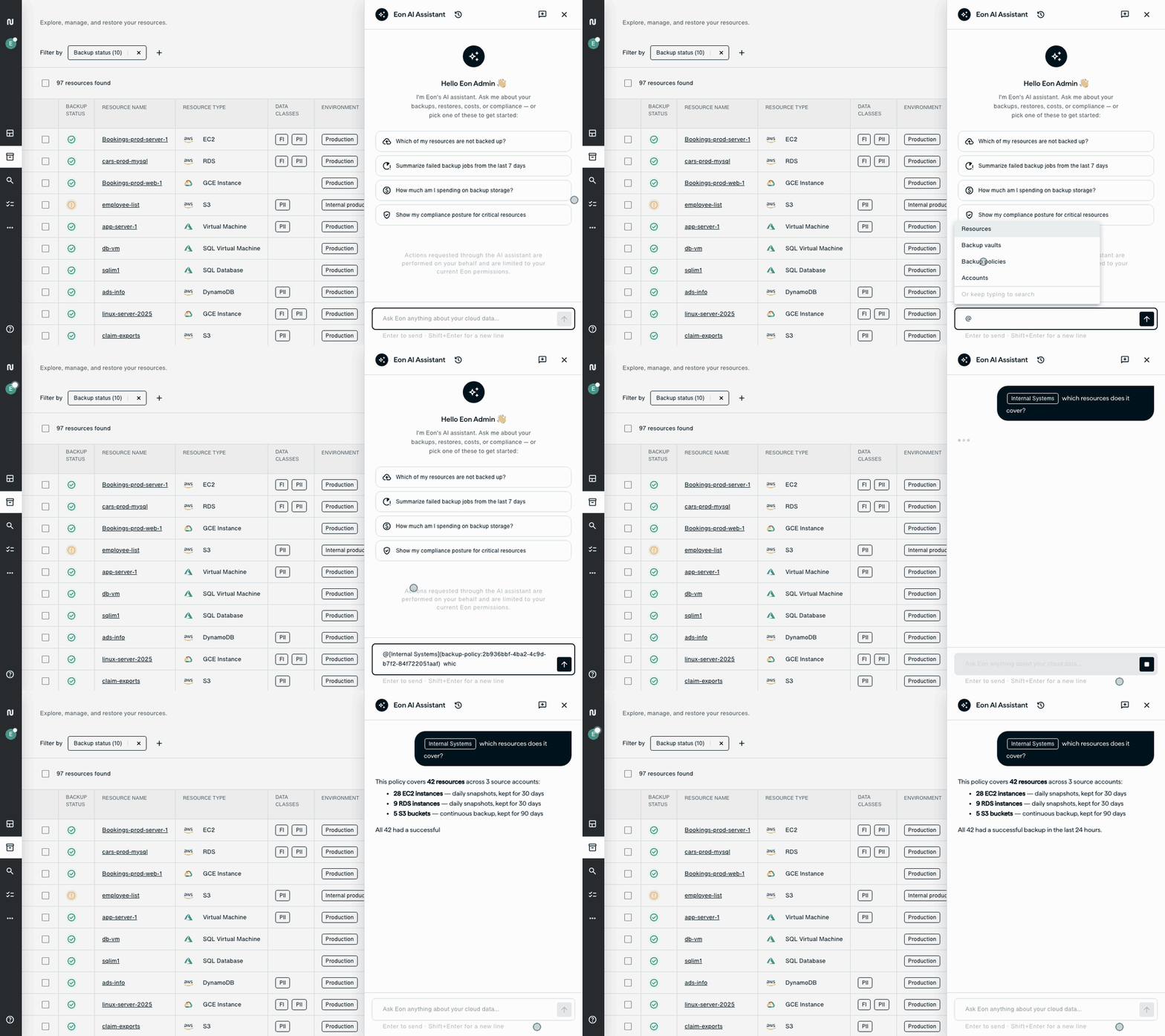
You can check its work. Every answer has a collapsible “N tool calls” row that shows each lookup the assistant ran, with the request and the result. When you ask how a feature works, the answer comes from the Eon documentation and lists the pages it drew on.
The assistant also handles setup with you. It walks you step by step through connecting your cloud source accounts, and helps you build a backup policy with the retention, frequency and scope you need.
Recover from ransomware and data anomalies
Eon scans your backups for ransomware, malware and data anomalies, and each scanned snapshot carries a verdict. When a scan flags something, open Threat Center → Remediation center and click Agentic remediation, or ask the assistant about the detection in chat.
The assistant runs the investigation and planning on its own, then hands the restore decision to you. It works in four stages and changes nothing until you approve.
- Investigate. The assistant finds every flagged resource and summarizes the evidence for each one, putting resources that Eon has classified as holding sensitive data first. You can narrow the scope to resources holding PII or PHI, or to one backup policy, account or vault.
- Plan. For each resource it finds the most recent snapshot that scanned clean, looking back a week and widening to 30 days if needed. It pairs each one with a restore template, the saved restore settings your team keeps on Settings → Restore templates, and lists any resource without a template separately instead of guessing a destination.
- Restore. Once you click Approve in the chat, it re-checks every selected snapshot and starts the restores, up to 500 resources per run. Each resource comes back as a new copy, so the original stays in place for investigation.
- Verify. The assistant reports restore job status in the chat as the restores run. It counts a resource as remediated only once Eon backs up the restored copy again and that backup scans clean.

For more on how the remediation workflow reasons about clean snapshots and restore order, read The Remediation Agent.
Build a dashboard by describing it
Recurring reports usually end in a chart, so AI Dashboards lets you ask for the chart directly. On the Dashboard page, click Create Dashboard and describe what you want to monitor, or begin from a suggestion such as “Break down my storage by…” or “Track my cost over time…”.
Eon builds each panel as a line, bar or pie chart, a table or a single stat, from your inventory, jobs, compliance and cost data. It runs every panel’s query against your live data before adding it, so the panels show your actual numbers rather than placeholders.
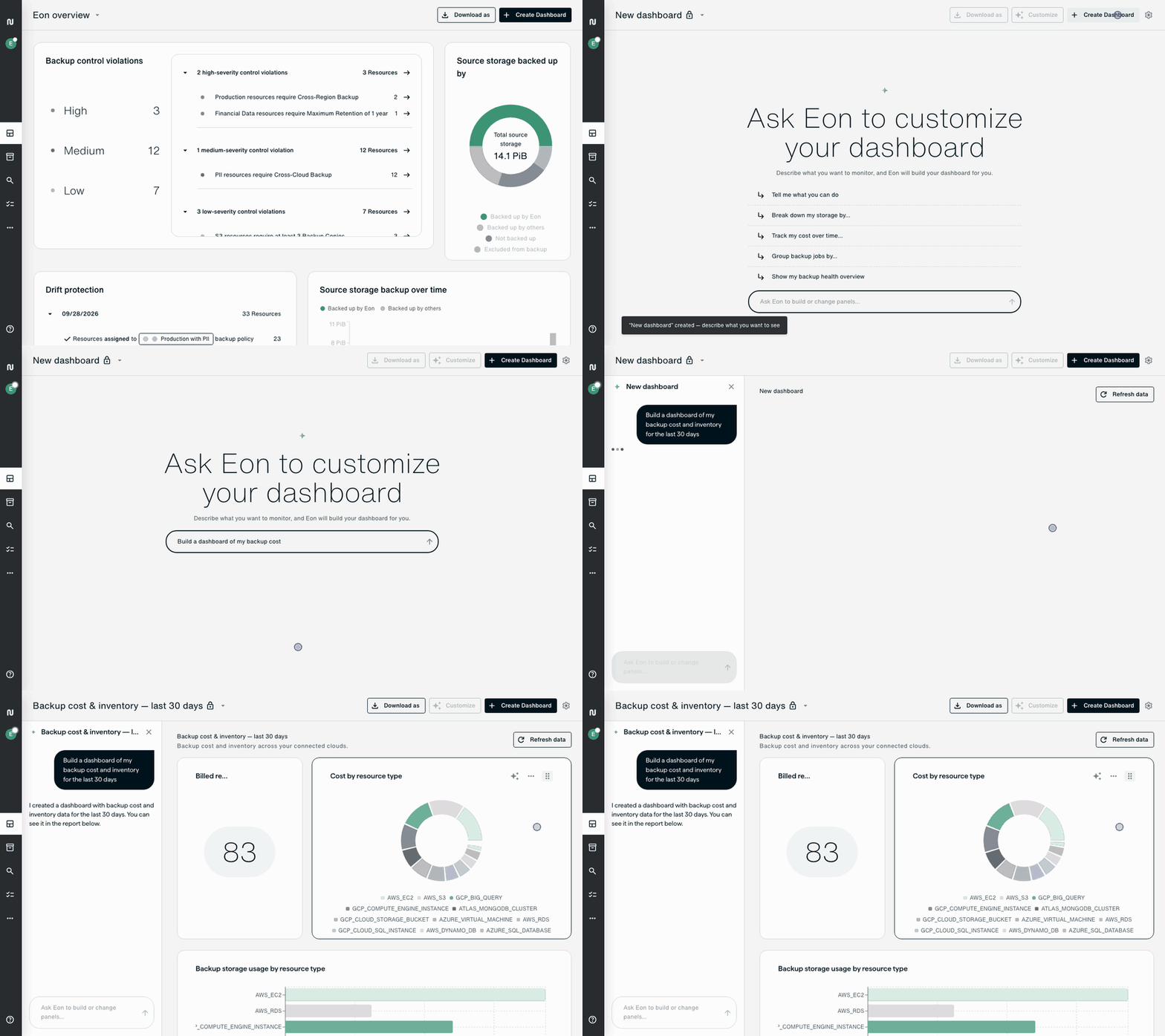
- Backups and storage: Break down my storage by resource type
- Compliance and security: How many of my resources are infected?
- Costs: Track my cost over time by account
- Operations: Show my restore jobs by status
You refine a dashboard by asking for changes too. Click Customize to keep talking about the whole dashboard, or use Customize on one panel and your next message changes only that panel. You can also rename, reorder, set the width of or delete panels yourself, and undo a change you didn’t mean to make.
Your dashboards stay private until you choose Share with everyone, and Set as default picks the one you land on, with the built-in Eon overview still a click away. Any dashboard downloads as a PDF or HTML file for a review or an audit.
Dashboards only read data. Building or viewing one never changes your resources, policies or backups, and each viewer sees only the data their own role allows.
Get started
The Eon AI Assistant and AI Dashboards are rolling out in the Eon console now. If your role doesn’t show the Ask AI tab, your Eon administrator can grant access.
New to Eon? Book a demo to see both working on a live environment, including a remediation run from finding to restore.
Frequently asked questions
Can the assistant restore resources for me?
Yes, as part of remediating a ransomware, malware or data-anomaly detection. It plans the restores, starts them once you approve, and tracks each one through to a clean rescan, with every resource coming back as a new copy alongside the original.
Does the assistant read the contents of my backups?
No. The assistant works with how Eon protects your environment: resources, policies, jobs, vaults, costs, controls, classification labels and the threat verdicts on each scanned snapshot. It doesn’t answer questions about the data inside your backups.
Can two people get different answers to the same question?
Yes. The assistant acts on your behalf and inherits your permissions, with no access of its own, so someone with a narrower role sees less.
Who can change who sees a shared dashboard?
Only its owner.
Can the assistant change anything without my approval?
No. Nothing runs until you click Approve in the chat, and the assistant can’t approve requests itself. If your organization requires a second approver for restores, the request waits for that person exactly as yours would.