

Learning how to back up an EC2 instance takes about 10 minutes in the AWS Backup console. The job turns green, the dashboard says protected, and everyone moves on. The trouble starts at the restore.
We build cloud backup that runs alongside AWS-native protection at hundreds of terabytes. Our work sits between a job marked “Completed” and a restore that works, and that gap is usually made of settings nobody looked at on the way in.
The six steps below follow the console in order. The settings inside them decide what a restore gives you back.
What you'll need before you start
- An AWS account with permissions for AWS Backup, Amazon EC2, and AWS KMS.
- At least one EC2 instance running in the region you plan to work in.
- An IAM role for AWS Backup. If AWSBackupDefaultServiceRole is missing, AWS creates it for you.
- Every resource in one region. A plan protects only the region you build it in, so each additional region means another vault, another plan, and another set of assignments to keep current. Cross-region copy is a rule inside a plan and does not remove that work.
Time required: About 10 minutes to a first completed backup. Add 30 to 40 minutes if you finish Step 6 and time a real restore, which we recommend on the first pass.
How to back up an EC2 instance with AWS Backup
AWS Backup protects an EC2 instance by snapshotting the root volume, every attached EBS volume, and the launch configuration, then storing the set as an EBS volume-backed Amazon Machine Image.
The six steps below follow the console in order.
Step 1: Create the backup vault
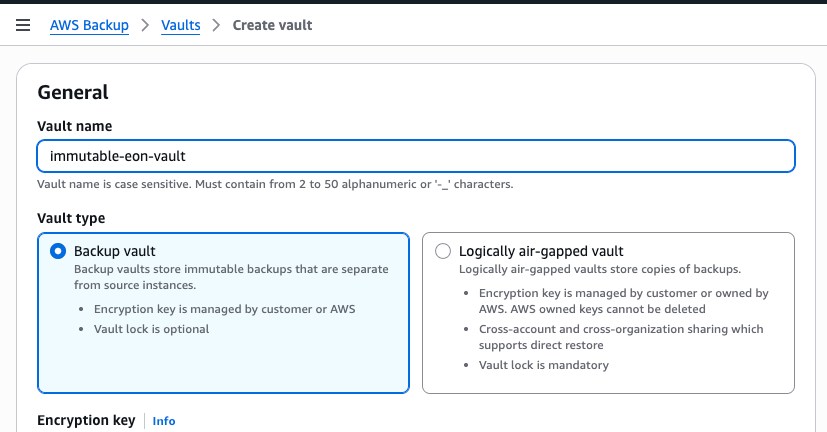
Navigate to AWS Backup > Vaults. Name it, pick a KMS key, and click Create vault.
Order counts. AWS requires at least one vault before you create a plan or start a job. Opening the Backup vaults page automatically creates a Default vault for that region, but no Default vault appears when you work through the CLI, SDK, or CloudFormation.
Vault names run 2 to 50 characters and are case-sensitive. Choose the KMS key carefully, because you can no longer edit it once the vault exists.
Pro tip: The vault's KMS key does nothing for EC2 backups. It covers only services that support AWS Backup independent encryption, and EC2 is absent. AWS Backup reuses the encryption already on the underlying EBS volumes, so set volume encryption at the source.
Keep a Default vault in every region you use. AWS periodically finds orphaned AMIs, meaning AMIs it created that no longer map to a recovery point, and files them in the Default vault as expired recovery points.
Without that vault, those AMIs and their snapshots keep billing with no console surface to delete them from.
What you should see: Your new vault on the Backup vaults page with zero recovery points. With somewhere to write, the plan is next.
Step 2: Build the plan and set frequency against a real RPO
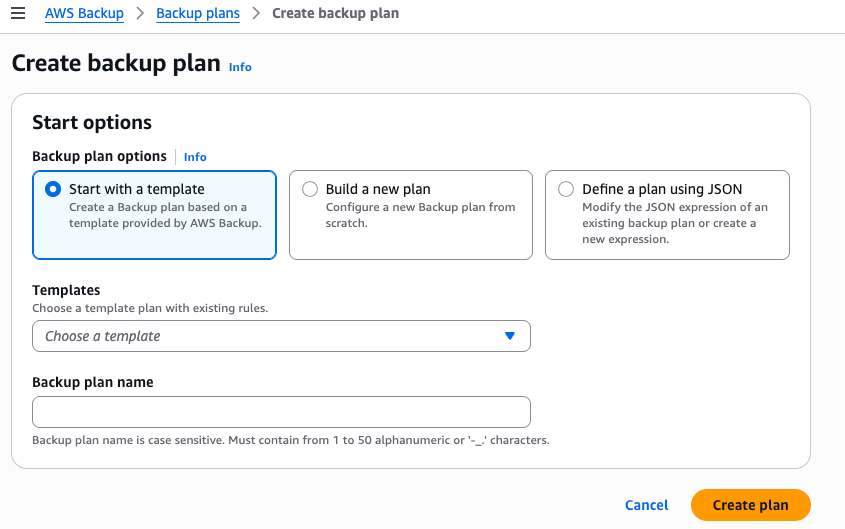
Navigate to Backup plans, then Create backup plan, then Build a new plan. Plan names cap at 50 characters, and rule names run from 1 to 50.
Set the frequency on the backup rule. The console offers every hour, 12-hour, daily, weekly, or monthly schedules, plus cron expressions as frequently as hourly. Hourly is the floor in both the console and the CLI.
Skip the Enable continuous backups checkbox, since it does nothing for EC2. AWS Backup supports point-in-time recovery for Aurora, Amazon RDS, SAP HANA, and Amazon S3. A standard instance is absent from that list.
If your RPO is tighter than an hour, you close it at the application layer or not at all. Eon runs high-frequency policies on EC2 down to every 15 minutes.
The console's default window starts at 12:30 AM local to your system's timezone, with a start within 8 hours and completion within 7 days. A cron expression like 15 * ? * * * backs up every hour at 15 past the hour.
Pro tip: When two rules' start windows overlap, AWS Backup retains only the copy tied to the rule that retains data the longest. An hourly rule sitting behind a 12-hour rule with an 8-hour window yields eight hourly backups per day rather than twenty-four.
Watch the clock change. A plan set to a zone that observes daylight saving can misfire when the clocks jump forward. Switching the plan to UTC costs nothing and removes the problem.
What you should see: The rule saved with your frequency, window, and vault. Jobs sit in CREATED awaiting the window. How long those recovery points survive is the next setting.
Step 3: Set the lifecycle and check what cold storage does to EBS
Set the total retention period in the lifecycle section. Retention runs from a single day up to 100 years, or forever if you leave the field empty.
Cold storage is where this gets specific. Check Move backups from warm to cold storage, and note that EBS qualifies only when your frequency is monthly or less frequent, using EBS Snapshot Archive. EC2 recovery points are entirely absent from the cold list.
Three constraints come attached. Cold storage carries a 90-day minimum on top of the warm period, the transition setting is fixed once a backup moves, and EBS incrementals convert to full after the transition, so cold storage can hold more than warm storage did.
That conversion is why AWS recommends at least 8 days warm. Move a backup to cold too early, and it forces another warm full backup, the opposite of what a cost exercise expects.
Pro tip: Archive the retention nobody restores from and leave the operational window in warm. An archived snapshot has to be rehydrated to the standard tier before anyone can use it.
What you should see: A lifecycle bar showing warm days and cold days summing to your total retention. Retention decides how long a copy lives, and the next setting decides whether it comes back clean.
Step 4: Turn on Windows VSS if the workload qualifies
By default, AWS Backup creates crash-consistent backups of the EBS volumes attached to an instance, snapshotting every volume at the same moment. It never reboots the instance.
For a web server, that's fine. For a database mid-write, a crash-consistent copy boots into crash recovery, and you find out then whether it comes back clean.
Install and configure the SSM agent, add an IAM policy to the instance's role, and install the VSS components. Then choose Windows VSS under Advanced settings.
Six instance types are too small to capture a VSS backup reliably and are excluded outright: t3.nano, t3.micro, t3a.nano, t3a.micro, t2.nano, and t2.micro.
Pro tip: Malware scanning lives in this same part of the plan. AWS Backup integrates with Amazon GuardDuty to scan recovery points across EC2, EBS, and S3, with incremental or full scan options. It needs its own IAM roles.
What you should see: Windows VSS selected under Advanced settings, available only once EC2 is the assigned resource type. Consistency settings do nothing on an instance the plan never picks up, which is what the next step decides.
Step 5: Assign the instances and verify on Protected resources
In Assign resources, pick one of two options under Define resource selection. Include all resource types protects all current and future supported resources. Including specific resource types lets you assign types and exclude individual resource IDs.
Either way, narrow with Refine selection using tags, where conditions run Equals, Contains, Begins with, or Ends with, plus their inverses. Two tags mean AND, so env: prod and role: application assign only resources carrying both.
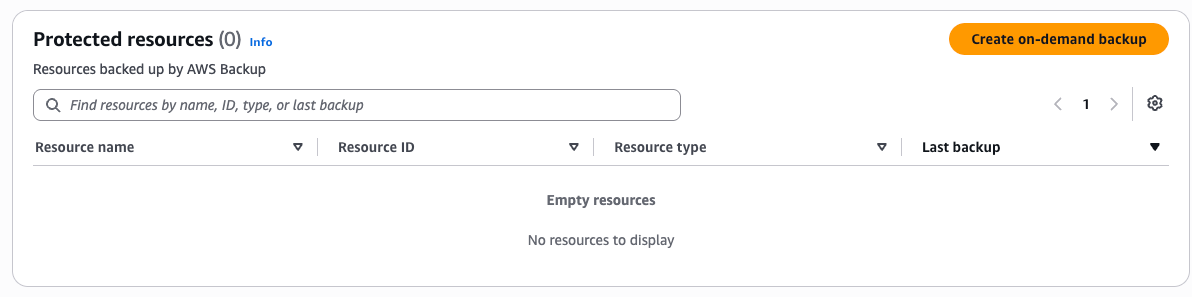
Assignment alone confirms nothing. The Protected resources page lists only resources that have been backed up at least once, even for a resource in a plan that hasn't run yet.
Run an on-demand backup now rather than waiting overnight to learn the tag was wrong. Choose Protected resources, then Create on-demand backup, then EC2, then your instance ID.
Pro tip on service opt-in: Under Settings > Configure resources, opt-in toggles govern tag-based assignment only. A resource type explicitly assigned to a plan is included even when opt-in is off, with Aurora, Neptune, and Amazon DocumentDB as the exceptions.
An account also opts into every resource type supported at the moment it first uses AWS Backup in a region. Services added later are not included automatically, so an account older than a service launch carries a hole nobody ticketed.
Pro tip on tag permissions: On tag-based assignment, AWS processes every resource carrying the selected tags. If it lacks permission to access one of them, the whole backup plan errors out. A single mistagged instance takes the plan down with it.
What you should see: Your instance on the Protected resources page, and a job in the Jobs list moving to Completed. That is the setup done, and the last step is the one nobody runs.
Step 6: Restore once, on purpose, and time it
Choose Protected resources, the EC2 resource ID, a recovery point, then Restore.
AWS Backup prefills Network settings from the protected instance, covering instance type, VPC, subnet, security group, and IAM role. It copies tags to the restored resource by default. Adjust, then choose Restore backup.
Three details on the restore page decide whether the restored instance is usable, and none of them are obvious from the defaults.
- The key pair is fixed. AWS Backup gives the restored instance the same key pair that the original used, and you cannot specify a different one during the restore. Losing the key means losing access to the restored instance.
- User data is a two-parter. AWS Backup does not back up or restore user data. UserData does appear in the metadata start-restore-job accepts, so you can supply it at restore time if you kept a copy elsewhere.
- The instance profile resets. You pick the original instance profile or none, which AWS does to prevent privilege escalation. Reusing the original needs iam:PassRole granted against that role's ARN.
Pro tip: Cross-account and cross-Region restores fail on KMS more than anything else. If source volumes use keys your account or destination region cannot reach, set encrypted to true and override the KMS key in BlockDeviceMappings. Test this before you need it.
What you should see: A restore job in the Jobs list, then a new instance in the EC2 console. Write down how long it took, because that number is your real RTO.
Common EC2 backup mistakes to avoid
These are the problems that survive a green dashboard.
- Reading "Completed with issues" as a warning: AWS treats VSS inclusion as best-effort, so a Completed status does not guarantee the VSS portion succeeded. Completed with issues means you hold a crash-consistent copy, and you find that out when a database restore starts with engine recovery.
- Assuming the tag caught everything: Tags are configuration, and configuration drifts. An instance launched by a pipeline that skipped the tag block is invisible to a tag-based plan, and the console will never raise a hand. Nobody finds it until an incident or an audit asks for that data.
- Expecting user data to come back: It won't. Whatever your launch script did at first boot is yours to store elsewhere, in version control or a parameter store.
- Planning cross-account copies for Marketplace instances: An instance launched from a Marketplace AMI carries a product code, and so does any AMI made from it. EC2 blocks copying such an AMI to another account, so the copy into your isolated recovery account never lands.
- Locking snapshots past their lifecycle: When EBS Snapshot Lock duration exceeds the backup lifecycle, recovery points land in EXPIRED in place of being deleted. They stay billable until someone removes the lock by hand, so the storage line grows on data your retention policy already released.
- Expecting deletions to be instant: Expired backups are deleted at a randomly chosen point within the next 8 hours. If your storage forecast assumes they disappear on the expiry date, you are paying for up to a day you did not budget for.
5 ways to back up an EC2 instance and what each one captures
Five paths exist. Four are native to AWS and the fifth sits above them, and the choice comes down mainly to who maintains it.
AWS Backup
Policy-based orchestration across services, with backup plans, vaults, retention, and cross-account copy. This is the path the six steps above follow.
Vault Lock in compliance mode carries a grace period of at least 3 days. Once it expires, neither an account user nor AWS itself can alter or delete the lock or the vault.
EBS snapshots with Amazon Data Lifecycle Manager
Amazon Data Lifecycle Manager automates snapshot management for EC2 instances and their attached volumes, with cross-region copy and fast snapshot restore policies. It's an included feature of EC2 and EBS, with no charge for the service itself.
AWS Backup differs on scope. A single plan can span resources across multiple AWS services, and not block storage alone.
If your volumes sit in a RAID array, use the CreateSnapshots API. Multi-volume snapshots remain data-coordinated and crash-consistent across volumes within an instance, and restoring an array from out-of-sync snapshots degrades its integrity.
Creating an AMI
An AMI captures machine information, such as the virtualization type, and snapshots of each attached volume, including device mappings, so the instance returns to the same configuration. AWS recommends using an AMI when the goal is to restore an entire instance.
Creating an AMI from the console reboots the instance by default, which makes the image application-consistent. Check No reboot to skip the downtime, and you get a crash-consistent image, the same tradeoff Step 4 covers for AWS Backup.
On a live database, that one checkbox decides whether the restore starts clean or starts with engine recovery.
Licensing is the sharp edge. AMIs for Windows, Red Hat, SUSE, and SQL Server require correct licensing information, and RegisterImage derives billing information from the snapshot's metadata.
Check the Platform details field afterward, since an empty or mismatched value means the AMI creation did not complete. Skip Sysprep if the AMI exists for backup, and you want the same instance back intact.
Scripting exports to S3
The custom path, usually EventBridge driving Lambda or Step Functions to move image data into S3 and down through storage classes.
It buys storage economics and event-driven triggers, and it costs you an owner. Every script here needs testing, alerting, and someone who still understands it after they change roles.
Managed cloud backup platforms
A layer above the native services, connected by an IAM role, that discovers resources and applies retention policy without a plan to maintain per region. The trade is a vendor relationship and a second control plane, against less administration inside AWS.
Backing up the whole instance or only the database
This is the question most people bring to us, and it deserves a framework. Three axes decide it:
- RPO: An EC2 backup tops out at hourly, so instance-level protection alone accepts up to an hour of lost writes. RDS restores to the last 5 minutes and Aurora to LatestRestorableTime, but reaching those numbers means moving the database onto a managed engine. For a workload staying on EC2, tighter RPO comes from the database itself, through log shipping or replication.
- Restore unit: Instance backup restores an instance. When a bad migration corrupts four tables, that unit is far larger than the damage, and recovery means standing up a replacement, extracting what you need, then tearing it down.
- Blast radius: A self-managed database on EC2 has no native application-consistent backup unless it runs Windows with a registered VSS writer. Linux Postgres and MySQL give you crash consistency, so the engine runs recovery on startup and you learn then whether the snapshot was clean.
One database engineering director interviewed for Eon's 2026 Cloud Data Infrastructure Report described what the wrong unit costs: "Our restore takes about 12 hours. We have to download the S3 backups and then restore on each database. It's painful."
In practice, the answer is usually both, at different frequencies. Protect the instance from configuration and operating system changes. Protect the data at the data layer, where RPO and restore units align with the workload.
What an EC2 restore hands back to you
An EC2 restore returns an instance. That is the unit, and everything else is a workaround built on top of it.
AWS added search and item-level recovery for EBS snapshots and S3 backups, which closes part of the gap. Four conditions come with it.
- You must build a backup index first, and each index on an EBS recovery point is full rather than incremental. Recovery points in an AWS Backup logically air-gapped vault do not support indexes, so your most protected copies are your least searchable.
- Each restore is capped at five items. Those items land in an S3 bucket, leaving you to copy them back to the volume yourself.
- Cold storage adds its own tax. Restoring an archived EBS snapshot means rehydrating it from the EBS Snapshots Archive tier first, which AWS lists as having an RTO of up to 72 hours.
- The alternative is sizing recovery to the damage rather than to the resource. Eon restores instances and volumes from its own copy of the data, with no index for you to build first.
NETGEAR, which runs large SQL Server databases across its AWS EC2 footprint, cut recovery time for a 10TB database from as long as 24 hours to under 3 hours.
Where EC2 backup cost comes from
AWS Backup is free as an orchestration layer, and everything underneath it is billed. The pricing spreads EC2 backup across more lines than most forecasts account for.
- Warm storage for EBS snapshots runs $0.05 per GB-month in US East (N. Virginia).
- Cross-region copies add $0.02 per GB for EBS, billed to the sending account, while storage bills to the receiving account.
- Backup indexes cost $0.20 per million files indexed and $0.02 per million items stored monthly, with searches at $0.07 per million items.
- File-level restores from indexed EBS snapshots run $0.03 per GB.
- Restore testing costs $1.50 per recovery point evaluated, plus the storage restored during the test.
Then come the lines with no invoice code: orphaned AMIs holding snapshots, recovery points stuck in EXPIRED behind a snapshot lock, archived EBS that converted from incremental to full and now stores more than it did when in warm storage.
Each is small, but together they explain why the backup bill never matches the estimate.
Cost pressure has a measurable downside.
63% of the cloud IT leaders and managers surveyed in Eon's 2026 report said high storage costs force them to retain or protect less data than they should.
PULLOUT: 63% say high storage costs force them to retain or protect less data than they should.
NETGEAR hit the same wall from the cost side. After eight years on a legacy provider, moving to AWS left them with no clear view of what protection actually cost by resource or application.
Consolidating on Eon cut backup storage costs by 35% and gave them spend visibility by instance, application, and team.
Keeping coverage intact as the account grows
Coverage that holds for one instance and one plan breaks across many accounts, with no warning from the console.
Three things drift at scale. Opt-in never expands on its own, so any service AWS launched after the account's first use stays uncovered. Tags depend on every pipeline applying them correctly forever, and the one a pipeline skips stays invisible. And assignment is not protection, since Protected resources only reflects what has run at least once.
Then there are the limits you cannot configure your way out of. AWS publishes a set of backup quotas marked as not adjustable, and four of them shape how a large environment has to be laid out.
- 100 resource assignments per backup plan. Past that, you split the plan and maintain both.
- 500 ARNs per resource assignment when you list resources explicitly without wildcards.
- 30 tags per resource selection, so a broad tag strategy splits across multiple assignments.
- 20 recovery points per search job, which caps the item-level search AWS built for this same problem.
Those four shape how you lay the environment out. A second set decides how fast a recovery runs once you need one.
- 5 concurrent snapshots per volume on gp2, gp3, io1 and io2, and 1 on sc1.
- 20 concurrent snapshot copies per destination Region, so a cross-region copy fan-out queues behind that number rather than running at once.
- 5 concurrent restores from the archive tier per account, which stacks on top of the 72-hour rehydration window.
Nobody hits these protecting one instance. They surface the first time a fleet has to move at once, which is the day your RTO is being measured.
The confidence gap here is wide and well measured. According to Eon's 2026 report, 61% of respondents said coverage gaps tend to surface only in hindsight, after a failed restore, an audit finding, or a live incident.
This is the problem Cloud Backup Posture Management (CBPM) was built for. The vault, plan, tags, opt-in toggles, IAM roles, and VSS prereqs the six steps just walked through collapse into a single read-only role. Eon discovers resources as they're created and assigns policy from what the resource is, not from what its tags claim.
A new EC2 instance picks up the right policy on creation, with no tag to drift and no opt-in to miss.
For the AWS-native side of the same problem, these AWS Backup best practices cover the controls worth setting first.
Where to start
Knowing how to back up an EC2 instance is the ten-minute part. The work sits around it, in the consistency model that decides whether the database comes back clean, and the restore path that decides your real RTO.
Native protection makes you pick a side on three things: an hourly snapshot floor or a tighter RPO, tag-based coverage or the labor of keeping tags correct, and retention you can restore from quickly or retention you can afford. Eon takes that tradeoff off the table.
Run Step 6 on a workload that counts, time it, and compare that number to the one in your runbook.
When your on-call engineer needs one file back from a 10TB instance at 2am, what does your recovery path make them do first?
If the honest answer starts with launching a replacement instance, book a demo and see how Eon handles high-frequency policies on EC2, policy assignment without tags, and recovery scoped to what actually broke.
Frequently asked questions
How do I backup an EC2 instance?
You back up an EC2 instance by creating a backup vault, building a backup plan with a frequency and retention period, then assigning the instance by resource ID or tag. AWS Backup snapshots the root volume, every attached volume, and the launch configuration as an AMI recovery point.
What is the difference between an EBS snapshot and an AMI?
The main difference between an EBS snapshot and an AMI is scope. A snapshot captures one volume at a point in time. An AMI captures machine information plus snapshots of every attached volume with their device mappings. Restoring a full instance needs an AMI.
Does AWS Backup back up EC2 instances automatically?
No, AWS Backup does not back up EC2 instances automatically. Nothing is protected until you create a backup plan and assign resources to it. A resource assigned to a plan still shows nothing on Protected resources until a job has run once.
How much does it cost to back up an EC2 instance?
Warm EBS snapshot storage runs $0.05 per GB-month in US East (N. Virginia), with AWS Backup charging nothing for orchestration itself. Cross-region copies add $0.02 per GB for EBS, and restore testing runs $1.50 per recovery point evaluated.
Can AWS Backup take application-consistent backups of Linux instances?
No. Application consistency through AWS Backup runs on Windows VSS only, and requires the SSM agent, an IAM policy on the instance role, and the VSS components installed. Linux instances get crash-consistent snapshots, so the database engine runs recovery on startup.
How often should I back up an EC2 instance?
Back up an EC2 instance as often as your RPO requires, knowing AWS Backup snapshots cap out at hourly in both the console and the CLI. EC2 has no continuous backup or point-in-time restore, so tighter RPOs need protection at the application or database layer too.



.jpg)