

Why AWS S3 backup is more than storage
S3 gives you 99.999999999% (11 nines) durability, with data replicated across three Availability Zones. That's a strong foundation. But durability and protection are not the same thing.
As Amazon CTO Werner Vogels famously put it:
"Everything fails all the time."
The question is whether you've done enough to protect your resources when it does.
Anthony Fiore, Senior Storage Specialist at AWS, takes it further:
"Durability doesn't mean immunity from threats."
Under the AWS Shared Responsibility Model, AWS secures the infrastructure. You secure what's in it. That means configuring your own access controls, backup policies, and recovery safeguards. AWS gives you versioning, Object Lock, and AWS Backup. None of them are on by default, and none of them manage themselves.
This is where teams get in trouble: ownership is distributed, buckets keep appearing, and manual coverage checks do not scale. Native controls can protect an object. They do not tell you whether your overall backup posture is healthy.
The three risks that actually take teams down:
- Accidental deletion: objects disappear the moment a script or user deletes them, unless versioning is enabled
- Ransomware: attackers can encrypt or wipe an entire bucket if IAM permissions are not locked down
- Compliance violations: one unprotected workload can mean a failed audit in regulated industries
Learn how Eon protects your S3 environment from ransomware.
What you'll need before protecting your S3 backups
Get these in place before you touch AWS Backup:
- S3 Versioning enabled on every bucket you plan to back up (AWS Backup won't work without it)
- IAM (Identity and Access Management) permissions: add
AWSBackupServiceRolePolicyForS3BackupandAWSBackupServiceRolePolicyForS3Restoreto your backup role - Estimated time: 30-60 minutes for initial setup
AWS S3 backup best practices: step-by-step protection guide
This is a practical setup guide for teams configuring AWS-native S3 backup controls, not a full implementation runbook.
Step 1: Enable S3 Versioning
S3 Versioning preserves every version of every object, including deleted ones. It's your first line of defense against accidental overwrites, and it's required before AWS Backup will work.
Enable it in your bucket's Properties tab in the S3 console, or via CLI:
Pro tip: Set a lifecycle expiration rule immediately after enabling versioning. Without it, every version of every object is stored indefinitely at full price. I've seen a 1GB file updated daily for a year quietly build up 365GB in storage charges before anyone noticed.
Step 2: Set up S3 Object Lock (WORM)
S3 Object Lock stops anyone from deleting or overwriting your data during a set period. It enforces Write Once, Read Many (WORM) at the object level, which is exactly what you need for ransomware protection and compliance. Where it sits relative to Vault Lock and the other WORM controls is compared in our guide to AWS immutable backups.
You have two modes to choose from:
| Mode | Who Can Override |
|---|---|
| Governance | Users with specific IAM permissions |
| Compliance | Nobody, not even root |
Use Compliance mode for regulated data (GDPR, HIPAA, PCI). It’s the strongest protection AWS offers. For regulated or highly sensitive data, Compliance mode is often the safer choice, but teams should weigh the operational tradeoffs before defaulting to it everywhere.
Critical: Object Lock must be enabled at bucket creation. You can't add it to an existing bucket. Plan this before you spin up production buckets.
Step 3: Configure Cross-Region Replication (CRR)
Cross-Region Replication automatically copies your S3 objects to a bucket in another AWS region. If your primary region goes down, your data is already somewhere else.
Set it up under your bucket's Management tab or via the CLI's replication configuration.
Two things I find that most guides miss:
- CRR only copies objects created after it’s enabled. Existing objects don't replicate. If you need old backups in the destination bucket, copy them manually.
- Lifecycle policy actions don't replicate. If you use a lifecycle policy to move objects to Glacier in the source bucket, you need to create the same policy in the destination bucket separately.
Step 4: Create a backup plan in AWS Backup
AWS Backup centralizes and automates your S3 backup schedule. You build the plan first, then assign resources to it. Plan design is where most of the avoidable mistakes happen, which is why we set out the AWS Backup best practices separately.
- Go to AWS Backup > Backup plans > Create backup plan
- Name your plan clearly (e.g.,
s3-weekly-backup) - Set backup frequency: hourly, daily, weekly, or custom cron. Weekly works for most archival use cases
- Set a completion window: if the job doesn't finish in time, it's skipped entirely rather than retried. Size this to your data volume
- Set retention: AWS keeps a rolling window. 28-day retention means only the last 28 days are kept
- For long-term data (5-6 years), configure lifecycle rules to move older backups to cold storage automatically
- In larger environments, separate vaults by application or sensitivity tier can make access control and cost tracking easier. A vault is where AWS Backup stores your recovery points, with its own encryption and access policies. Don't mix workloads in one vault; it makes cost tracking and access control a mess.
Pro tip: Choose KMS (Key Management Service) encryption over the default option. With KMS, you control the key. Default encryption is sufficient for low-risk data, but it's not enough for regulated data. In my experience, teams that skip KMS early end up migrating to it later anyway. Encryption is one control among several, and the full set sits in our guide to securing cloud storage.
Once the plan is created, assign your S3 buckets as resources. You can also exclude specific prefixes or objects if needed.
Step 5: Lock down IAM permissions and vault security
This is the step I see most teams skip, and it's where ransomware does the most damage. I've reviewed environments where teams had solid S3 configs but left their backup vault wide open.
If an attacker compromises your AWS account, they target your S3 buckets and your backup vault. If your vault is accessible to standard IAM users, it can be wiped out like any other resource.
Fiore reinforces this: “Customers are responsible for managing access to their data, setting the right permissions, and ensuring compliance with industry regulations.”
Option 1: Add a Vault Access Policy
Restrict vault access so only the root user can delete recovery points. Explicitly deny all other IAM users. This works well for teams that may need to delete the vault later.
Option 2: Enable Vault Lock
Vault Lock is the strongest protection available for your backups.
| Vault Lock Mode | What It Does |
|---|---|
| Governance Mode | Specific IAM users can still modify the vault |
| Compliance Mode | Nobody can modify or delete the vault, not even root |
Compliance Mode makes your vault completely immutable. In regulated or high-risk environments, it’s often the stronger choice, but teams should be clear on the operational consequences before locking it in.
Warning: Once you save a vault access policy that prevents editing, you can't edit it again. This is by design. An attacker with IAM credentials could remove the restriction and delete the vault. Think carefully before saving.
Step 6: Enable GuardDuty malware protection for S3
Most backup guides stop at Step 5. This is the layer they miss.
Versioning and Object Lock protect your backups after data is stored. GuardDuty stops malware from entering your backup pipeline before it gets backed up.
If you're receiving data from multiple sources (user uploads, third-party pipelines, external feeds), some of it may not be clean. GuardDuty scans objects at upload time and flags infected files before they are included in your backup.
How it works:
- GuardDuty scans each new object as it's uploaded to your monitored buckets
- If malware is detected, GuardDuty tags the object; it doesn't delete it automatically
- Clean objects also get tagged, giving you proof of scan and proof of clean status
- EventBridge and Lambda can then automate quarantining: infected files go to an isolation bucket, clean files move to a clean bucket, with no human steps needed
Setup: Go to GuardDuty > Settings > Malware Protection for S3, select the buckets to scan, assign a role with the required trust policy, and enable.
Limitation: GuardDuty does not scan objects over 5GB. If your backups include large files, plan for this gap.
GuardDuty adds scanning and request-based costs, so check current AWS pricing for your region before enabling it broadly.
The harder problem: immutability doesn't mean clean.
Here's what most teams miss after setting up GuardDuty and Object Lock: you have immutable copies, but you don't know which ones are safe to restore. An attacker who encrypted objects before your backup ran will have those encrypted versions preserved, immutably, alongside your clean data. Immutability protects against deletion. It doesn't tell you which recovery point is actually usable.
This is where S3 backup needs a different approach. Object storage attack patterns are distinct from block storage: mass overwrites, version flooding, policy tampering, and staged encryption across prefixes are all signals that file-level tools aren't built to catch. Recovery confidence for S3 requires identifying clean recovery points before you restore, not after.
Eon's ransomware protection is built specifically for this. It monitors for object storage-specific attack signals, maintains a logical air gap to ensure backups survive an account compromise, and surfaces clean, verified recovery points so you're not guessing under pressure. See how Eon closes ransomware backup gaps.
Step 7: Set lifecycle policies on every versioned bucket
Without a lifecycle policy, every object version builds up indefinitely at full S3 Standard pricing. Set an expiry rule that matches your real recovery window, not your ideal one.
If you realistically need 30 days of recovery history, set the expiry to 30 days. Keeping everything forever compounds silently and costs more than most teams expect. I've audited environments where this single misconfiguration drove six-figure storage bills.
You can also use lifecycle rules to move older backups to cheaper tiers automatically:
- Move to S3 Standard-IA after 30 days
- Move to S3 Glacier after 90 days
- Move to Glacier Deep Archive for long-term archival (5+ years)
AWS's warm storage tier for backup data can reduce long-term costs by up to 30%.
Eon helps teams cut S3 backup waste by continuously showing what actually needs protection, what can be tiered down, and where duplicate or unnecessary backup spend is building up. See how Eon automatically manages S3 storage costs.
Step 8: Test your restore process
A backup you've never tested is a backup you can't trust. I run restore drills quarterly with every team I work with, and at least half discover a gap the first time they try. Regular restore testing is one of the most overlooked best practices for S3 backups.
In AWS Backup, restoring is straightforward: go to your vault, select a recovery point, pick a restore option (full bucket, specific object, or time-based), and run the job.
The catch: full-volume restores are expensive. Egress fees apply to every GB you pull back. If you need a few objects or a specific prefix back, restoring an entire 400GB environment is the wrong tool for the job.
Pro tip: Eon's granular restore lets you recover specific files or objects without pulling back the entire environment.
Common AWS S3 backup mistakes to avoid
Relying on versioning alone
Versioning is not a backup. It keeps object history within the same bucket. If the bucket is deleted, the account is compromised, or a regional failure occurs, versioning won't save you. You need AWS Backup alongside it.
Skipping lifecycle expiration on versioned buckets
Every version is stored at full price until you tell S3 to delete it. This is one of the most consistent sources of surprise bills. Set the expiry rule the moment you enable versioning. Don't wait.
Leaving new resources unprotected
Cloud environments constantly add infrastructure. Every new S3 bucket not assigned to a backup plan runs completely unprotected. Manual scripts miss resources, and most teams have no reliable way to confirm which buckets are actually covered right now. Most find the gap during a restore. This is the real posture problem. Good looks like policies following resources automatically, with continuous discovery and enforcement so new buckets don’t quietly fall outside protection.
Storing CloudTrail logs in the bucket where they log
This creates an infinite loop: CloudTrail logs an event, which creates a new object, which triggers another log. The result is unexpected charges that compound fast. Always deliver CloudTrail logs to a separate target bucket.
Mixing all workloads in one vault
One vault for everything makes cost tracking nearly impossible and complicates access control. Create separate vaults per application. It takes five minutes and saves hours of billing audits later.
Eight gaps native AWS Backup leaves open
The eight steps above work. But here's what happens once your environment gets big, messy, and fast-moving: native AWS backup starts to create more problems than it solves.
Coverage gaps you can't see
AWS Backup coverage depends on manual tagging and account-by-account configuration.
As environments grow, teams lose the ability to confidently answer one basic question: what's actually protected right now?
Innago hit the same wall, where mis-tagged EC2 resources created blind spots and left Kubernetes backups completely invisible.
Too much manual work
Native AWS backup creates significant operational drag: manual tagging, manual checks, custom alerts, log exports, and account-by-account management.
Compliance that's slow to prove and slow to change
For regulated teams, "we have backups" is not enough. You need to prove backups are running, retained correctly, and aligned to policy.
SoFi had another version of the same problem: retention changes across five AWS regions could take hours or days, which is rough when compliance requirements shift quickly.
Recovery that's slower than you need
Native snapshots are typically inaccessible until full restore.
SoFi experienced this firsthand: a prior outage in which native snapshot limitations contributed to a full-day recovery delay. Innago called out the same thing: manual restore made it hard to trust that restores would actually work when needed. Both teams moved because they needed faster, more reliable recovery, not just copies sitting somewhere.
Cross-region and multi-account control that's hard to enforce
CRR and AWS Backup work reasonably well in smaller setups. The pain starts when you need to enforce a consistent policy across many accounts, teams, or regions.
Innago found that cross-region backup requirements were hard to enforce and even harder to detect at scale. SoFi had fragmented backups across five AWS regions and needed a single automated layer to bring them all together.
Costs that grow without visibility
Native tools make it hard to know what actually needs long-term protection versus what can be excluded or tiered down.
Innago cut AWS backup costs by 40% after eliminating blind spots and centralizing control.
See how Eon reduces S3 backup costs.
Backups that are hard to use, not just hard to manage
Most teams think of backups as insurance: something you set up, store somewhere, and hope you never need. That framing is the problem.
A backup sitting in cold storage behind a full-restore process is actively limiting. Your backup data already contains a complete, timestamped record of your environment: transactions, configurations, database states, and file histories. Treating it as a locked archive means that the value sits idle until disaster strikes. That is the case against treating cold storage backup as a write-once archive rather than a queryable tier.
The stronger position is that backup data should behave like active infrastructure, not dead storage: searchable, queryable, and usable the moment you need it, without a full restore standing in the way.
Security teams should be able to search across snapshots during an incident in minutes. Data teams should be able to inspect historical object data for analytics or audit without waiting for a full restore. That's the model Eon is built around: backup data that is searchable, queryable, and immediately useful without rehydration or ETL.
Ransomware readiness that stops at immutability
Immutability is table stakes, not the finish line. Teams also need a logical air gap, anomaly detection, and a way to identify clean recovery points before restore.
See where ransomware backup gaps show up in practice.
Beyond native AWS backup: posture, recovery confidence, and usable data
Most teams arrive at Eon after hitting the same wall: native AWS tools cover individual objects well, but can't answer whether the overall backup posture is healthy.
See a full comparison of Eon vs. AWS Backup.
Backup posture across your whole environment: Native AWS tools do what they're designed to do: version objects, lock buckets, replicate across regions. What they can't do is tell you whether your backup posture is healthy across a dynamic, multi-account environment.
Eon's Cloud Backup Posture Management (CBPM) continuously maps and classifies every S3 bucket, database, and compute resource, with no manual tagging required. New resources enter backup scope automatically, coverage gaps surface before they become incidents, and you always know what's protected.
That is the difference between having backup features and having backup posture: one protects copies, the other continuously enforces coverage and shows what’s protected, what isn’t, and why.
Knowing which recovery point is actually clean: Immutability stops attackers from deleting your backups. It doesn't tell you which recovery point is actually clean. An attacker who encrypted your S3 objects before your backup ran will have those encrypted versions preserved alongside your clean data, immutably. Eon monitors for object-storage-specific attack signals: mass overwrites, version flooding, policy tampering, and staged encryption across prefixes.
It maintains a logical air gap so backups survive full account compromise, and it surfaces verified clean recovery points before you restore. For S3 specifically, that means you restore with confidence, not guesswork. See how Eon closes ransomware backup gaps.
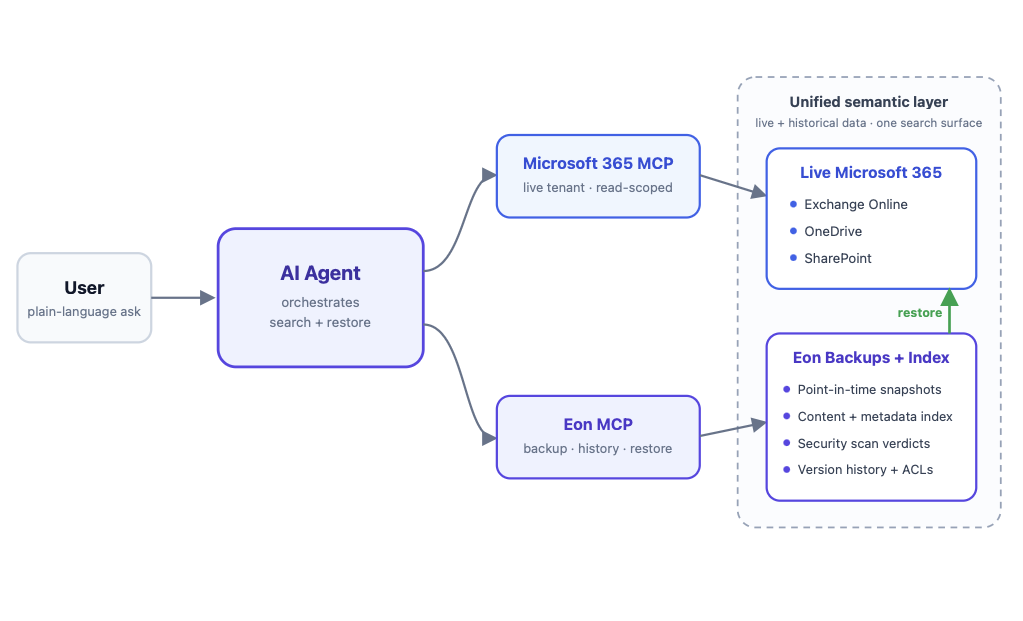
Backup data you can actually use: Eon makes S3 backup data searchable and queryable without a full restore so that security teams can investigate faster and data teams can work from historical records without building extra ETL on top of backup storage.
The results in practice: SoFi automated multi-region resilience across five AWS regions with Eon. Recovery time dropped from a full day to under five minutes. CJ Keefe, Director of Corporate Infrastructure, reported over 100% ROI in the first year.
Innago eliminated backup blind spots, gained full visibility into Kubernetes backups, and cut AWS backup costs by 40% after centralizing control with Eon.
The bar isn’t “we turned on versioning.” The bar is knowing what’s protected, what’s drifting, and whether you can restore cleanly without a war room.
Want to know where your S3 backup posture has gaps? Book a free S3 backup posture review, and the team will walk through your environment's coverage, recovery confidence, and ransomware readiness.
Frequently asked questions
What is AWS S3 backup?
AWS S3 backup is the process of creating protected, recoverable copies of your S3 data using AWS Backup or native S3 features like versioning and replication. It protects against accidental deletion, ransomware, and regional failures; risks that S3's built-in durability doesn't cover on its own.
Is S3 Versioning the same as a backup?
No, S3 Versioning is not the same as a backup. Versioning keeps object history within the same bucket, but it doesn't protect against bucket deletion, account compromise, or cross-region failures. A complete strategy requires AWS Backup in addition to versioning.
How do I enable AWS Backup for S3?
To enable AWS Backup for S3, first turn on S3 Versioning for your bucket, then create a backup plan in the AWS Backup console and assign your S3 bucket as a protected resource. Add AWSBackupServiceRolePolicyForS3Backup and AWSBackupServiceRolePolicyForS3Restore to your backup IAM role before you begin.
How much does AWS S3 backup cost?
AWS Backup storage for S3 costs $0.05 per GB-month. You'll also pay for GET/LIST API calls and restore operations. Using lifecycle policies to move older backups to lower-cost tiers can reduce long-term storage costs by up to 30%. Our AWS Backup cost guide covers how those API and restore charges stack up against storage.
Does AWS automatically protect my S3 data?
No, AWS does not automatically protect your S3 data. Under the Shared Responsibility Model, AWS secures the infrastructure, and you are responsible for backup configuration, access controls, and recovery readiness. Versioning, Object Lock, and AWS Backup all require manual setup.
What are the main alternatives to AWS Backup for S3?
The main alternatives to AWS Backup for S3 are third-party platforms that add posture management, granular recovery, and ransomware readiness on top of native AWS infrastructure. AWS Backup works well in smaller, stable environments.
Teams typically look for alternatives when they need autonomous resource discovery, audit-ready compliance reporting, clean recovery point identification, or searchable backup data across large multi-account environments. Eon is one example.