

Cloud backup is the copy you restore from when a laptop dies, a mailbox gets purged, or someone drops the wrong database table, and it only helps if that copy is recent, locked, and quick to bring back.
How the copy gets made and restored tells you which of the seven solutions below fits a laptop, a Microsoft 365 tenant, or a set of AWS accounts.
What is cloud backup?
Cloud backup is a service that copies your data to servers run by a provider, keeps earlier versions of it, and lets you restore those versions when the originals are lost or damaged. You’ll also see it sold as online backup, remote backup, or cloud-based backup.
A backup keeps point-in-time versions for a set retention period, stored apart from the data it protects, so a deleted or encrypted file on your side can’t overwrite the clean version on the provider’s side.
How cloud backup works, step by step
A single-laptop plan and an enterprise platform both run the six steps below, and enterprise platforms give you more control over scope, retention, isolation, and restore size.
1. Choosing the data in scope
On a computer, the backup client picks folders for you (usually your user profile), and you add external drives or exclude large files. Anything outside that selection isn’t protected, and the client won’t warn you about it.
In cloud accounts, code, consoles, and automation create new resources every day, and each one stays unprotected until a backup policy covers it. In Eon’s assessments of 78 companies’ cloud environments, 61% of 53,709 production resources had no backup policy, recovery point, or native snapshot visible to the assessment.
2. Seeding the first full copy
The first backup copies everything in scope, so it’s the slowest job you’ll run. On a home connection, a large photo or video library uploads far slower than the small incremental runs that follow.
A machine isn’t protected until its client reports the first backup complete, so leave it on and connected until then. Cloud workloads don’t have this delay, since the copy travels inside the provider’s network from a snapshot to a vault.
3. Sending incremental changes
After the first run, backups send only what changed. In AWS Backup, incremental backups apply only to supported resource types. For those, the first recovery point is a full copy and each one after it stores the changes. Resources that don’t support incremental backups, including DynamoDB tables and Aurora snapshots, get a full copy every time, which raises storage costs.
Deduplication and compression shrink the stored total further. They’re a big reason two products protecting the same data can bill very different amounts.
Eon stores backups forever-incremental, with global deduplication across accounts. That mechanism is behind its up to 50% lower cost.
4. Encrypting data and holding the keys
Backup data is encrypted in transit and at rest, and the key can stay with the provider or with you. With IDrive’s optional private encryption key, only you know the key, since IDrive never keeps a copy. Lose it and nobody can decrypt the files for you.
In AWS, AWS Backup can encrypt recovery points with a customer-managed KMS key that differs from the source resource’s key. That option applies to resource types AWS Backup fully manages, such as S3, EFS, and DynamoDB with advanced backup enabled, and not to EBS or RDS snapshots.
5. Storing copies in an isolated, locked vault
Ransomware operators go looking for any backup they can reach, because deleting or encrypting it leaves you no clean copy to restore. CISA’s ransomware guide calls for encrypted copies of critical data kept offline, with regular checks that they restore cleanly.
Immutable storage blocks deletion even when an attacker holds valid credentials. Under S3 Object Lock compliance mode, even the account’s root user can’t change or remove a locked object until its retention date passes. AWS documents one exception: deleting the AWS account that holds the object.
An AWS Backup Vault Lock in governance mode can be lifted by any identity with the right IAM permissions, including an attacker holding a stolen admin credential, so governance mode guards against mistakes. Compliance mode becomes unchangeable once its grace time, at least three days, ends. The vault still sits in one account, though: if that account is closed and stays closed for 90 days, AWS deletes the vault’s contents even with Vault Lock in place. A separate account for recovery copies is what keeps them outside the blast radius of a compromised production account.
A logically air-gapped vault keeps recovery points outside the account that production credentials control. AWS Backup’s version is always locked in compliance mode and can optionally be shared with a second account through AWS Resource Access Manager, so you can restore from outside the account that was compromised. It doesn’t accept Amazon RDS DB instances, and DynamoDB tables only with advanced backup enabled.
The bar is a copy that nobody could change and that was clean when it was written. A lock covers the first half only: it proves a recovery point wasn’t altered after it was written, not that it was free of ransomware at that moment. Gartner’s 2026 Hype Cycle calls immutability a passive protection for the same reason, since it does not help with infections or encryption already inside the backup data.
6. Restoring files, records, or whole systems
A laptop client restores files through an app or the web, while cloud tools rebuild a whole resource or, where the service supports it, restore a single item.
60% of the 583 cloud IT leaders surveyed for Eon’s 2026 Cloud Data Infrastructure Report said a full restore takes them six hours or longer, so set recovery targets from measured restore times.
NETGEAR cut recovery for a 10TB SQL Server database from 24 hours to under three after moving to Eon. Good means you can answer three questions at any time: what’s protected, for how long, and how fast you can get it back.
Cloud backup vs cloud storage and file sync
Sync services mirror the current state of your files, so a deletion or a ransomware encryption spreads to every connected device. Their recycle bins and version history help, but each one has an expiry date.
Cloud backup keeps recovery points on a retention schedule you set, while cloud storage holds your current files plus a short trash window.
Each popular sync service keeps deleted files for only a short, fixed window:
If ransomware goes unnoticed longer than that window, or you spot a missing folder two months later, the sync service has already purged the clean version, while a backup with longer retention still holds it.
What your cloud provider backs up and what it leaves to you
AWS, Azure, Google Cloud, and SaaS vendors all use a shared responsibility model that leaves protecting your data to you.
Infrastructure clouds (AWS, Azure, Google Cloud)
AWS protects the hardware, network, and facilities behind its services, and the data you put in them, including how it’s classified and encrypted, is yours to manage. On Azure, data stays with the customer in every deployment model, from IaaS to SaaS.
Gartner’s 2026 Hype Cycle for Backup and Data Protection Technologies notes that application owners often assume the provider backs up a system as soon as it’s deployed.
SaaS apps (Microsoft 365 and Google Workspace)
SaaS vendors run the app, and restoring your content after their short retention windows close is your job.
Microsoft’s Services Agreement advises customers to keep their own regular backups of what they store, and Exchange Online keeps deleted items for 14 days by default, with a 30-day maximum.
Once a user empties their Drive trash, a Google Workspace admin has 25 days to bring the files back. After that, the files are gone unless a separate backup holds them.
Types of cloud backup
Cloud data backup comes in four main forms, grouped by what you’re protecting.
Direct-to-cloud backup for computers and phones
A client app on each device uploads files to the provider’s data centers on a schedule or continuously. IDrive, Carbonite, and Backblaze all work this way. It’s the right fit for personal computers and small offices.
Cloud-to-cloud backup for SaaS apps
A cloud-to-cloud service connects to Microsoft 365, Google Workspace, or Salesforce through their APIs and copies mail, files, and records to separate storage. Nothing runs on your devices. Restores go back into the SaaS app at the mailbox, folder, or item level.
Cloud-native backup for AWS, Azure, and Google Cloud workloads
Cloud-native backup protects virtual machines, volumes, managed databases, and object storage through the provider’s own APIs, with no agents on the workloads.
Each provider has a native option (AWS Backup, Azure Backup, and Google Cloud’s Backup and DR Service), and Google Cloud’s backup vault blocks deletion of any backup until its minimum retention period has passed.
Third-party platforms add policies, isolation, and restores that span accounts and clouds, and the best backup as a service providers run that infrastructure for you. That fully managed model is sold as backup as a service.
Hybrid backup with a local copy
A hybrid setup keeps a local copy on a NAS or external drive for fast restores and a cloud copy for off-site protection. It’s the 3-2-1 backup rule in practice, and it suits offices with large files and slow upload links.
Cloud backup costs and pricing models
Per-device, per-user, storage pool, and GB-month pricing
Cloud backup is priced in one of four units, and each one scales differently as you add data or devices.
- Per computer: Backblaze and Carbonite Safe Basic charge a flat yearly fee per machine with unlimited storage.
- Storage pool: IDrive sells a storage allowance that several devices share on one account.
- Per user: Dropbox’s business plans charge per person for a shared pool of storage.
- Per GB-month plus fees: AWS Backup, Azure Backup, and Eon bill for stored data, and some add instance, restore, or transfer fees.
On top of the unit price, cloud backup costs rise with snapshot sprawl, versioning growth, and archive-tier minimum storage charges.
Restore, retrieval, and egress charges
Standard retrievals from S3 Glacier Deep Archive finish within 12 hours and bulk retrievals take up to 48, so data you might need in a hurry doesn’t belong there.
For large consumer restores, Backblaze ships a USB restore drive holding up to 8 TB for $279 and refunds it when you return the drive within 30 days. IDrive Express charges $99.50 per restore request.
Free cloud backup options and their limits
Free tiers are sync storage with the same short deletion windows as their paid plans. They’ll hold a phone’s photos for a while, but not a full computer. The closest free option to real computer backup is Dropbox Backup, which works on every Dropbox plan, capped here by Basic’s 2 GB.
Cloud backup requirements for enterprise cloud environments
In environments with many accounts, regions, or clouds, scoping, restoring, and reading backup data each take more work than on a single computer.
Coverage across accounts, regions, and clouds
Tag-based backup policies protect only resources someone tagged. As accounts and regions multiply, an untagged database launched by a pipeline can run unprotected for months.
A VP of Engineering quoted in Eon’s 2026 report put it this way: “100 new databases get turned on every day, and we don’t know what data is residing in them. So we kind of hope that the teams are backing things up as they should be.”
Cloud Backup Posture Management (CBPM) closes that exposure with a live inventory of resources across accounts and regions, classified by the data they hold, with backup policies applied to matching resources instead of depending on manual tags.
A new production database gets protected once it’s discovered, with no tag required. Retention rules, isolation, and restore testing, the core cloud backup best practices at this scale, all depend on that inventory.
Recovery precision for databases and object storage
A bad migration can damage one table while the rest of the database stays healthy, and ransomware may hit only some objects in a bucket. AWS Backup’s search and item-level recovery launched for EBS snapshots and S3 backups. Its feature table lists item-level restore for a few more services, such as EFS, but not for RDS, Aurora, or DynamoDB.
On supported databases, granular recovery restores the exact table or record that changed without a full database restore. StructuredWeb reported a 98% cut in backup retrieval time after moving to Eon.
Access to backup data without a full restore
Backups hold years of history that auditors, investigators, and analysts need. Reaching that history through a native snapshot means restoring a full resource first.
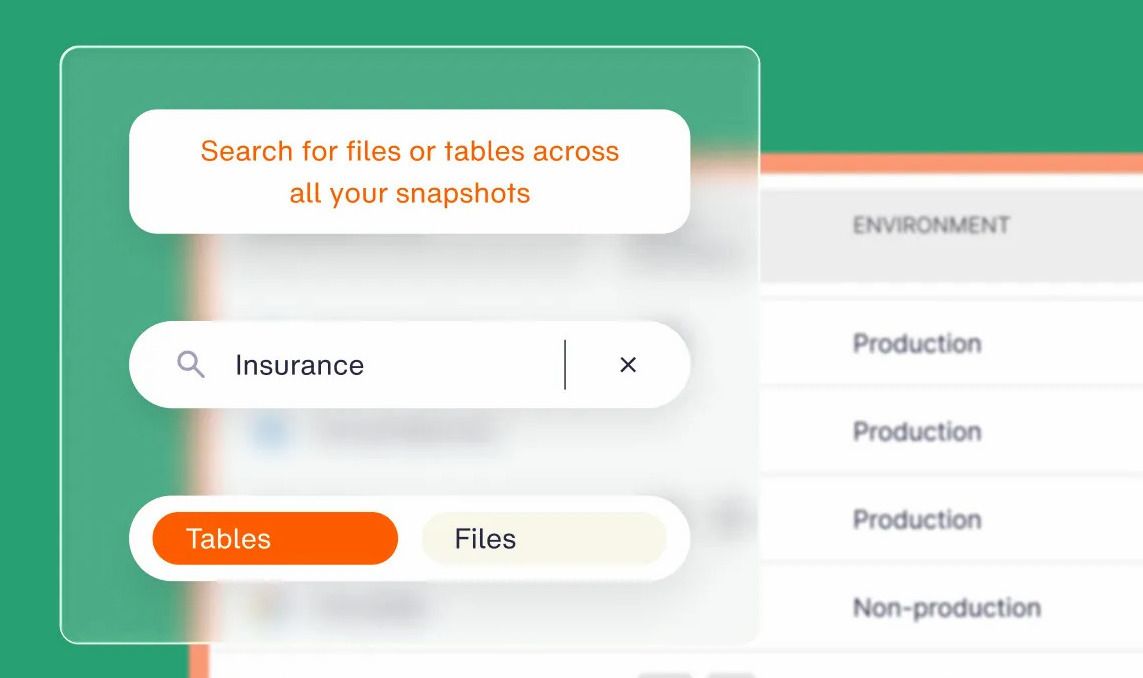
Backups stored in open table formats can be queried without that restore. Eon keeps protected data in open formats, Apache Parquet and Apache Iceberg, so engines such as Snowflake, Databricks, and Athena can query it without a restore or rehydration first.
It’s a newer capability than core backup, so test it against your own query patterns.
How to choose a cloud backup solution
Check these seven things before you commit to a cloud backup solution:
- Data covered: Match the product to laptops, phones, SaaS tenants, or cloud workloads, since few products do all four well.
- Retention length: Thirty days covers a mistake you catch quickly, while compliance and slow ransomware need months or years.
- Restore path and speed: Check whether restores come as a web download, a shipped drive, a full resource, or a single file or record.
- Isolation: Look for locked copies in a vault or account that production credentials can’t delete.
- Key control: Decide between provider-managed keys, customer-managed keys, or a private key only you hold.
- Pricing unit: Know whether you pay per device, per user, per storage pool, or per GB-month plus restore fees.
- Restore testing: Check whether the vendor can run scheduled test restores and log the results. NIST’s Cybersecurity Framework 2.0 folds creating, protecting, and testing backups into one control (PR.DS-11).
The 7 best cloud backup solutions in 2026
The seven solutions below are grouped by the data they protect, from cloud workloads down to a single computer.
1. Eon for cloud workloads across AWS, Azure, and Google Cloud
Eon is autonomous cloud data protection. Eon Data Protection discovers, classifies, and protects cloud data across AWS, Azure, and Google Cloud, and keeps recovery copies searchable and queryable. It connects through a read-only IAM role with no agents or appliances.
What it protects: Cloud workloads across AWS, Azure, and Google Cloud, plus Microsoft 365 and Google Workspace data.
Pricing: Usage-based, per GB-month of backed-up storage with flexible spending commitments. NETGEAR cut backup storage costs by 35% after switching.
Retention and restore: Every recovery point goes to a separate vault, immutable and logically air-gapped from your native snapshots. On supported databases, you can restore a single row, and you can restore a single object, without restoring the whole resource.
Watch out for: Eon is cloud-only, so a mostly on-prem estate or individual laptops need another tool, and there’s no public rate card.
2. AWS Backup for environments that run only on AWS
AWS Backup is Amazon’s native, policy-based service for protecting AWS resources from one console. It suits companies that run only on AWS and don’t want to add another vendor.
What it protects: Supported services include EC2, EBS, S3, RDS, Aurora, DynamoDB, EFS, FSx, and EKS.
Pricing: Pay per GB-month of backup storage plus restore charges. Warm EBS backup storage runs $0.05 per GB-month in US East (N. Virginia).
Retention and restore: Backup plans keep snapshot recovery points from 1 day to 100 years, and continuous backups from 1 to 35 days. Copies to another account require both accounts in the same AWS Organization.
Watch out for: Backups moved to cold storage must stay there at least 90 days, and cold-tier backups can’t be copied to another account or region. AWS Backup policies and reports don’t cover Azure or Google Cloud resources.
3. Microsoft Azure Backup for Azure virtual machines and databases
Azure Backup is Microsoft’s built-in backup service for workloads running in Azure. It fits companies standardized on Azure that want protection managed next to their other Azure resources.
What it protects: Azure VMs, managed disks, SQL Server and SAP HANA in VMs, Azure Files, Blob Storage, PostgreSQL, and AKS.
Pricing: A monthly fee per protected instance, sized by the workload’s used storage, with storage billed separately by redundancy type.
Retention and restore: Soft delete keeps deleted backup data for 14 days at no cost, extendable to 180. An immutable vault can be locked so recovery points can’t be removed early, and that lock is irreversible.
Watch out for: Cross Region Restore needs a GRS vault and costs extra, and a VM’s secondary-region RPO can reach 36 hours. Azure Backup overview (it also covers on-prem files and VMs through agents), so AWS or Google Cloud data needs another tool.
4. IDrive for households and small offices with several computers
IDrive is a subscription backup service that puts PCs, Macs, Linux machines, and iOS and Android devices on one account. It suits households and small offices that want every device on one bill and one storage pool.
What it protects: Computers and phones for one user on Personal plans, with Business plans adding servers and NAS devices.
Pricing: Personal 5 TB is $6.99 a month on a yearly plan in year one, then the regular $9.99 a month. Business plans start at 500 GB.
Retention and restore: IDrive keeps up to 30 previous versions of each file, and deleted files stay in Trash for 30 days.
Watch out for: Year two costs about 43% more once the first-year discount ends. A file you save many times a day can use up its 30 versions quickly.
5. Carbonite Safe for small businesses backing up computers and servers
Carbonite Safe is OpenText’s backup line, with personal plans for one computer and Safe Backup Pro plans for offices. It suits small businesses that want computers, servers, and NAS devices under one vendor.
What it protects: Safe Backup Pro Core protects 25 computers or fewer, along with attached external drives and NAS, and the Power tier adds a server.
Pricing: Safe Basic lists at $95.99 a year for one computer with unlimited storage. Core costs $287.99 a year with 250 GB.
Retention and restore: Deleted files stay recoverable for 30 days on Safe Basic, Plus, and Prime, and 60 days on the Pro plans.
Watch out for: External drives drop out of the backup after 30 days unplugged. Courier recovery is available only in the United States.
6. Backblaze Computer Backup for one computer with a large library
Backblaze Computer Backup protects one Mac or PC per license with no cap on data. It suits people with large photo, video, or project libraries who want a flat yearly price.
What it protects: One computer per license, with no cap on data, any file type or size included, for $99 a year.
Pricing: The same flat rate applies to Business Backup, at $99 a year per computer.
Retention and restore: Version history defaults to 30 days, and a 1-year option is free. Forever retention costs $0.006 per GB per month for files older than a year, and web restores run up to 500 GB per zip.
Watch out for: The 30-day default is short, so switch to the free 1-year option on day one. Each computer needs its own license.
7. Dropbox Backup for people already paying for Dropbox
Dropbox Backup is built into every Dropbox plan and copies your computer’s home folder and external drives to the cloud. It suits people who already pay for Dropbox and want their computer covered too.
What it protects: Files and folders in the computer’s home folder, plus external drives, counted against your plan’s storage.
Pricing: Dropbox Plus starts at $9.99 a month for 2 TB, and Standard starts at $15 per user per month.
Retention and restore: Deleted files stay recoverable for 30 days on Plus, 180 days on Standard, and 1 year on Advanced.
Watch out for: It doesn’t back up phones, since the mobile app only gives access to backups. Backups also live in the same account as your synced files, so anyone who compromises your Dropbox login can delete both.
Choosing the right cloud backup for your data
Start with the data you can least afford to lose, then pick the cloud backup that restores it at the level you need, from one file to a whole machine.
- For one computer with a big library, pick Backblaze and switch on 1-year retention.
- For several devices on one bill, IDrive puts them all on one account.
- For a small office with a server or NAS, look at Carbonite Safe Backup Pro.
- If your computers already sync to Dropbox, turn on Dropbox Backup.
- For workloads in a single cloud, AWS Backup or Azure Backup covers the basics within its cold-tier and cross-region limits.
- For production data across accounts and clouds, Eon gives you checkable coverage, logically air-gapped copies, and scoped restores.
Could you restore one table without rebuilding the database around it? Book a demo and see how Eon handles that across AWS, Azure, and Google Cloud.
Frequently asked questions
Do I really need cloud backup?
Yes, you need cloud backup if you’d lose anything you can’t recreate, from family photos to customer records. A backup keeps older, off-site versions of your files, so a dead drive or a synced deletion won’t wipe out your only copy.
What is the best cloud backup?
The best cloud backup for one computer with a large library is Backblaze. For several devices on one account it’s IDrive, and for production data across AWS, Azure, and Google Cloud it’s Eon.
How much does cloud backup cost?
Cloud backup for one personal computer typically costs $95 to $100 a year on a flat per-computer plan. Business and cloud workload backup is priced per user, per protected instance, or per GB-month, with restore and retrieval fees on some platforms.
Is there a good free cloud backup service?
No, free plans work as starter sync storage and fall short of full backup. They cap storage at a few gigabytes and purge deleted files quickly, so a whole computer needs a paid plan.
Can ransomware reach cloud backups?
Yes, ransomware can reach cloud backups that share credentials or permissions with production. In Sophos’s 2024 research, 94% of organizations hit by ransomware said attackers tried to compromise their backups, and 57% of those attempts succeeded. Immutable, logically air-gapped copies held in a separate account sit outside the blast radius of compromised production credentials. Backups were the recovery method in 66% of encrypted-data cases in Sophos’s 2026 ransomware survey.
Does iCloud or Google Drive count as a backup?
No, iCloud and Google Drive are sync services, and they aren’t built as backups. They keep your current files on every device, and anything you delete stays in trash only briefly before it’s gone.