

Data backup copies your files, databases, and settings to a separate location so you can restore them after deletion, corruption, or ransomware. Every phone ships with a backup setting, yet in cloud data protection assessments Eon ran across 78 companies’ cloud environments in September 2026, 61% of production resources had no backup policy, recovery point, or visible native snapshot.
What is data backup?
Data backup is the process of creating a restorable copy of data that captures its state at a specific point in time and lives apart from the original. NIST defines a backup as a copy of files and programs made to facilitate recovery.
Backup data means the copy plus the moment it captures. A 2 a.m. backup still holds the file someone deleted at noon. A sync can’t, because it copies that deletion to every device. That’s why a computer backup of an iPhone is a different thing from a sync.
Types of data backup
The three core types of data backup are full, incremental, and differential; a few related methods, like snapshots and replication, get grouped with them too. They differ in how much each job copies and in how many backup sets a restore has to combine.
Full backup
A full backup copies everything in scope every time it runs. Restores are simple because a single backup set holds everything you need.
Each job reads the whole dataset, though, so full backups take the longest and use more storage than any other type. That’s why they usually run weekly or monthly as a baseline.
Incremental backup
An incremental backup copies only what changed since the last backup of any kind, so each job stays small and finishes quickly. Amazon EBS snapshots work this way, saving only the blocks that changed since the previous snapshot.
Restoring from incrementals takes more work, since you need the last full backup and every incremental after it. If one set in that chain is damaged, every later restore point is at risk.
The incremental vs. full backup trade-off comes down to how much restore complexity you’ll accept for smaller jobs.
Differential backup
A differential backup copies everything that changed since the last full backup. Each differential grows in size until the next full backup resets the baseline.
Restores stay simple, since you only need two sets, the last full and the latest differential.
Snapshots, replication, and continuous data protection
Three related methods often get grouped with backup, though each works differently:
- Snapshots capture a volume or database at one moment, usually inside the same account as the source, so they share its recovery risks.
- Replication keeps a live second copy current, so it copies corruption and deletions as fast as good writes.
- Continuous data protection records every change so you can rewind to an exact moment.
The data backup process in 7 steps
The data backup process comes down to four decisions: what to protect, how fast it has to come back, how copies get made and locked, and how you’ll know a restore works.
1. Inventory the data you can’t afford to lose
List every system and dataset, then rank each one by what stops working without it. CISA’s ransomware guidance ties restore order to a critical asset list covering health, safety, and revenue systems.
On a laptop, the list covers documents, photos, your password vault export, and anything you can’t download again.
Cloud inventories go stale quickly because resources are created and retired every day. Only 14% of AWS production resources carried a tag that says production in Eon’s Cloud Backup Coverage Census, so a tag-based inventory misses most of production.
2. Set recovery point and recovery time targets
Your recovery point objective (RPO) is how much recent data you can afford to lose, and it sets backup frequency. A nightly backup gives you a 24-hour RPO at best.
Your recovery time objective (RTO) is how long you can wait for the data to come back, and it decides your restore method and storage tier.
Set both per data class, because a payments database and a design archive shouldn’t share targets.
3. Match a backup type and frequency to each data class
Busy databases usually get frequent incrementals plus a periodic full. Archives that rarely change can get by on a weekly full backup. Write the schedule down per class so a budget review can’t trim it without anyone noticing.
Cost pressure pushes teams to cut snapshot frequency or retention, and that exposure stays invisible until data is lost, a risk flagged in Gartner’s 2026 Hype Cycle for Backup and Data Protection Technologies.
The better fix is cheaper protection, not thinner protection. Eon takes the first copy once, stores only the changes after that, and deduplicates globally across accounts, which is how it runs at up to 50% lower cost.
4. Automate backups with policies
Manual backups get skipped when the person running them is busy or away. A scheduler or backup policy runs each job on time without anyone clicking a button.
Attach policies by rule (environment, data type, region) so a new server or bucket is covered the day it’s created. A policy tied to a list of named resources goes stale the moment someone launches a new one.
5. Encrypt and lock every copy for its retention period
Encrypt backups in transit and at rest, and keep the keys away from the account that runs production. Keep at least one copy immutable and logically air-gapped as well, since ransomware looks for reachable backups to delete or encrypt.
Lock each copy against deletion for as long as you keep it, using object lock or an immutable vault. Set a backup retention policy per data class, since a copy deleted at 30 days can’t answer a 90-day audit request.
One senior manager of site reliability and cloud engineering told Eon: “Our retention for S3 backups is six weeks. If we need something earlier than that, tough luck.”
6. Monitor backup jobs and coverage
Job alerts tell you a scheduled backup didn’t finish. Coverage checks tell you which systems never had a job at all.
61% of the cloud IT leaders and managers surveyed in Eon’s 2026 Cloud Data Infrastructure Report said they discover protection gaps only after an incident, an audit, or a failed restore. Review coverage on a schedule, the same way you’d review access permissions.
7. Test restores on a schedule
Restore a single file, a full system, and a database at least once per quarter. Time each restore against your RTO and write down what slowed it.
On a phone, check the last backup date in settings, then confirm a recent photo or message is in the backup. Log the date of each successful test so anyone can see when a restore last worked.
Where to store backup data
The safest place to store backup data is across two separate locations, with at least one copy kept offsite.
External drives and removable media
External drives are cheap, restore quickly, and stay out of ransomware’s reach once you unplug them.
They’re also easy to drop, lose, or leave plugged in. A drive kept in the same office shares that office’s fire, flood, and theft risk.
NAS and on-premises servers
A network-attached storage (NAS) box backs up every computer in a home or office on a schedule and restores fast over the local network.
It’s also reachable from that network, so ransomware that encrypts a laptop can often encrypt the NAS share too, so pair it with an offsite copy.
Cloud backup services
Cloud backup sends copies to a provider’s data centers, which covers site loss and scales without new hardware. Restores depend on bandwidth, and pulling back terabytes can take hours. Backup as a service adds a managed layer for policies, retention, and restores.
Hybrid backup setups
Hybrid setups keep a recent copy on local storage for everyday restores and a second copy in the cloud for site-level disasters. You pay for two targets and manage two restore paths, but a single outage can’t take out both copies.
The 3-2-1 backup rule and the 3-2-1-1-0 update
The 3-2-1 backup rule says to keep three copies of your data on two different kinds of storage, with one copy offsite. Photographer Peter Krogh described it in his 2005 book The DAM Book, and it’s still the baseline we’d start any plan from.
The 3-2-1-1-0 update adds one immutable or logically air-gapped copy and zero errors on restore tests. In a cloud account, that extra “1” is a copy outside the blast radius of your production credentials.
Data backup for phones and personal computers
Phones and PCs ship with built-in backup, and each tool has limits you should know before relying on it alone.
Android backup to a Google Account
Android automatically backs up apps and app data, call history, contacts, device settings, and SMS and MMS messages to your Google Account (Android backup).
Turn it on under Settings > Google services > All services > Backup.
Apps that use Auto Backup can store up to 25 MB each. You also can’t restore a backup onto a phone running an older Android version than the one that made it.
iPhone and iPad backup with iCloud or a computer
iCloud Backup runs every day while your iPhone is locked, charging, and on Wi-Fi.
Turn it on in Settings > [your name] > iCloud > iCloud Backup.
For a second copy, back up to a Mac or PC with "Encrypt local backup" selected. Apple only saves Health and Activity data in an encrypted backup.
Windows Backup and OneDrive
Windows Backup saves your user folders, settings, and app list to OneDrive, and the free Microsoft account includes 5 GB of storage. It only works with personal Microsoft accounts.
Apps themselves don’t transfer, so plan to reinstall some of them on a new PC. Add a periodic copy to an external drive and you’ve covered the two-media part of 3-2-1.
Data backup for businesses and cloud environments
Business data backup adds problems a laptop owner never faces. Resources appear daily across accounts and regions, and the credentials that run production can often reach the backups too.
Shared responsibility for cloud data
Your cloud provider runs the infrastructure, and the data on it is yours to protect. AWS’s shared responsibility model puts managing data, classifying assets, and setting permissions on the customer, even for managed services like S3 and DynamoDB.
The same split applies to SaaS apps and identity systems. Microsoft 365 mailboxes, Google Workspace files, and Entra ID groups are yours to back up, the same way your cloud infrastructure is.
Coverage gaps across cloud accounts
New databases, buckets, and VMs appear every week, often from infrastructure code that sets up compute and skips protection. In our September 2026 census, the median unprotected production resource had been running for 502 days.
A VP of engineering described the same gap to Eon: “100 new databases get turned on every day, and we don’t know what data is residing in them. So we kind of hope that the teams are backing things up as they should be.”
Cloud Backup Posture Management (CBPM) classifies data automatically (PII, PHI, financial data, production versus dev) without manual tagging, applies backup policies based on that classification, and picks up new resources as they appear across all accounts and regions. It runs from a single read-only IAM role, with no agents or appliances, across AWS, Azure, and Google Cloud.
Backup copies in a separate cloud account
In April 2026, PocketOS’s founder reported that an AI coding agent deleted the company’s production database and all of its volume-level backups in one API call. He said the provider stores volume backups in the same volume as the data, and the company fell back to a three-month-old backup to stay operational. The provider later said it restored the lost data.
Keep at least one copy in a separate account, with its own credentials and immutable retention. Credentials broad enough to reach your native snapshots can delete or corrupt them. A copy in a separate account and region, with its own credentials, sits outside the blast radius of a compromised production account.
Eon keeps an immutable, logically air-gapped copy in a vault held apart from your native snapshots.
For any production resource, you should be able to answer three questions at any time: where its newest recovery point lives, which credentials can reach it, and how long a restore took the last time you timed one.
How to restore data from a backup
Restoring data from a backup starts with picking a recovery point from before the damage. Then you decide whether to bring back the whole system or only the damaged part.
Full restore
A full restore rebuilds a whole system, volume, or database from the backup. Use it after hardware loss, a region outage, or ransomware that encrypted everything.
A 10TB SQL Server database that took up to 24 hours to recover with NETGEAR’s legacy provider now recovers in under three hours with Eon, 88% faster.
Point-in-time restore
A point-in-time restore rewinds a database to a chosen moment before the damage, using a base backup plus transaction logs.
Amazon RDS uploads those logs every five minutes and restores into a new DB instance, which leaves the damaged source untouched for investigation.
The limit is scope. Native point-in-time restore for RDS reaches back only as far as the retention window you set and brings back a whole instance, so recovering one table usually means restoring everything first and pulling the table out afterward.
Granular restore
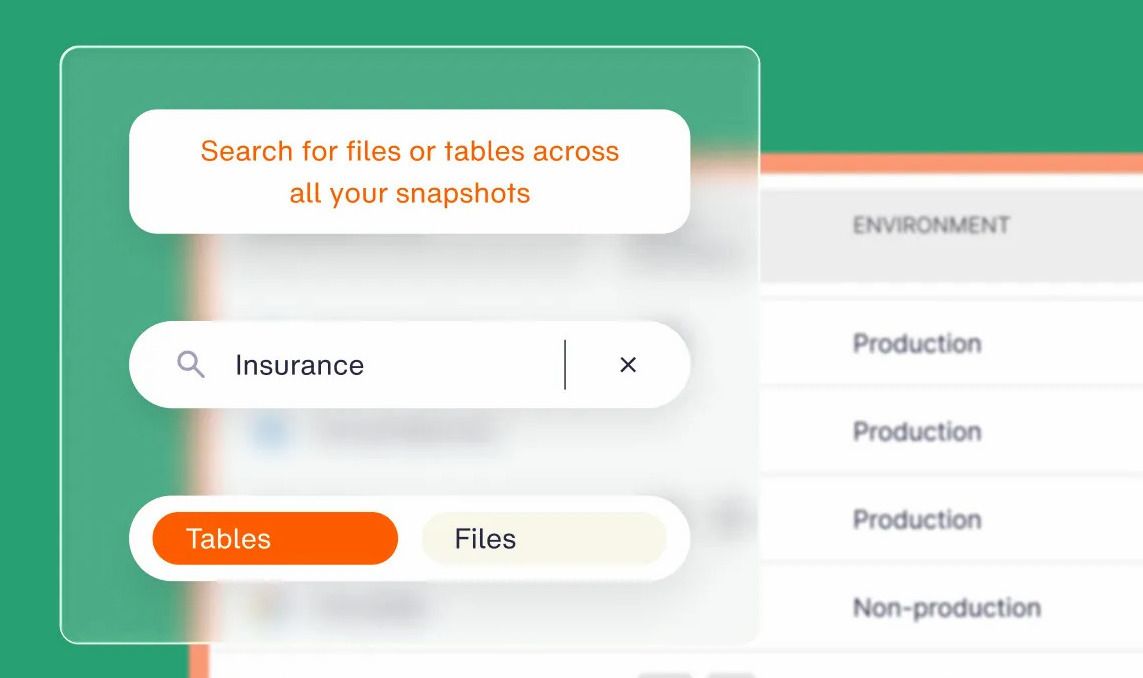
A granular restore brings back one file, table, or record without rebuilding the environment around it. When a bad script deletes rows from one table, you want those rows back, and rolling the whole database to last night throws away a day of good writes.
StructuredWeb’s team runs SQL queries directly on backed-up databases in Eon instead of restoring full database clusters first, and reports a 98% reduction in backup retrieval time.
Building a data backup process you can restore from
A data backup plan is finished only after a timed restore test. Keep copies in two places, put one outside the blast radius of your production credentials, and recheck coverage whenever your environment changes.
How much of your production could you actually restore today, and how fast? Book a demo and see how Eon maps coverage across your cloud accounts and restores only the file, table, or record you need.
Frequently asked questions
What is a data backup?
A data backup, by definition, is a copy of your files, databases, or system settings stored separately from the original so you can restore it after loss, corruption, or an attack. Each backup captures a point in time, so you can return to the data as it was before the problem.
What does backup data mean?
Backup data means the files, records, and settings held inside a backup, plus the timestamp showing which moment they represent. It’s the copy you restore from, stored away from the live system.
How do I retrieve backup data?
You retrieve backup data by opening your backup tool, choosing a recovery point from before the problem, and restoring the whole system or only the files you need. On a phone, you pick the backup while setting up the device. In the cloud, you restore to a new instance or pull back single records.
What is the best way to back up data?
The best way to back up data is to automate backups to two separate locations, keep one copy offsite, and test restores on a schedule. At home, that’s an external drive plus a cloud backup service. Cloud workloads need policy-driven backups into an isolated, immutable vault.
Where is the safest place to back up data?
The safest place to back up data is a location that shares no hardware, site, or credentials with the original. An immutable copy in a separate cloud account qualifies, and so does an external drive you unplug and store somewhere else.
How often should you back up data?
You should back up data as often as your recovery point objective requires. If losing a day of work is acceptable, nightly backups are enough. Busy production databases usually need continuous log capture on top of daily backups.