


A server backup that reports success every night can still fail the one time you need it, coming back half-written or sitting behind the same credentials an attacker already holds. Whether a copy actually brings a server back depends on how cleanly you capture it, how far you keep it from production, and how recently you timed the restore.
What is server backup?
Server backup is a point-in-time copy of what a server needs to run (files, databases, the operating system, and configuration) stored apart from the server. It differs from laptop or file-share backup because applications write to a server constantly, and many users wait on it when it’s down.
Those constant writes mean a copy taken mid-transaction can come back corrupt, so server backup has to coordinate with the running apps.
A backup server is the dedicated machine or storage target that receives the copies, and it should sit on separate credentials from the servers it protects.
What a complete server backup includes
A backup that holds only data files leaves you rebuilding everything else by hand during an outage. A restorable server backup covers four layers:
- Data volumes: Files, shares, and the disks that hold databases and application data.
- System state: On Windows, system state covers boot files, the registry, and Active Directory on domain controllers.
- Application state: Databases and queues captured at a consistent point, along with their transaction logs.
- Build and access configuration: Machine images, network rules, IAM roles, and the code that deploys the server.
Image-level backups capture all four layers in one pass and support bare-metal recovery onto new hardware. File-level backups are smaller and faster to search, but you’ll rebuild the operating system and apps before the data is useful again.
Full, incremental, and differential server backups
The backup type decides how much storage each run uses and how many sets a restore has to combine.
Full backups
A full backup copies everything selected in the job every time it runs. Restores are the simplest because one set holds the whole server. That same size makes daily full backups slow and expensive on large volumes.
Incremental backups
An incremental backup copies only what changed since the last backup of any type. Runs are fast and small, and a restore replays the last full backup plus every incremental after it, in order.
Hypervisors and clouds apply the same idea at the block level. VMware’s Changed Block Tracking records which disk blocks changed, and Amazon EBS snapshots save only the blocks that changed since the previous snapshot.
Differential backups
A differential backup copies everything that changed since the last full backup. Each run grows until the next full, and a restore needs only two sets, the full and the latest differential.
A common pattern for servers that change slowly is a weekly full with daily incrementals. Databases with tight recovery point objectives need a shorter schedule.
Eon does not run this cycle. It takes the initial copy once and stores only changes from then on, with global deduplication across the estate, so there is no weekly full to schedule around.
Server backup by where the server runs
The capture method changes with the platform underneath the operating system.
Physical and on-premises servers
Bare-metal servers usually need an agent or a built-in OS tool that reads the disks from inside the machine. Plan for bare-metal recovery, which restores the operating system, boot volumes, and data onto replacement hardware that may not match the original.
Physical servers also carry an offsite problem. A copy in the same room sits exposed to the same fire, flood, or power event as the server.
Virtualized servers on VMware and Hyper-V
Virtual machines are easier to protect from the hypervisor layer, where backup software reads virtual disks without an agent in every guest. VMware tracks changed blocks between runs, and Hyper-V uses resilient change tracking for the same purpose.
Each Hyper-V backup, full or incremental, also has to copy the VM’s configuration and state files. Guest applications still need VSS or scripts, since the hypervisor can’t see a half-written transaction inside the VM.
Cloud instances on AWS, Azure, and Google Cloud
Cloud providers protect the hardware and hypervisor, but you own what runs inside the instance. The AWS shared responsibility model puts guest OS patching, data management, and access permissions on the customer, and the common mistake is assuming the provider backs up the server once it’s deployed.
Disk snapshots are the native building block on all three clouds, but a snapshot kept in the same account can be deleted by the same credentials that manage the instance. Lifting a data-center backup tool into the cloud doesn’t fix that: its virtual appliances run around the clock and its agents need patching and credential management on every host, which adds cost and upkeep as instance counts climb.
A cloud-native approach connects through the provider APIs instead. Eon backs up EC2, Azure VMs, and Compute Engine instances with no backup agents to deploy for standard policies, across accounts and regions. It stores changes instead of repeated full copies and applies global deduplication across the estate, at up to 50% lower cost. Sigdo Koppers, which was moving workloads to Google Cloud, reports that restoring a critical financial server went from about two days to a couple of hours.
How to back up a server in 6 steps
These steps apply whether the server sits in a rack, on a hypervisor, or in a cloud account.
1. Inventory servers and assign recovery tiers
List every server, what it runs, who owns it, and how long the business can run without it.
That downtime tolerance becomes the recovery time objective (RTO), and the tolerable data loss becomes the recovery point objective (RPO). Tier-one servers, the ones the business can’t run without, get the tightest targets.
Inventories drift the moment someone launches a new instance, and a server missing from the list is a server nobody is backing up. Eon’s Cloud Backup Posture Management (CBPM) discovers and classifies new resources as they appear and applies the matching backup policy automatically.
2. Choose an application-consistent capture method
A crash-consistent copy captures the disk as if the power went out, and the application has to recover in-flight writes on restore. An application-consistent copy pauses and flushes writes first, so the restored app starts clean.
Windows handles this through the Volume Shadow Copy Service (VSS), and Linux relies on filesystem freezes or pre and post scripts. For self-managed databases, crash-consistent EBS snapshots can leave logs and data files out of step after a restore.
3. Set the backup type and schedule by RPO
Work backward from the RPO. A file server that can lose a day of changes gets a nightly job, and a database with a 15-minute RPO needs log backups or snapshots every 15 minutes.
Stagger full backups across the week. Simultaneous full runs compete for network bandwidth and storage throughput, which stretches the backup window.
4. Send copies to a separate account or location
A copy inside the same account, domain, or storage system as production is exposed to the same mistake or attacker. Send at least one copy somewhere production credentials can’t reach, such as a separate cloud account or an offline target.
On AWS, logically air-gapped vaults store backups in a service-owned account with Vault Lock compliance mode applied.
5. Set retention by data class
Retention sets how far back you can restore. Keep short-term daily copies for operational mistakes, and longer monthly or yearly copies for audits and problems discovered weeks later, such as silent corruption.
Map each server to a backup retention policy by data class, since a payments database and a build server rarely need the same window. Managed databases behind your servers keep separate retention settings, as Amazon RDS backups do, so review them alongside the server policy.
6. Automate jobs and alert on missed backups
Schedule every job and route alerts for missed, partial, and unsuccessful runs to the same channel as production incidents. A backup job that stopped running last month looks healthy until someone needs a restore.
Windows server backup steps
Windows Server includes Windows Server Backup and the wbadmin command, which back up volumes, files, and system state from one job.
- Add the Windows Server Backup feature in Server Manager.
- Include system state on domain controllers, since it carries Active Directory and SYSVOL.
- Add the -allCritical parameter to capture every volume needed for bare-metal recovery.
- Give each backup its own disk or network subfolder, since wbadmin overwrites a prior backup in the same shared folder.
- Confirm the SQL Server and Exchange VSS writers are healthy, so their data flushes before the shadow copy.
The overwrite behavior in step 4 is easy to miss. If a run in the same remote folder stops partway, the old copy is already gone, and the new one won’t restore.
VSS freezes application writes for a few seconds while the shadow copy is created, so open files and live databases back up consistently.
In the cloud, Amazon Data Lifecycle Manager can take VSS-based application-consistent snapshots of Windows instances, using Systems Manager to run the pre and post scripts. Azure Backup coordinates with VSS by default for Windows VMs and takes copy-only backups of SQL Server, which leaves the database’s own backup chain intact.
Linux server backup steps
On Linux, consistency comes from the volume manager, the filesystem, or the application itself.
- Take LVM snapshots where you can, since LVM freezes the filesystem automatically when a snapshot starts.
- Run fsfreeze before a hardware or storage-array snapshot, then unfreeze once the snapshot completes.
- Export databases with the engine’s own tool, such as pg_dump, which stays consistent while the database is in use.
- Keep /etc, service units, and cron definitions in version control, so a rebuild doesn’t depend on anyone’s memory.
Cloud Linux servers need scripts you write. Azure Backup takes file-consistent Linux backups by default and marks a recovery point application-consistent only when your pre and post scripts succeed.
Compute Engine and Amazon Data Lifecycle Manager follow the same script pattern. Snapshots count as application-consistent only when those scripts freeze, flush, and thaw I/O correctly.
Server backup best practices
A good server backup lets you answer three questions at any time: can I restore this server, how long will it take, and is the copy outside the reach of whoever is attacking production? These practices keep those answers true under attack.
Keep three copies and isolate one
The 3-2-1 backup rule calls for three copies of your data on two types of storage, with one copy offsite. CISA’s #StopRansomware Guide adds that backups should be offline and encrypted, because many ransomware variants hunt for reachable backups to delete or encrypt.
For servers, make that offsite copy the isolated one, behind credentials production can’t use.
Lock backup copies against deletion
In a Sophos study of organizations hit by ransomware, 94% said attackers tried to compromise their backups during the attack.
Accidents follow the same path. In April 2026, an AI coding agent deleted PocketOS’s production database, and the volume-level backups stored in that volume went with it in a single API call, according to the company’s founder. Railway’s CEO later said the data had been restored.
Immutable backups block changes and deletion until retention expires. Eon stores recovery copies in a logically air-gapped, immutable vault held in a separate account from your production environment, outside the blast radius of compromised production credentials.
Test restores and record the real restore time
A backup job that reports success tells you a copy exists. A timed test restore tells you whether the server boots with a working app, and how long that takes.
Test each tier on a schedule, restore into an isolated network, and compare the measured time against the RTO. Check that the restore point is clean as well, because a snapshot taken after an attacker got in brings the attacker back. Eon analyzes each recovery point as it is created for signs of ransomware and tampering, so you can identify the last verifiably clean point before you restore.
Timing matters because full restores are slow. In Eon’s 2026 survey of 583 cloud IT leaders and managers, 60% said a full restore takes six hours or more, and only 5% could finish one in under an hour. NETGEAR reports that recovery of a 10TB SQL Server database went from 24 hours to under three, 88% faster.
Log the results in your disaster recovery testing records. In Eon, VM backups are mounted on a worker and scanned to confirm the filesystem reads cleanly, and supported self-managed database engines can be started on the snapshot to confirm they answer queries.
Restore single files and records from server backups
Incidents rarely wipe a whole server. A deleted folder, an overwritten config file, or a dropped table needs a targeted restore, and rebuilding a full instance to pull one file adds hours.
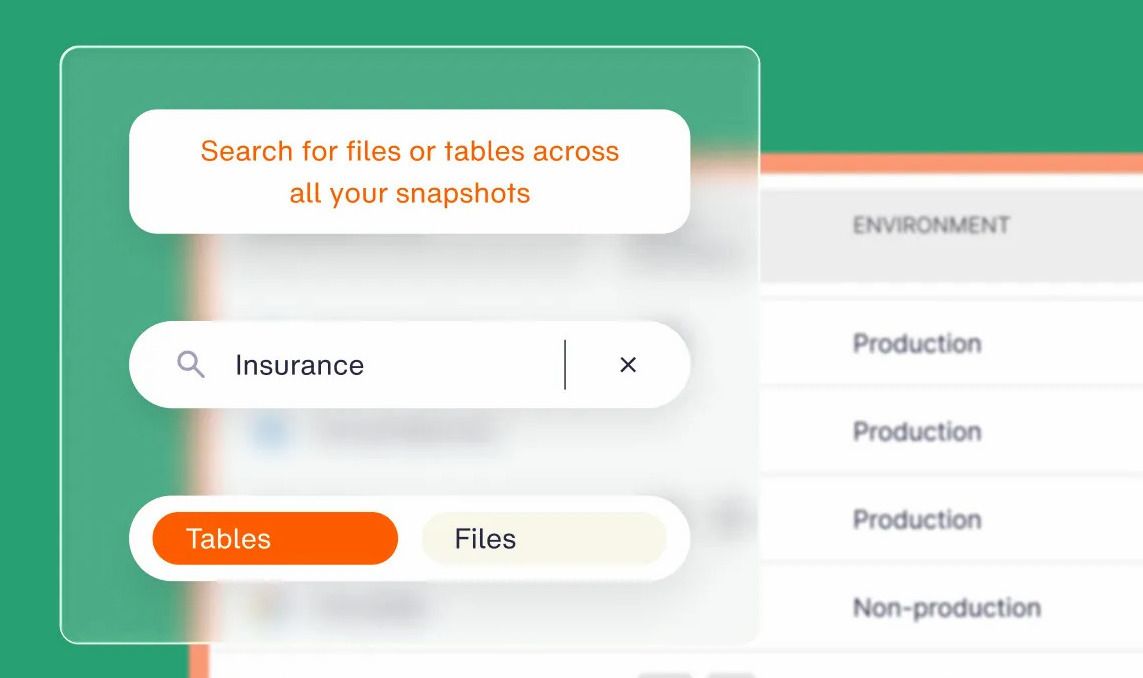
Eon’s granular recovery pulls a single file or folder out of a VM backup, or the records a SQL query matches from a supported self-managed database, and delivers them to object storage without restoring the instance.
When the whole machine has to come back, EC2 Instant Restore lets a recovered instance boot and serve traffic while its volumes stream in from the vault, then promotes it to a native EC2 instance on its next reboot once hydration completes. Blocks that have not hydrated yet are read from the vault first, so the instance is usable right away but reaches full speed only once hydration finishes. It supports x86_64 instances with up to 24 attached volumes.
Store golden images and infrastructure code with backups
Data comes back faster when the server itself is quick to rebuild. Keep golden images and offline copies of your infrastructure-as-code templates so you can redeploy on clean infrastructure.
Version your machine images and deployment code, and store copies in the isolated backup location. A compromised account then can’t delete your rebuild path along with production.
Server backup software options by category
The right tool depends on where your servers run and how many there are.
Built-in OS tools
Windows Server Backup and Linux tools like LVM snapshots ship with the operating system, so there’s nothing extra to license. They fit single servers and small sites where one person can own the schedule.
The tradeoff is manual work: you set up each job and arrange offsite copies yourself, with no central view once you pass a handful of machines.
Hypervisor-based platforms
VMware- and Hyper-V-integrated backup software reads virtual disks from the hypervisor, so one tool protects a whole virtual fleet without an agent in every guest. This suits on-premises virtualization, where the hypervisor is the natural control point.
Moved into the cloud, that hypervisor advantage disappears, and the same tools fall back on agents and always-on appliances in every account.
Native cloud services
AWS Backup, Azure Backup, and Google Cloud Backup and DR protect workloads inside their own cloud, with policies managed from the provider console.
For a single-cloud estate running standard restores, native coverage is often enough. Across more than one cloud, each service is its own console and policy model, so coverage and retention get answered platform by platform instead of in one place. On AWS, a snapshot lives by default in the account and region that created it, so isolation depends on cross-account copies or a logically air-gapped vault that someone has to configure and audit in every account.
Cloud-native third-party platforms
When servers are mostly cloud instances spread across accounts and regions, a cloud-native platform connects through provider APIs and applies one policy set as instances come and go, without an agent to install on every machine.
Eon works this way across AWS, Azure, and Google Cloud. It discovers and classifies new instances automatically, keeps recovery copies in an immutable, logically air-gapped vault, and restores down to a single file or database record, at up to 50% lower cost.
A mostly on-premises estate is the exception: cloud-native platforms cover cloud workloads, so a heavily on-prem fleet still needs a separate tool.
Next steps for your server backup plan
Start with the server inventory and a timed restore test, because both expose what’s unprotected and what won’t restore before an outage does. Then tighten server backup capture, isolation, and retention tier by tier, beginning with the systems the business can’t run without.
When was the last time you did a full restore of your tier-one server, and would it land inside your RTO today? Book a demo and see how Eon finds unprotected instances and restores a single file or a full server from one console.
Frequently asked questions
What are the three types of server backup?
The three types of server backup are full, incremental, and differential. A full backup copies everything, an incremental copies changes since the last backup, and a differential copies changes since the last full backup.
How do I create a server backup?
You create a server backup by inventorying the server, choosing an application-consistent capture method, scheduling jobs to match your RPO, and sending copies to an isolated location. Then run a test restore to confirm the server boots and the data is intact.
What is a backup server?
A backup server is a dedicated machine or storage system that receives and stores backup copies from other servers. Keep it on separate credentials and a separate network segment, so an attacker who reaches production can’t reach the backups.
How often should you back up a server?
You should back up a server as often as its recovery point objective requires. A file server that can lose a day of changes needs nightly backups, and a transactional database may need log or snapshot backups every few minutes.
What is the best backup software for servers?
The best backup software for servers depends on where they run. Windows Server Backup covers a single Windows machine, hypervisor-integrated platforms suit on-premises virtual fleets, and cloud-native backup platforms suit servers spread across cloud accounts and regions.
Is a snapshot the same as a server backup?
No, a snapshot isn’t a complete server backup on its own. A snapshot captures disk state at one moment, and it works as a backup once it’s application-consistent, stored outside the source account, retained by policy, and tested by a restore.


.jpg)