

You find out whether your cloud backup services work on the worst day, when a laptop dies or someone deletes a production table. That's also the day you learn your plan only keeps 30 days of versions, or that a full restore takes a week.
We went through the pricing, restore options, retention settings, and user feedback for ten services, from single-computer backup to tools that protect AWS databases and Microsoft 365. By the end, you'll know which service fits your data, what it costs after year one, and where each one falls short.
The 10 best cloud backup services: TL;DR
The best cloud backup service depends on what you need to protect, so the list runs from cloud workloads to small offices to single computers.
Cloud workloads and SaaS data
- Eon: Best for cloud-first companies protecting AWS, Azure, and Google Cloud workloads plus Microsoft 365 and Google Workspace.
- Keepit: Best for organizations that need an independent backup of Microsoft 365, Salesforce, and other SaaS apps.
- AWS Backup: Best for companies that run entirely on AWS and want native, policy-based protection.
Small offices and households
- IDrive: Best for households and small offices backing up many computers and phones on one account.
- Carbonite: Best for small businesses that want phone support and server backup from one vendor.
- CrashPlan: Best for small businesses that need unlimited storage and unlimited file versions on every laptop.
Personal computers
- Backblaze Computer Backup: Best for one Mac or PC with a large library and a fixed yearly budget.
- pCloud: Best for people who want to pay once for storage that also backs up their key folders.
- Dropbox Backup: Best for existing Dropbox users who want their computer and an external drive covered.
- Acronis True Image: Best for a personal or home-office machine that wants backup and built-in ransomware protection in one app.
How we evaluated these cloud backup software
The rankings follow five criteria, and each one maps to a question you'll face on the day you need a file back.
- Data coverage: Which computers, phones, servers, SaaS apps, or cloud services the tool protects.
- Restore path: How fast and how precisely one file, email, or database record comes back, including mailed drives for large restores.
- Version retention: How long deleted and changed files stay recoverable before the provider purges them.
- Security: Encryption, private keys, immutable copies, and logically air-gapped storage outside the account you're protecting.
- Pricing after year one: Renewal rates, overage charges, and restore fees on top of the advertised price.
Checking each service's pricing page, restore options, and retention settings against these criteria showed us which cloud backup services hold up at restore time and which only look good on the pricing page.
Cloud backup vs. cloud storage and sync
Cloud backup copies your files or cloud resources to a separate location on a schedule and keeps earlier versions you can restore. Sync services like Google Drive and OneDrive mirror one set of folders across your devices, so a deletion or an encrypted file spreads to every copy.
Some storage products now include a backup mode that copies chosen folders and an external drive into your account on a schedule. Dropbox Backup works this way, which is why it earns a slot on this list.
The best cloud-based backup solutions: Quick comparison
The 10 best cloud backup services in 2026
1. Eon: Best for cloud-native workloads and SaaS data
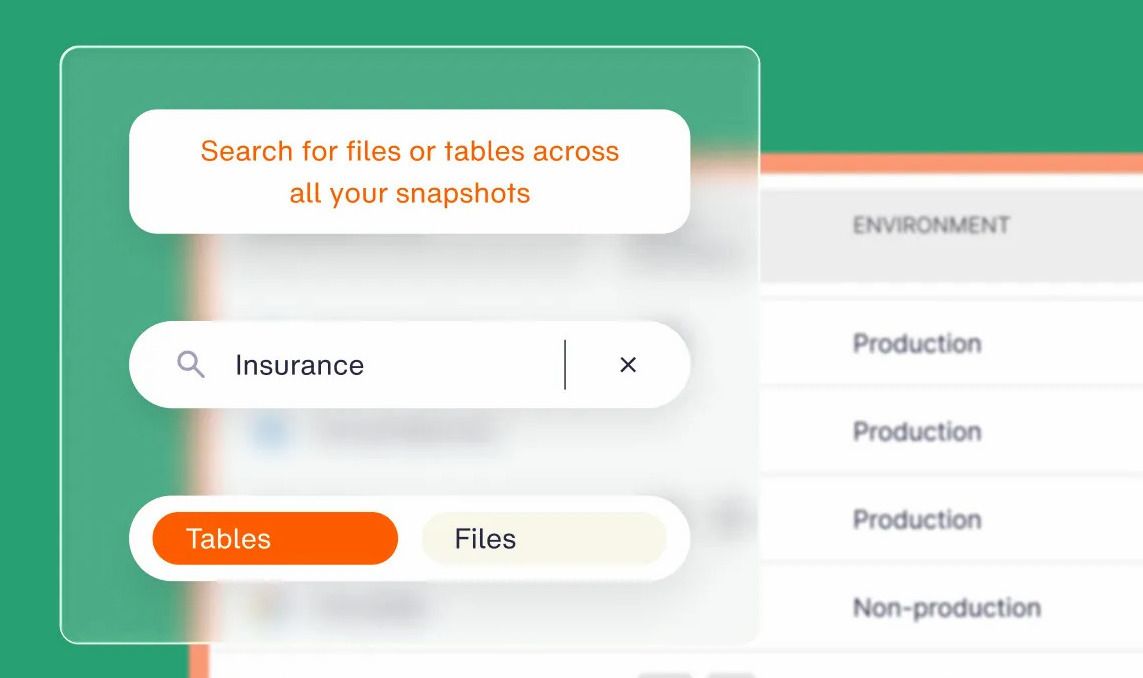
What it does: Eon backs up cloud infrastructure, databases, object storage, and SaaS apps like Microsoft 365 and Google Workspace, and makes that data queryable in place without rehydration.
Best for: Cloud-first companies protecting AWS, Azure, and Google Cloud workloads alongside their SaaS suite.
Eon takes a cloud-native backup and recovery approach that works differently from the consumer tools on this list. It connects through a read-only cross-account role with nothing deployed in your environment, then continuously discovers and classifies new resources and applies the right protection policy without anyone tagging them.
Protected data lands in your own cloud storage in open formats, so teams can query it in place instead of spinning up a restore.
Key features
- Cloud Backup Posture Management (CBPM): Resources get discovered and classified as the environment changes, then assigned a backup policy with no manual tagging.
- Granular recovery: A single file, object, table, or record comes back without rehydrating the volume or database around it.
- Logically air-gapped vault: Immutable backups sit outside production credentials, and ransomware detection (an add-on) flags the last clean point before you restore.
- Queryable backups: Protected data lands in open formats like Apache Parquet and Apache Iceberg, so you can query it in place without rehydrating a backup.
Pros and cons
Pros
✅ Audit prep shrinks from a manual hunt for untagged resources to exporting a coverage report.
✅ A bad deploy that corrupts a few rows gets fixed in place while the rest of production keeps serving customers.
✅ Analysts answer questions about last quarter's data without filing a restore request with infrastructure.
Cons
❌ Built for cloud workloads, so it does not cover personal computers or single-laptop setups.
❌ Usage-based, per-GB-month pricing scales with how much you protect, which is harder to compare at a glance against flat-rate consumer plans.
❌ No self-serve monthly plan.
What users say
“Eon enables backups that reflect the way our cloud truly works.” — Satish Nair, NETGEAR Senior Manager IT, Eon case study
“The job lists and tables are information-dense when you have a lot of stuff to back up.” — Guðmundur Örn A., head of security at a mid-market company, G2
Pricing
Eon uses usage-based pricing: you pay per GB-month for the storage you protect, with flexible spending commitments and no tier ladder. Global deduplication drives the savings, which Eon puts at up to 50% lower cost, and recovery and retrieval are built in rather than billed as extras.
On outcomes, NETGEAR cut backup storage costs 35% after moving off its previous provider.
Bottom line
Start here if your production data spans AWS, Azure, or Google Cloud and audits keep asking what's protected. A demo on your own accounts will surface unprotected resources quickly.
2. Keepit: Best for cloud-to-cloud SaaS backup
What it does: Keepit backs up SaaS applications into its own independent cloud, separate from the vendors that host the live data.
Best for: Organizations running on Microsoft 365, Salesforce, or Atlassian tools that need backup copies outside those platforms.
Keepit's pitch centers on independence, since backups live in data centers Keepit runs itself. The service list stretches well past email and files into identity, CRM, and developer tools.
Key features
- Wide SaaS coverage: One platform protects Microsoft 365, Entra ID, Google Workspace, Salesforce, Jira, GitHub, and more, with no third-party sub-processors.
- Mirrored, region-pinned storage: Backup data lives in a pair of mirrored data centers inside a region you pick, which helps with data residency rules.
- Search and flexible restore: Smart search locates a single item or user across every connected app, and restores go back to the original spot, to a shareable link, or out as a PST file.
- Long retention: Plans keep data for five to ten years, with unlimited retention available as an add-on for records you must keep indefinitely.
Pros and cons
Pros
✅ A Microsoft 365 outage or hijacked admin account leaves your email and files recoverable from a separate cloud.
✅ A "deleted the wrong folder" ticket closes after one search and a single-item restore.
✅ Your backup bill moves only when headcount does, so finance can forecast it a year out.
Cons
❌ Protects SaaS apps only, so servers, laptops, and cloud infrastructure need another tool.
❌ Per-seat pricing grows with headcount even when data volume stays flat.
❌ Unlimited retention is a paid add-on, so indefinite retention means a higher tier or an extra charge.
What users say
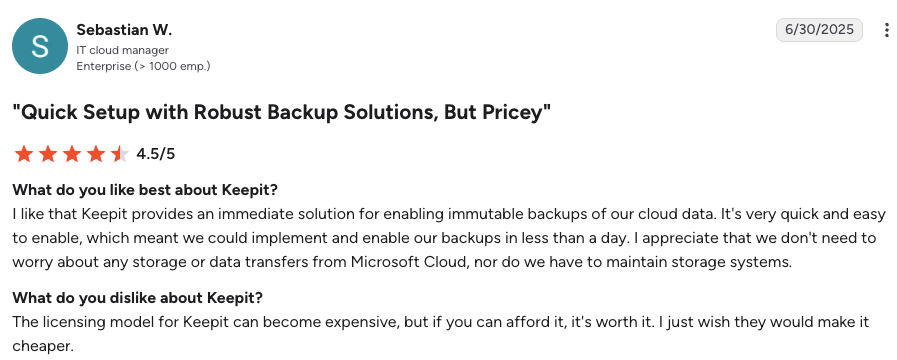
“Keepit provides an immediate solution for enabling immutable backups.” — Sebastian W., IT cloud manager, G2
“Providing more hands-on knowledge transfer would be helpful.” — Samer B., technical director, G2
Pricing
Keepit prices by quote across three tiers: Core Continuity, Business Resilience, and Enterprise Resilience. The seat rate tracks your plan and volume. Retention runs five years on Core Continuity and ten years on the higher tiers, with unlimited retention as a paid add-on. Keepit charges no ingress, egress, or transaction fees on top of the plan price.
Bottom line
Keepit is the pick when SaaS apps hold your critical data and you want that copy fully outside Microsoft or Salesforce. It won't protect servers or cloud databases, so pair it with an infrastructure backup.
3. AWS Backup: Best for AWS-only environments
What it does: AWS Backup applies backup plans, retention rules, and vault controls to supported AWS services from one console.
Best for: Companies running entirely on AWS that want native, policy-based protection with no third-party contract.
AWS Backup is the default starting point on AWS because it lives inside the accounts you already run. It has grown well past snapshot scheduling, with isolated vaults, malware scanning, and audit reporting built in.
Key features
- Cross-account protection: One set of backup plans covers resources in every account and Region you run, and Vault Lock keeps recovery points from being altered.
- Logically air-gapped vaults: Recovery points stay locked by default, and multi-party approval protects vault access during an account compromise.
- Backup search: Indexed EBS snapshots and S3 backups let you search for specific files or objects and restore only those items.
- Audit and malware checks: Backup Audit Manager generates compliance reports, and GuardDuty integration scans backups for malware.
Pros and cons
Pros
✅ Protection starts the week you decide on it, with no procurement cycle or new vendor security approval.
✅ Audit season means pulling a report from the backup console, with no spreadsheet stitched together from scripts.
✅ A stolen production credential can't take your recovery points down with it.
Cons
❌ AWS resources only, so Azure, Google Cloud, laptops, and SaaS apps need separate tools.
❌ Backup search needs an index built first, and each search-based restore returns up to five items.
❌ Costs spread across storage, restores, and cross-Region copies, and cold storage covers only a subset of services.
What users say
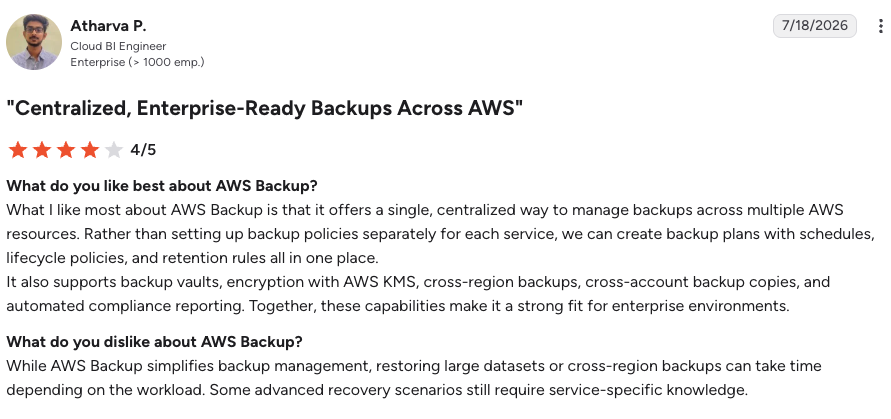
“It offers a single, centralized way to manage backups across multiple AWS resources.” — Atharva P., G2
“It can feel overly complex and not very transparent when something goes wrong.” — Irina B., G2
Pricing
AWS Backup has no minimum fee and bills per GB-month of backup storage, with rates that vary by service. For EFS in us-east-1, warm storage costs $0.05 per GB-month, cold storage $0.01, and warm restores $0.02 per GB.
Bottom line
For an AWS-only company with disciplined tagging, we'd use AWS Backup as the baseline and fill in coverage as needs surface. Once a second cloud or a SaaS suite enters the picture, one native console stops covering everything you own.
4. IDrive: Best for multi-device households and small offices
What it does: IDrive backs up PCs, Macs, Linux machines, phones, NAS devices, and servers into one storage pool.
Best for: Households and small offices backing up many computers and phones under one bill.
IDrive’s draw is reach for the price: one account backs up PCs, Macs, Linux machines, phones, NAS boxes, and even servers into a single pool, which is what lets it bridge a home setup and a small office. Most rivals at this price cover only computers.
Key features
- Continuous data backup: Files upload shortly after each change, so recent work is covered between scheduled runs.
- IDrive Express: For bulk jobs, IDrive mails you a temporary drive and your data moves in about a week, free once a year on Personal plans.
- Disk clone: An entire drive backs up as an image to an external disk or the cloud, ready for a full rebuild.
- Cloud app backup: Add-on protection covers Microsoft 365 and Google Workspace data from the same account.
Pros and cons
Pros
✅ The whole family's computers and phones land on one bill, so no device gets left out.
✅ A multi-terabyte first backup finishes within a week by courier, even on a slow home connection.
✅ When the office adds a server or Microsoft 365, backup stays with the vendor you already know.
Cons
❌ Plans cap storage, and going over the limit triggers overage charges.
❌ A large video library pushes you into pricier tiers quickly.
What users say
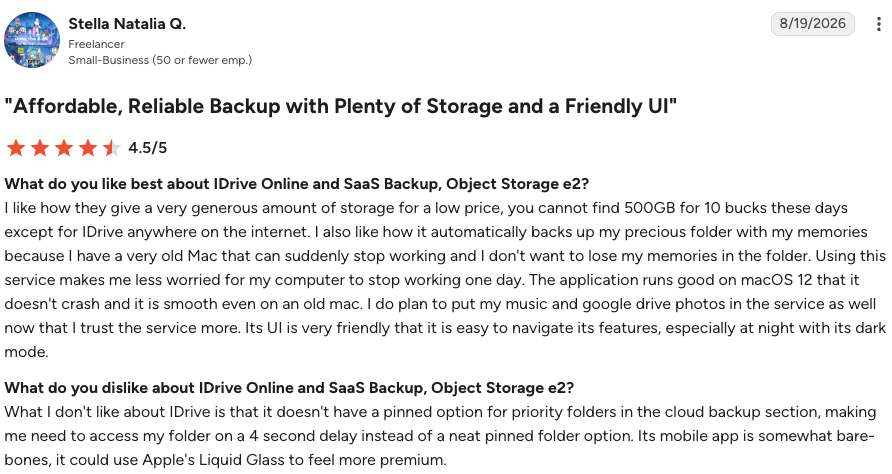
“I like how they give a very generous amount of storage for a low price.” — Stella Natalia Q., freelancer, G2
“Speed of backups [is] slower than desired.” — Verified user in marketing, TrustRadius
Pricing
IDrive Personal lists 5 TB at $9.99 per month billed yearly, discounted to $6.99 per month in the first year, with tiers up to 100 TB. A free Basic plan holds 10 GB.
Business plans with unlimited users and server backup start at 500 GB ($19.99/month on annual billing; $13.99/month on the first year), and cloud app backup costs $20 per seat per year.
Bottom line
We'd hand IDrive to a family or a small office that wants every device on one bill. Budget for the year-two rate from the start.
5. Carbonite: Best for small business computers and servers
What it does: Carbonite backs up up to 25 computers, external drives, and NAS devices, with higher tiers that add Windows servers.
Best for: Small businesses that want phone support and server backup under one vendor.
Carbonite has been part of OpenText since 2019, and its business plans read like a managed product for offices without an IT department. Storage allowances are small by design, so data volume shapes the bill.
Key features
- Computer, NAS, and server coverage: Core covers 25 computers and NAS, Power adds one server, and Ultimate covers unlimited servers.
- Guided ransomware recovery: If malware hits, Carbonite's support staff can help you recover uninfected files, as long as you reach them within two weeks of the event.
- Group policies: Admins set different backup rules for each department, role, or machine.
- Compliance support: Plans support HIPAA, FERPA, and GLBA requirements for regulated practices.
Pros and cons
Pros
✅ A practice with no IT person gets a human on the phone when a restore goes sideways.
✅ HIPAA-bound offices get backup that fits their compliance program without a separate purchase.
✅ Adding a first server keeps backups with the same vendor and dashboard you already run.
Cons
❌ Core's 250 GB fills fast, and extra storage costs $99 per 100 GB.
❌ Plans stop at 25 computers, and larger offices get routed to OpenText's enterprise products.
What users say
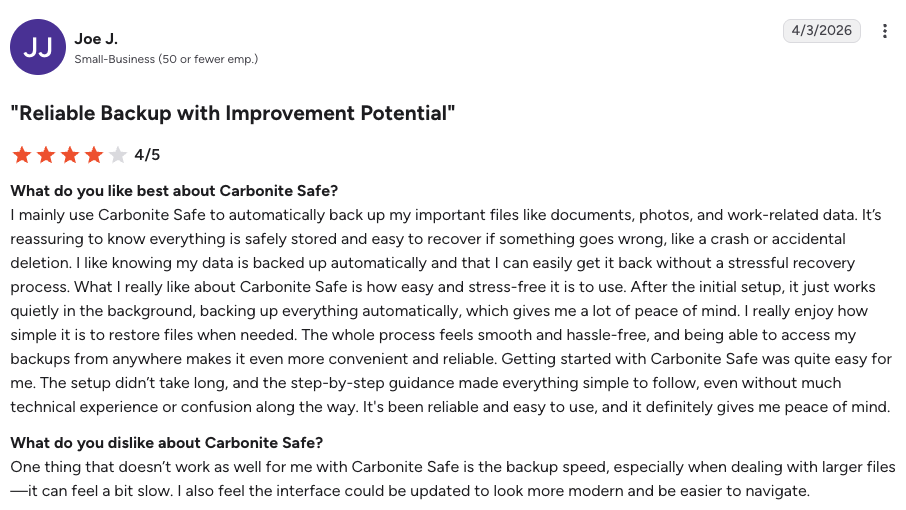
“After the initial setup, it just works quietly in the background, backing up everything automatically.” — Joe J., G2
“Backup processes sometimes stop unexpectedly.” — Mriganka R., associate consultant at an enterprise, G2
Pricing
Carbonite Professional lists at $230.39 per year, Power at $639.99, and Ultimate at $1,039.99. Carbonite Personal starts at $76.79 per year for the Basic plan.
Bottom line
We’d point a small office running a server or two here, especially if nobody on staff wants to own backup. Offices with terabytes of data will pay more in storage add-ons than the base plan.
6. CrashPlan for endpoint backup with long version history
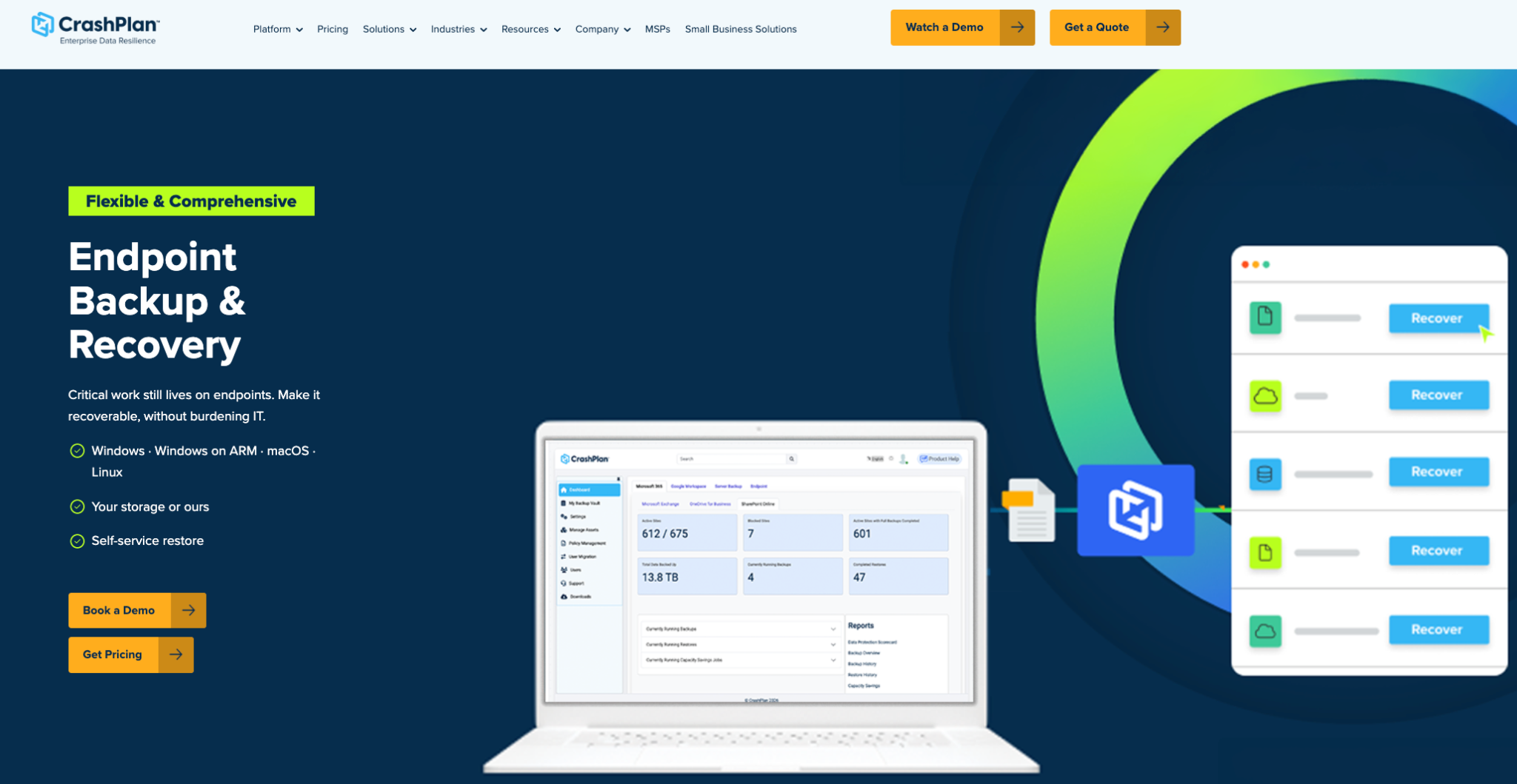
What it does: CrashPlan backs up employee computers every 15 minutes, with add-on plans for servers, Microsoft 365, and Google Workspace.
Best for: Small businesses that need unlimited storage and unlimited file versions on every laptop.
CrashPlan’s draw is that it stops metering endpoints: every covered laptop gets unlimited storage and unlimited file versions, backed up continuously instead of on a schedule. Plans are self-serve up to 249 users, and backups land in CrashPlan’s own U.S. data centers.
Key features
- Unlimited endpoint storage: Each covered computer gets as much cloud space and as many file versions as it needs.
- Self-service restore: Employees restore their own files or migrate to a new laptop without opening a ticket.
- Per-user encryption keys: AES-256 at rest, TLS in transit, and immutable backups guard against tampering.
- Server and SaaS add-ons: Servers and Microsoft 365 or Google Workspace seats use pooled storage on the same account.
Pros and cons
Pros
✅ IT stops fielding "my backup is full" tickets, since laptop storage never runs out.
✅ Employees get deleted files back on their own without waiting on IT.
✅ A stolen laptop costs an employee only the last few minutes of work.
Cons
❌ Deleted files purge after 90 days on endpoints, even with unlimited versions of existing files.
❌ The free trial requires a credit card and converts to a paid plan automatically.
❌ Server and SaaS storage tops up by 250 GB at $7.50 per month once you exceed the pool.
What users say
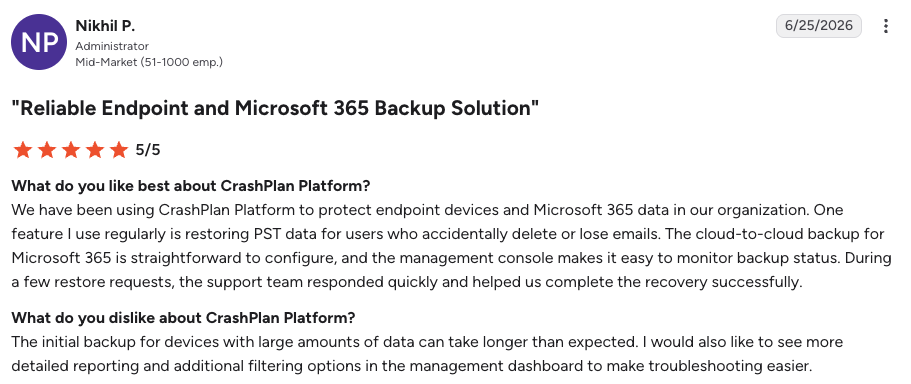
“The cloud-to-cloud backup for Microsoft 365 is straightforward to configure.” — Nikhil P., administrator, G2
“Proper release notes and an in-place archive backup option aren’t available right now.” — Anoop S., IT manager, G2
Pricing
Endpoint backup costs $88 per user per year, or $158 per user for two years. Servers cost $189 per server per year with 250 GB pooled, and Microsoft 365 or Google Workspace backup costs $44 per user per year with 50 GB pooled. A 14-day trial covers every product.
Bottom line
For a small team working mostly on laptops, CrashPlan is the one we’d shortlist first. Tell staff that deleted files stay recoverable for up to 90 days.
7. Backblaze Computer Backup for unlimited single-computer backup
What it does: Backblaze backs up all user data on one Mac or PC and its connected external drives, with no storage cap.
Best for: People with one computer and a large photo or video library who want a flat yearly price.
Backblaze asks almost nothing of you at setup, since it selects all user-created data by default. Two settings deserve a look on day one, version history and the optional private key.
Key features
- Unlimited, automatic backup: Everything a user creates on the computer and its attached drives gets backed up, whatever the file type or size.
- Mailed restores: Backblaze ships an encrypted USB drive with your data, and the drive costs nothing if you send it back within 30 days.
- Private encryption key: An optional private key adds a second layer so only you can decrypt your data.
- Extended version history: Retention extends to one year at no charge, or forever for an added fee.
Pros and cons
Pros
✅ You install it once and never maintain a backup list, since new folders get covered automatically.
✅ A dead drive's worth of photos comes back on a physical drive, whatever your internet speed.
✅ Your bill stays flat as your photo and video library grows.
Cons
❌ One license covers one computer, so a three-laptop household pays three times.
❌ Version history defaults to 30 days until you change the setting.
❌ Browser restores arrive as ZIP files of up to 500 GB each, which slows large jobs.
What users say
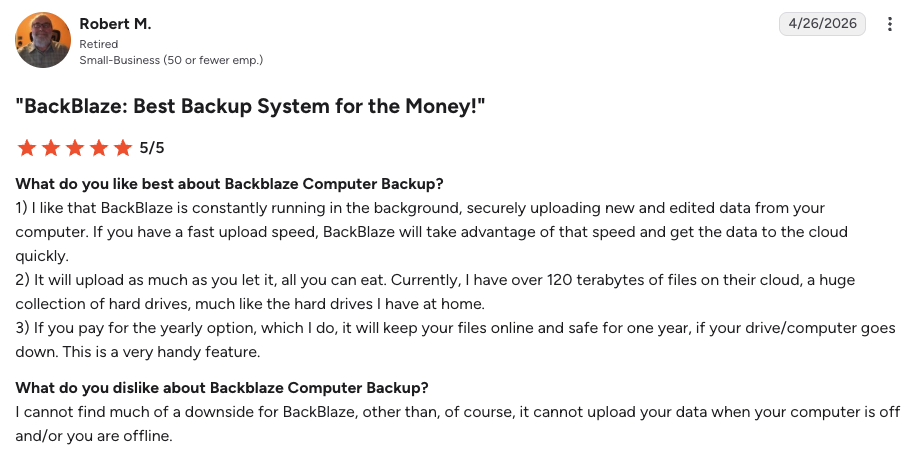
“I like that BackBlaze is constantly running in the background.” — Robert M., G2
“Certain file types are excluded … and the UI is simple and clunky.” — Peter, Trustpilot
Pricing
Personal cloud backup (unlimited for Mac and PC) costs $9 monthly, $8.25/month paid yearly, or $7.88/month paid bi-annually.
Business Backup costs $99 per year per computer and adds admin controls over its unlimited per-computer backup. Enterprise Control is quote-based.
Bottom line
Someone with one computer and a large media library gets the best value here. Anyone with several machines should price IDrive first.
8. pCloud for lifetime storage plans with backup built in
What it does: pCloud is cloud storage with a backup feature that uploads chosen computer folders and phone photos automatically.
Best for: People who want to pay once for storage that also keeps their key folders backed up.
pCloud is a storage service first, and its backup feature feeds chosen folders into that storage. Lifetime plans change the math for anyone keeping the same data for years.
Key features
- Folder backup: Chosen computer folders upload to pCloud automatically, with no cap on file size or transfer speed.
- Rewind: The whole account or selected folders roll back to an earlier date and time.
- Extended file history add-on: Deleted or edited files stay recoverable for up to 365 days.
- Swiss-based security: TLS protects data in transit and 256-bit AES protects it at rest, under Swiss privacy law.
Pros and cons
Pros
✅ You stop paying for storage after the first purchase.
✅ Losing a phone no longer means losing its photos, since they sit next to your desktop files.
✅ A mass deletion or bad sync gets undone in one step, without restoring files one at a time.
Cons
❌ Only the folders you choose get backed up, so anything outside them stays exposed.
❌ History and Rewind reach back 30 days unless you buy the add-on.
❌ A lifetime plan lasts only as long as the company behind it.
What users say
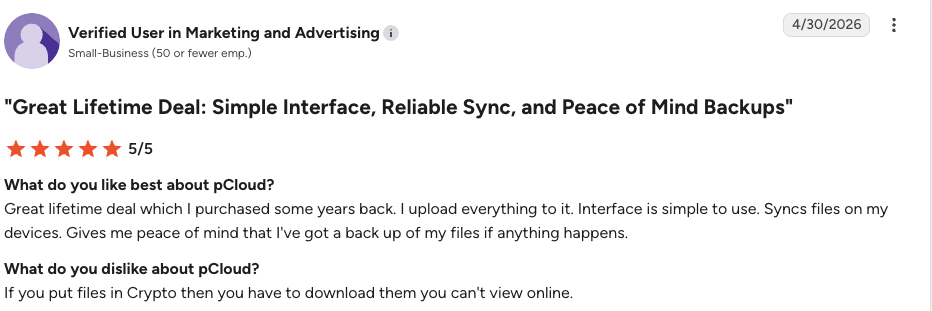
“Great lifetime deal which I purchased some years back.” — Verified user, G2
“Some features like pCloud Crypto require an additional paid upgrade instead of being included in standard plans.” — Sidath P., software engineer, G2
Pricing
Lifetime plans cost $219 for 500 GB, $499 for 2 TB, and $1,499 for 10 TB at current promotional rates, against list prices of $279, $709, and $2,799. Monthly and annual plans are also available.
Bottom line
Anyone with under 2 TB who prefers a one-time payment over a subscription will get years of value here. Treat it as storage with backup attached, and keep a second copy of anything irreplaceable.
9. Dropbox Backup for existing Dropbox users
What it does: Dropbox Backup copies chosen computer folders and external drives into your Dropbox account and keeps them updated.
Best for: Current Dropbox users who want their computer and one external drive covered without a second vendor.
Dropbox Backup is a backup mode added to the sync app many teams already run, so it protects a computer and an external drive with no new vendor to onboard; the catch is that what you can protect counts against your existing plan’s storage quota.
Key features
- Folder and drive backup: A plugged-in external drive gets rescanned hourly, and restores either put files back where they were or arrive as a ZIP download.
- Rewind: The backup reverts to an earlier state within your plan's history window.
- New-computer restore: The desktop app offers to restore your backup during setup on a new machine.
- History by plan: Plus keeps deleted files for 30 days, Standard for 180 days, and Advanced for one year.
Pros and cons
Pros
✅ Backup starts from the app you already use, with no new vendor or login.
✅ A new laptop comes up with your old folders in place after one restore at setup.
✅ You can open a backed-up file from your phone when you're away from the computer.
Cons
❌ Deleting a file from your computer deletes the backed-up copy too, leaving only the deleted-files window.
❌ Backups count against your storage quota, and the free Basic plan holds 2 GB.
❌ Encrypted APFS drives can't be backed up.
What users say
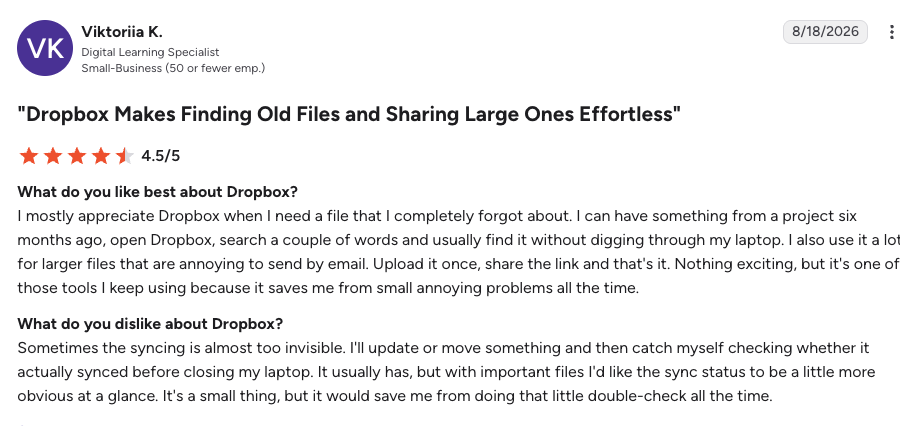
“I mostly appreciate Dropbox when I need a file that I completely forgot about.” — Viktoriia K., digital learning specialist, G2
“I find that the file search could be improved.” — Abdul W., technical support engineer, G2
Pricing
Plus costs $9.99 per month for 2 TB, and Standard costs $15 per user per month starting at 3 TB for the account. A dedicated Backup plan with space for one computer and one drive exists but is limited to select users.
Bottom line
Turn this on if you already pay for Dropbox Plus. If you're starting fresh, Backblaze or IDrive gives you real backup behavior for similar money.
10. Acronis True Image for backup and security in one app
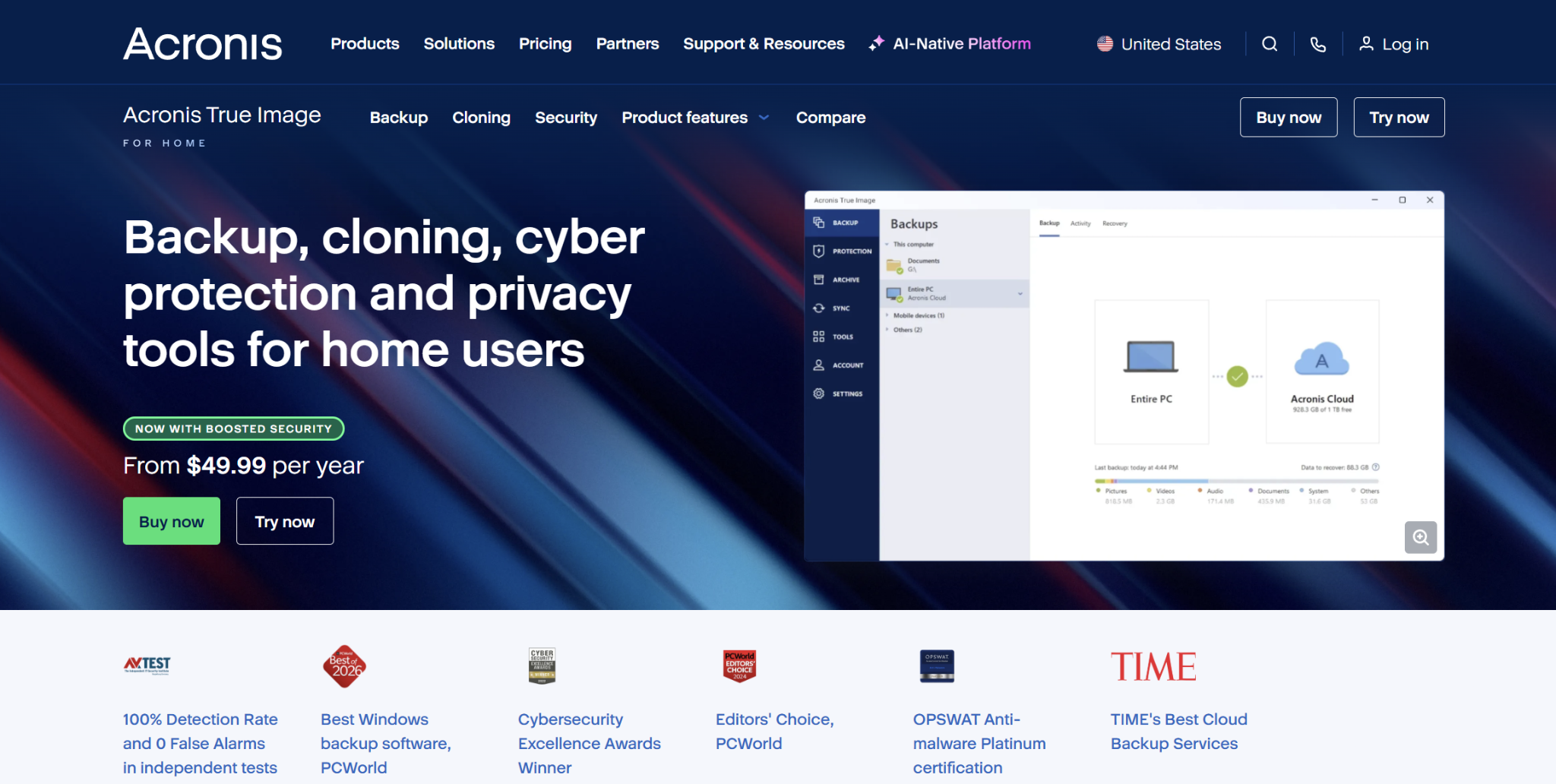
What it does: Acronis True Image backs up a full machine or selected files to a local drive or the Acronis Cloud, with anti-ransomware and antivirus built into the same app.
Best for: A personal or home-office computer that wants backup and real-time ransomware protection without running a separate security tool.
Acronis pairs backup with active, AI-based ransomware protection, so one subscription covers recovery and prevention. Plans scale by the number of computers and by how much cloud storage you add.
Key features
- Full-image and file backup: A complete disk image or selected files back up to an internal, external, or network drive, or to the Acronis Cloud.
- Active ransomware protection: Behavioral, AI-based detection blocks ransomware in real time and restores affected files in one step.
- Disk cloning and Universal Restore: Clone an active system to a new drive, or restore to different hardware even when the operating system won't boot.
- Microsoft 365 backup: Advanced and Premium plans back up a Microsoft 365 mailbox and OneDrive to the Acronis Cloud.
Pros and cons
Pros
✅ One subscription covers both backup and anti-ransomware, so a home office skips a separate antivirus.
✅ A full disk image plus cloning brings a dead or upgraded drive back exactly as it was, operating system included.
✅ Local and cloud copies run from the same app, so an off-site copy is one setting rather than a second product.
Cons
❌ The Essentials tier has no cloud backup, so off-site copies need Advanced or higher.
❌ Cloud storage is capped by tier, from 50 GB on Advanced up to 10 TB on Premium, and more space means a higher plan.
❌ Licensing is per computer, so covering more than five machines means moving to a business plan.
What users say
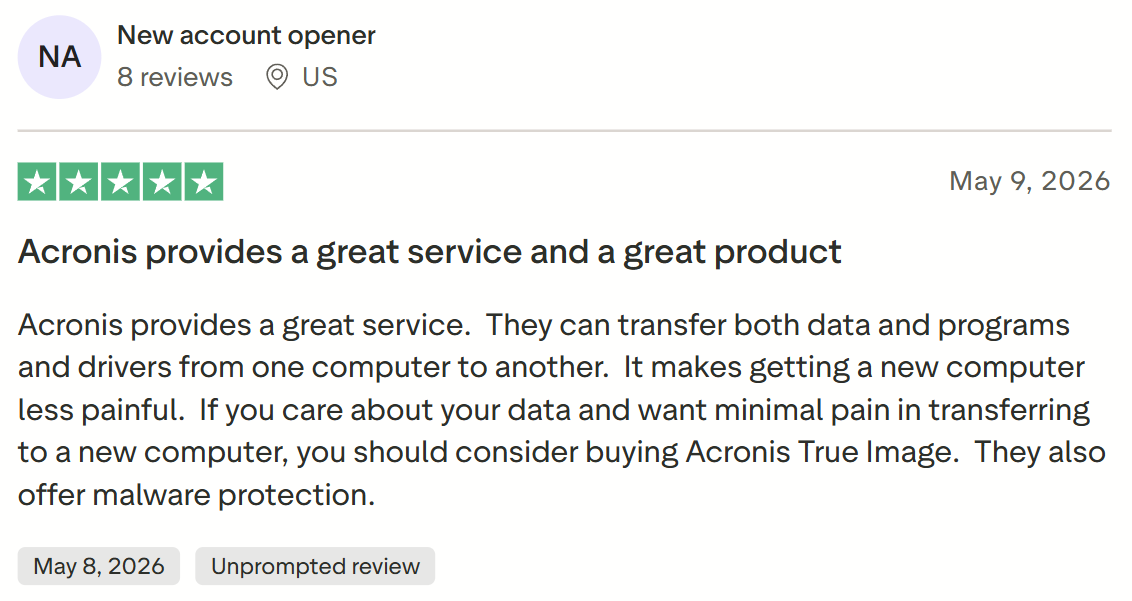
“They can transfer both data and programs and drivers from one computer to another.” — New account opener, Trustpilot
“I was upset when I was finally forced into the subscription model.” — Mike Reiter, Trustpilot
Pricing
Essentials, which is local backup only, costs $49.99/year for one computer. Advanced adds 50 GB cloud backup at $72.99/year, and Premium raises cloud storage to as much as 10 TB starting at $124.99 per year. Each plan covers one computer, with three- and five-computer options.
Bottom line
Pick Acronis True Image for a home office that wants backup and ransomware protection in one app instead of a backup tool plus a separate antivirus. Choose Advanced or higher for an off-site cloud copy, since Essentials backs up locally only.
Cloud backup pricing in 2026
Cloud backup pricing comes down to the unit a provider charges for and the fees attached to that unit. Two services with the same headline price can land hundreds of dollars apart by year three.
Per-computer pricing
A flat fee per device with unlimited data rewards one data-heavy machine and punishes households with several light ones. Three laptops on Backblaze need three licenses, or $297 a year, even if each holds 50 GB. Acronis True Image works this way too, priced by the number of computers, though its cloud storage is capped by plan tier.
Storage-pool pricing
IDrive, pCloud, and Dropbox charge for capacity shared across devices. Watch the edges, since IDrive bills $0.25 per GB per month past a Personal plan's limit, and first-year discounts of 30% disappear at renewal.
Per-seat pricing
SaaS backup from Keepit, CrashPlan, and IDrive bills per person, so cost follows headcount. Check what each seat includes, since pooled storage limits and retention length vary by tier.
Consumption pricing per GB-month
AWS Backup and Eon bill for the data you protect. On AWS, small objects add up because S3 backups under 128 KB are priced as 128 KB, and restores and cross-Region copies add separate charges that often go unnoticed.
Gartner's 2026 Hype Cycle for Backup and Data Protection Technologies notes that backup services are hard to compare because providers bill storage, egress, and API usage in different ways. Price a full year of restores and copies before you sign.
Cloud-to-cloud backup solutions for Microsoft 365 and Google Workspace
SaaS providers keep their platforms running, and the data inside your tenant stays your job. Microsoft's shared responsibility model puts data classification, data protection, and governance on the customer in every service model.
Native recovery helps with recent mistakes. Recycle bins stop at their retention window, and compliance retention keeps items without offering a point-in-time rollback of a whole mailbox or site.
Before you buy cloud-to-cloud backup, check five things:
- Copy location: Backups belong outside the tenant, where a compromised admin can't delete them.
- Retention length: One year covers accidents, while legal and audit needs often call for several.
- Restore precision: You should restore one email or file with its permissions and sharing intact.
- App coverage: Identity data like Entra ID and apps like Salesforce need protection too.
- Seat math: Per-seat prices look small until you multiply by every licensed user.
Keepit and Eon cover this category directly, and IDrive and CrashPlan sell it as an add-on. Regulated companies should also check each tool's retention enforcement and audit trails.
Downsides of cloud backup services
Slow restores over the internet
Pulling terabytes back over home broadband can take days, and cloud workloads face the same math at larger scale. In Eon's 2026 Cloud Data Infrastructure Report, one database engineering director put a full restore at about 12 hours, and 78% of cloud IT leaders hit a recovery failure in the past year.
Fix: Use mailed-drive restores for big personal jobs, and choose granular recovery for workloads so you restore only what's damaged.
Short version windows
A 30-day default means a deletion you notice on day 31 is gone for good.
Fix: Extend version history on day one, before you need it.
Deletions that follow your files
Sync-style backups mirror deletions, and ransomware-encrypted files look like ordinary edits.
Fix: Keep at least one immutable copy with its own retention clock.
Credentials that reach the backups
When one set of credentials controls production and backups, one bad call can wipe both. In April 2026, a Cursor agent deleted PocketOS's production database and all volume-level backups in about nine seconds.
Fix: Store backups in a separate account or a logically air-gapped vault with MFA, so production credentials can't reach them.
Lock-in and cost creep
Gartner's 2026 Hype Cycle flags that moving backup archives between providers is hard and costly, which creates lock-in.
Fix: Price years two and three before signing, and favor services that store backups in open formats you can export.
How to choose the best cloud backup service for your data
Pick by the data first and the brand second, since each group on this list solves a different problem.
Choose Eon if you:
- Run production data across AWS, Azure, or Google Cloud accounts that change every week.
- Need to restore one record or table without rebuilding a database.
- Need to prove at audit time what is protected across every cloud account.
Choose Keepit if you:
- Keep critical data in Microsoft 365, Salesforce, or Atlassian apps.
- Want SaaS backups in a cloud fully separate from those vendors.
Choose AWS Backup if you:
- Run only on AWS and prefer native tools with no new contract.
- Have the tagging discipline to keep new resources inside backup plans.
Choose IDrive if you:
- Back up several computers and phones for one person or a small office.
- Want a shipped drive option for huge uploads or restores.
Choose Carbonite if you:
- Run a small office with one or two Windows servers.
- Want phone support from the vendor during business hours.
Choose CrashPlan if you:
- Manage a fleet of laptops that need unlimited storage.
- Want employees to restore their own files.
Choose Backblaze if you:
- Have one computer with a large media library.
- Want a flat price with nothing to configure.
Choose pCloud if you:
- Prefer a one-time payment over subscriptions.
- Need storage and folder backup in one app.
Choose Dropbox Backup if you:
- Already pay for Dropbox Plus or a business plan.
- Only need one computer and one external drive covered.
Choose Acronis True Image if you:
- Want backup and anti-ransomware protection together in one app on your computer.
- Need to clone a drive or move your system to a new machine.
Skip this category entirely if:
- You only need a local system image before a hardware upgrade, which an external drive handles.
- You run large on-premises VMware or Hyper-V clusters, which need an enterprise platform with local repositories.
Final verdict on the best cloud backup services
The costliest mistake in this category is not going with the wrong brand but using a tool that can’t reach the data you most need back.
Every service here answers a narrow question well, so start from what you’re protecting and work outward, then pressure-test the shortlist against a real restore before you commit. Price year two, time a full recovery, and confirm the copy sits somewhere a compromised account can’t reach.
The ground is also shifting. Laptops and servers are well covered by long-running names, but more of what companies run on now lives in cloud infrastructure and SaaS, where most endpoint-era tools were never built to reach.
Eon is built for that shift. For teams whose production data and SaaS suite span AWS, Azure, and Google Cloud, it brings that whole estate under one platform and keeps the data searchable when you need a single record back.
How long would it take you to restore one deleted database record today? Book a demo and see how Eon finds unprotected resources across your clouds and restores a single record from a logically air-gapped vault.
Frequently asked questions
What is the best cloud backup service for businesses?
The best cloud backup service for businesses depends on where the data lives. Eon fits cloud-first companies, while CrashPlan and Carbonite suit small offices with laptops and a few servers. Companies that want the service fully run for them can compare backup as a service providers.
How much does a cloud backup service cost per month?
A cloud backup service costs under $10 per month for one personal computer or user at list price. Small-business plans run a few hundred dollars per year, and cloud workload backup bills per GB-month of protected data.
Is Google Drive or OneDrive a backup service?
No, Google Drive and OneDrive are sync and storage services that mirror changes across your devices. They keep a recycle bin and some version history, and a dedicated backup keeps older copies on its own schedule.
What is a cloud-to-cloud backup solution?
A cloud-to-cloud backup solution copies data from one cloud service, such as Microsoft 365, Google Workspace, or Salesforce, into a separate cloud. That separate copy lets you restore data after deletion, ransomware, or an account compromise inside the original service.
How long does a cloud backup restore take?
A single-file restore usually takes seconds to minutes. A full restore of a large computer can take days over home broadband, which is why Backblaze and IDrive offer shipped-drive restores.
Is cloud backup safe from ransomware?
Yes, cloud backup protects against ransomware when copies are immutable and stored where compromised credentials can't reach them. Check how long deleted and changed files stay recoverable, since a short window can expire before you notice an attack.