


Most migration plans treat backup as a post-cutover task. Then the first wave lands, hundreds of new instances and databases show up across new accounts and regions, and nobody can say which of them are covered. The cloud migration tools below move workloads well. None of them tell you whether what landed is protected.
We know this problem from the inside. Eon was built by the team behind CloudEndure, the migration and disaster recovery technology AWS acquired in 2019. Today we protect data in the same environments these tools deliver into. For this guide, we reviewed 10 tools against their official documentation, live pricing pages, and verified user reviews.
What cloud migration tools should assess, move, and validate
A migration tool earns its place by doing three jobs well. We judged every tool below against the parts of these jobs it claims to handle.
- Assess: Discover what's running, map the dependencies between servers and apps, and estimate what it'll cost in the target cloud. Skip this, and you move a database without the app server that talks to it.
- Move: Replicate servers, databases, or files continuously so the source keeps running, then cut over in a short window. Look for test launches before cutover and a way back to the source if something breaks.
- Validate: Confirm the workload runs the same (or better) on the other side, and that the data arrived intact. Performance baselines, data validation, and integrity checks all belong here.
We also weighed source and target support, scale, hidden infrastructure and transfer fees, and, where available, verified reviews across G2, PeerSpot, TrustRadius, and practitioner communities.
Native vs third-party cloud migration tools
Native tools come from the cloud you're moving into. AWS, Microsoft, and Google each offer their own, and most of the service itself is free for migrations into that cloud (you pay for the compute, storage, and transfer it uses). The tradeoff is that each native tool only delivers into its own cloud.
Third-party tools come from independent vendors. They cost more, but they're the only option for some jobs: any-to-any server moves across several clouds, VMware-to-VMware mobility, Microsoft 365 tenant consolidation, and performance validation that sees both environments at once. Most enterprise programs use both.
What are the 7 types of cloud migration?
The seven types of cloud migration, often called the "7 Rs," are the strategies you can apply to each application. AWS's prescriptive guidance defines them this way:
- Retire: Decommission applications that no longer provide business value.
- Retain: Keep the application where it is, or postpone its move.
- Rehost: Lift and shift the application with no changes.
- Relocate: Move servers or instances to a different platform, VPC, region, or account.
- Repurchase: Replace the application with a different product, often SaaS.
- Replatform: Move with some optimization, such as switching to a managed database.
- Refactor: Re-architect the application to use cloud-native features.
The tools below mostly serve rehost, relocate, and replatform moves, which cover the bulk of most enterprise estates.
The top 10 cloud migration tools: TL;DR
Native tools:
- AWS Transform MGN: Best for rehosting physical, virtual, or cloud servers onto Amazon EC2.
- Azure Migrate: Best for discovery, business cases, and server moves into Azure.
- Google Cloud Migration Center: Best for planning and moving VMs into Compute Engine.
- AWS Database Migration Service: Best for database moves into AWS, same engine or different.
- Azure Database Migration Service: Best for moving SQL Server into Azure SQL targets.
- AWS DataSync: Best for moving large file shares and object storage into AWS.
Third-party tools:
- OpenText Migrate (formerly Carbonite Migrate): Best for any-to-any server moves.
- VMware HCX: Best for moving vSphere workloads into VMware-based clouds.
- MigrationWiz: Best for Microsoft 365 and Google Workspace tenant migrations.
- Datadog: Best for validating performance before, during, and after cutover.
10 best cloud migration tools: Quick comparison
Native cloud migration tools
Native tools are the default when you know your destination cloud. They're listed here in workload order: servers and VMs first, then databases, then file data.
1. AWS Transform MGN: Best for rehosting servers onto Amazon EC2
What it does: AWS Transform MGN continuously replicates physical, virtual, and cloud servers at the block level and relaunches them as native EC2 instances.
Best for: AWS-bound programs rehosting large server estates with short cutover windows.
MGN is the default lift-and-shift path into AWS, and it's the service AWS used to call AWS Application Migration Service. AWS describes it as the next generation of CloudEndure Migration, which is now end of life in all regions, so any runbook that starts with the CloudEndure agent is describing MGN's predecessor.
Planning moved too. AWS Migration Hub stopped accepting new customers on November 7, 2025, and its features now live in AWS Transform. Existing Migration Hub customers can finish their projects there.
Key features
- Continuous block-level replication: Source servers keep running while their disks replicate, so typical cutover windows run to minutes.
- Waves and applications: Groups servers into applications and applications into waves, then launches or cuts over a whole wave at once.
- Agentic planning: AWS Transform uses AI agents for discovery, wave planning, and network conversion ahead of the move.
- Modernize during the move: OS conversion, license conversion, and disaster recovery setup run as part of the migration.
Pros
- ✅ Test launches catch boot and driver problems on EC2 while the source is still serving traffic.
- ✅ Handles physical servers, VMware, Hyper-V, other clouds, and AWS-to-AWS moves between regions or accounts with one replication model.
- ✅ Waves let a small team cut over hundreds of servers without tracking each one by hand.
Cons
- ❌ AWS is the only destination, so it won't help with a multi-cloud target.
- ❌ Stalled agents still need manual commands to restart replication on large waves.
What users say
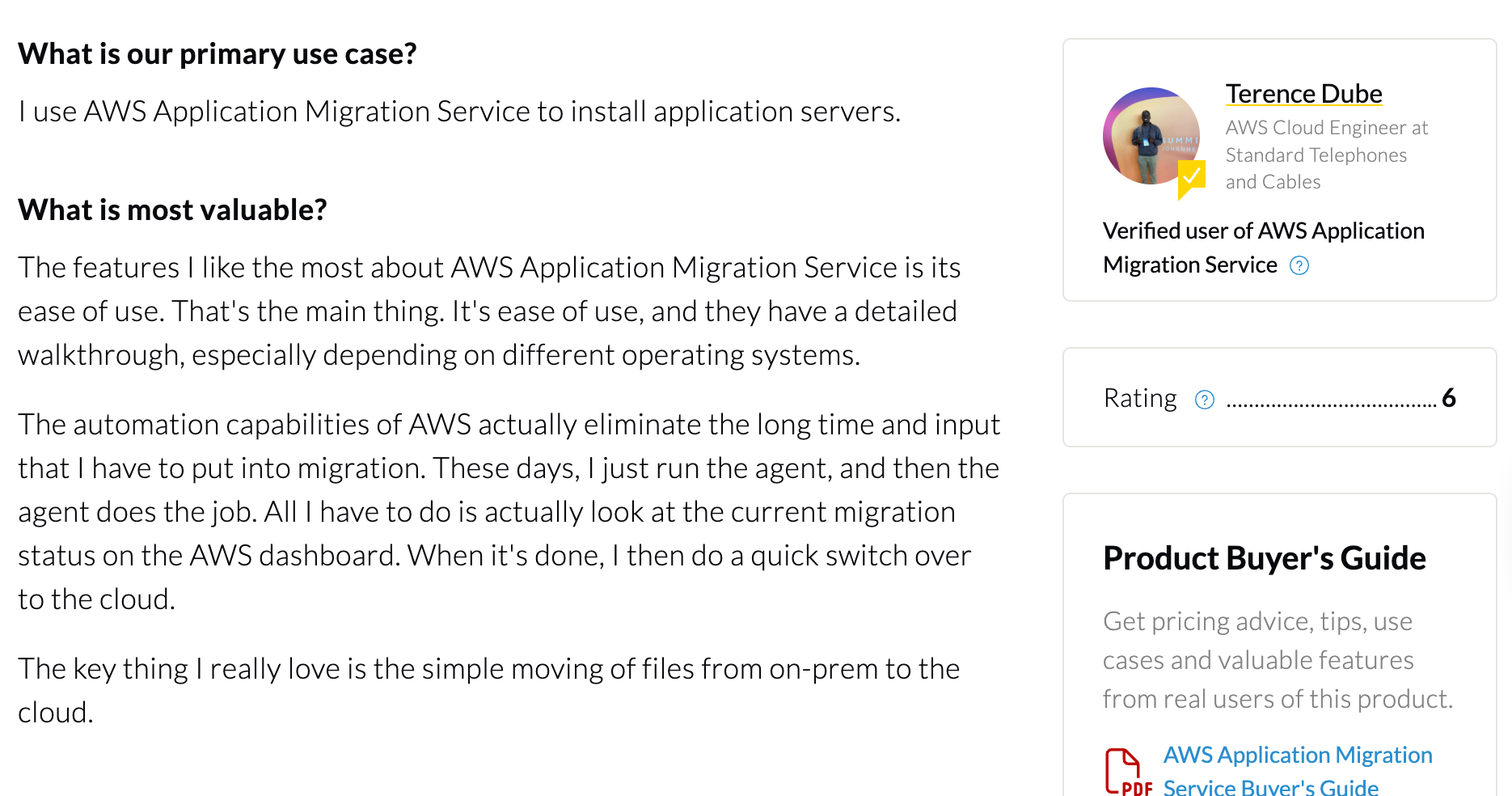
"These days, I just run the agent, and then the agent does the job." – Terence Dube, AWS cloud engineer, PeerSpot
“The schema conversion tool is valuable, but it requires additional steps.” – Dieudonné-Nsabimana, consultancy manager, PeerSpot
Pricing
Each source server gets 2,160 free hours of replication. After that, AWS charges per hour for servers still replicating. EC2 and EBS costs for replication, test, and cutover instances apply throughout. AWS Transform's assessment and VMware migration agents are free.
Bottom line
If AWS is your destination and most of the estate is lift-and-shift, start here, and plan each wave to finish inside the 90-day window.
2. Azure Migrate: Best for planning and moving workloads into Azure
What it does: Azure Migrate discovers and assesses workloads, builds a business case, and migrates servers, databases, and web apps into Azure.
Best for: Microsoft-heavy enterprises that want planning and execution in one portal.
Azure Migrate covers more of the assess, move, and validate cycle than any other tool here. An appliance inventories your environment, then produces readiness assessments, right-sizing, and a total cost of ownership comparison before anything moves.
Microsoft has also added an Azure Copilot migration agent for planning questions, still in preview.
Key features
- Discovery and assessment: An appliance inventories VMware, Hyper-V, physical servers, SQL Server, and web apps, then scores Azure readiness and sizing.
- Business case: Compares on-premises and Azure costs, including cash flow.
- Agentless VMware migration: Moves vSphere VMs without installing software in each guest.
- Database and web app paths: Routes SQL Server through Azure Database Migration Service and ASP.NET apps to App Service.
Pros
- ✅ Dependency analysis shows which servers have to move together before you schedule a wave.
- ✅ One project carries discovery, the business case, and the migration, so sizing data doesn't get lost between teams.
- ✅ Partner tools such as Carbonite, Device42, RackWare, and Zerto plug into the same hub.
Cons
- ❌ VMs coming from AWS or Google Cloud are treated as physical servers, which means agent-based migration.
- ❌ Setup on large or specialized estates takes effort before assessments are reliable.
What users say
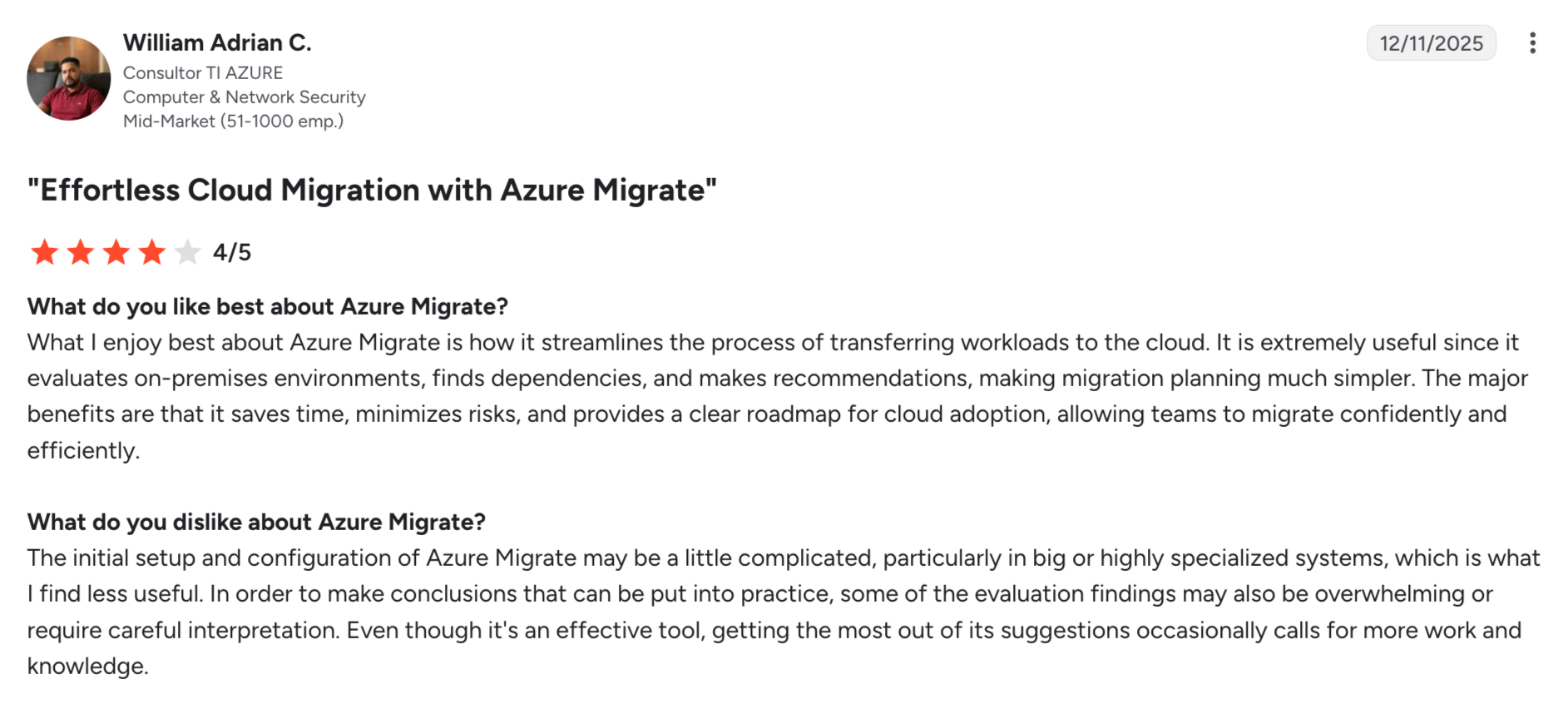
"It evaluates on-premises environments, finds dependencies, and makes recommendations." – William Adrian C., Azure IT consultant, G2
"Requires a lot of knowledge to administer." – Verified user, IT engineer, TrustRadius
Pricing
Discovery and assessment are free. Server migration is free for 180 days per machine, then $25/month per replicated instance, plus storage and data transfer.
Bottom line
When Azure is the destination, this is the obvious pick. Let discovery collect a few weeks of performance data before you trust the sizing.
3. Google Cloud Migration Center: Best for planning and moving VMs into Compute Engine
What it does: Google Cloud Migration Center discovers assets and estimates costs, then hands VMs to Migrate to Virtual Machines for replication and cutover into Compute Engine.
Best for: Teams consolidating VMware or other-cloud VMs onto Google Cloud.
Migration Center is Google Cloud's hub for the whole move. It's built for teams that want to know what's ready to migrate and what it'll cost on Google Cloud before they commit, then run the migration from the same place.
Key features
- Discovery and TCO: A discovery client, CSV, or RVTools import builds an inventory of servers and databases, then produces cost estimates and TCO reports.
- Continuous replication: Migrate to Virtual Machines copies disks from vSphere, AWS, Azure, or Google Cloud VMware Engine while the source stays up.
- Test clones: Launches clones from replicated data to validate a workload before cutover.
- Groups: Moves up to 100 systems in one sprint on a shared schedule.
Pros
- ✅ Assessment and migration share one inventory, so nothing discovered gets lost before the move.
- ✅ Replication runs without taking the source VM down, which keeps test cycles cheap on the business side.
Cons
- ❌ Moving from AWS or Azure adds source-side charges for the instances, disks, and traffic the tool uses.
- ❌ Physical servers aren't in the documented source list, so check fit before a bare-metal wave.
What users say
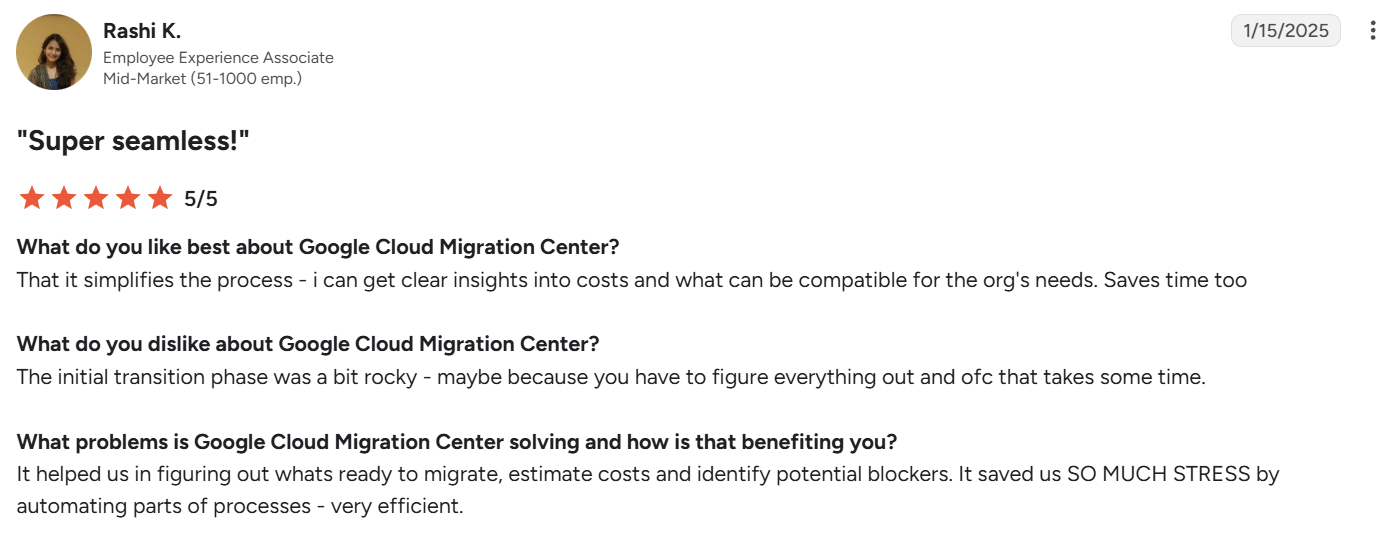
"It helped us in figuring out what's ready to migrate, estimate costs, and identify potential blockers." – Rashi K., employee experience associate, G2
"The costs associated with migration … have increased the overall expense." – Varshini C., data analyst, G2
Pricing
Migrate to Virtual Machines is free for migrations into Google Cloud, and Migration Center includes a free migration cost estimate. You pay standard Compute Engine, storage, and networking rates for test clones and cutover.
Bottom line
For VMware estates headed to Google Cloud, this is the default. Budget for source-side charges if you're pulling VMs out of AWS or Azure.
4. AWS Database Migration Service: Best for database moves into AWS
What it does: AWS Database Migration Service migrates databases into AWS with a full load plus ongoing change data capture (CDC), so the target stays in sync until cutover.
Best for: Moving Oracle, SQL Server, PostgreSQL, MySQL, or MongoDB workloads into RDS, Aurora, or other AWS targets.
Server tools copy a database as part of a disk. DMS copies the data itself, which is what you want when you're changing engines (Oracle to PostgreSQL, say) or moving onto a managed service. Customers have migrated more than 1.5 million databases with it.
Key features
- Full load plus CDC: Copies existing data, then streams inserts, updates, and deletes until you cut over.
- Schema Conversion: Combines rule-based conversion with generative AI-assisted code conversion for objects like stored procedures.
- Data validation: Compares source and target and re-syncs rows that don't match.
- DMS Serverless: Scales replication capacity automatically.
Pros
- ✅ Engine changes and the data move run in one service, so teams don't stitch together a conversion tool and a copy tool.
- ✅ Near-zero downtime cutovers suit databases that can't go offline for a weekend.
Cons
- ❌ CDC setup takes study, and task settings often mean editing JSON by hand.
- ❌ Fleet Advisor, the discovery feature, was discontinued on May 20, 2026, so discovery now happens elsewhere.
What users say
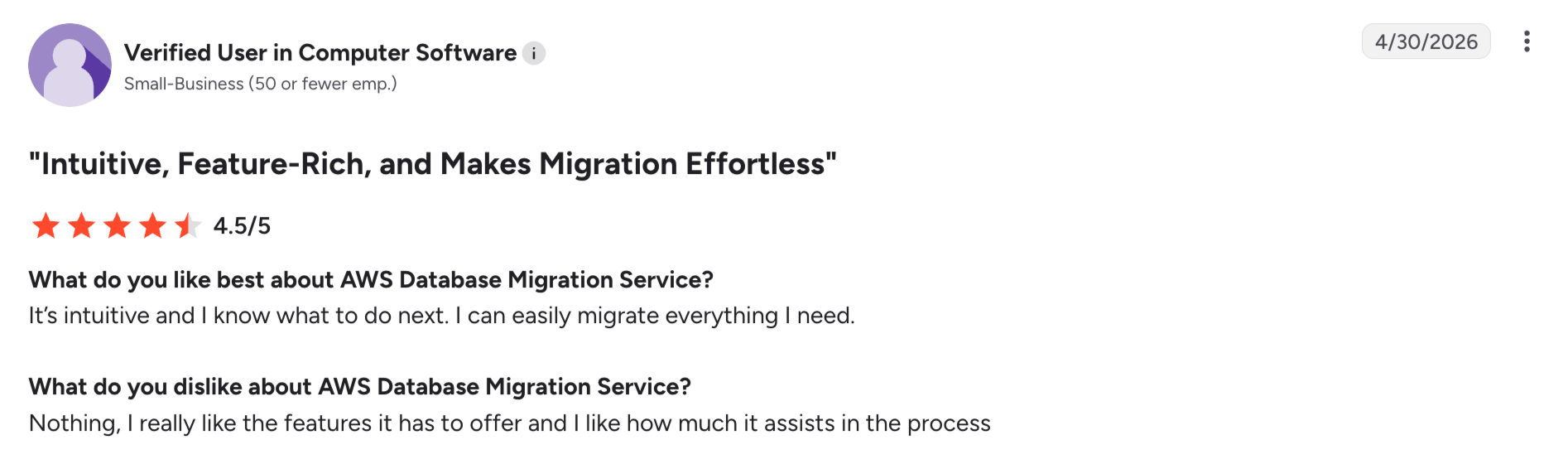
"I can easily migrate everything I need." – Verified user, computer software company, G2
Pricing
DMS bills by the hour for on-demand replication instances, or by capacity used with DMS Serverless. DMS Schema Conversion is free apart from the S3 storage it uses.
Bottom line
Use DMS whenever a database changes engine or shape on the way into AWS, and prototype CDC on one database before scheduling the wave.
If you’re moving databases onto RDS or Aurora, how you handle Amazon RDS backup and restore afterward is its own decision, with a few practices worth getting right from the start.
5. Azure Database Migration Service: Best for moving SQL Server into Azure
What it does: Azure Database Migration Service migrates SQL Server databases to Azure SQL Database, Azure SQL Managed Instance, or SQL Server on Azure VMs.
Best for: SQL Server estates moving into Azure's managed SQL services.
Azure DMS is now focused on SQL Server modernization. Online migrations keep downtime to a short cutover for SQL Managed Instance and SQL Server on Azure VMs, while Azure SQL Database targets use offline migration.
Microsoft retired the classic service's SQL scenarios in March 2026, so start from the current service.
Key features
- Online and offline modes: Online migration keeps downtime to a short cutover for SQL Managed Instance and SQL Server on Azure VMs, while Azure SQL Database targets use offline migration.
- Schema migration: Moves schema alongside data.
- Automation: Runs from the Azure portal, PowerShell, or Azure CLI, with private endpoint support.
Pros
- ✅ It plugs into Azure Migrate, so server and database waves share one project.
- ✅ Online mode keeps production databases serving traffic until the final cutover.
Cons
- ❌ Only SQL Server sources, so Oracle or PostgreSQL moves need a different path.
- ❌ Clustered SQL migrations take extra planning.
Pricing
The Standard tier for offline migrations is free. The Premium tier for online migrations is free for its first six months (183 days), then billed hourly.
Bottom line
For SQL Server into Azure, this is the default path. Run it from inside your Azure Migrate project so server and database waves stay in sync.
6. AWS DataSync: Best for moving file shares and object storage into AWS
What it does: AWS DataSync copies file and object data into AWS storage, verifies every transfer, and syncs only what changed on later runs.
Best for: Teams moving NAS shares, Hadoop data, and other clouds' buckets into S3, EFS, or FSx.
File data is usually the biggest part of a migration by volume, and a replicated file server disk is hard to verify file by file. DataSync is for teams that need to sign off on millions of files with an audit trail.
Key features
- Broad sources: Reads NFS, SMB, and HDFS through an agent, and connects to Google Cloud Storage, Azure Blob Storage, Azure Files, and S3-compatible storage through APIs.
- Integrity checks: Verifies data in transit and at rest.
- Incremental sync: Scheduled runs move only changed files until cutover.
- Task reports: JSON reports record what moved, with metadata and permissions preserved.
Pros
- ✅ Built-in verification removes the manual spot-checks that usually stall file migrations.
- ✅ Pulls from other clouds as well as on-premises shares, so one tool covers every source.
Cons
- ❌ On-premises sources need an agent and correct network setup before anything moves.
- ❌ S3 request and storage fees stack on the per-GB rate, which adds up on shares with millions of small files.
What users say
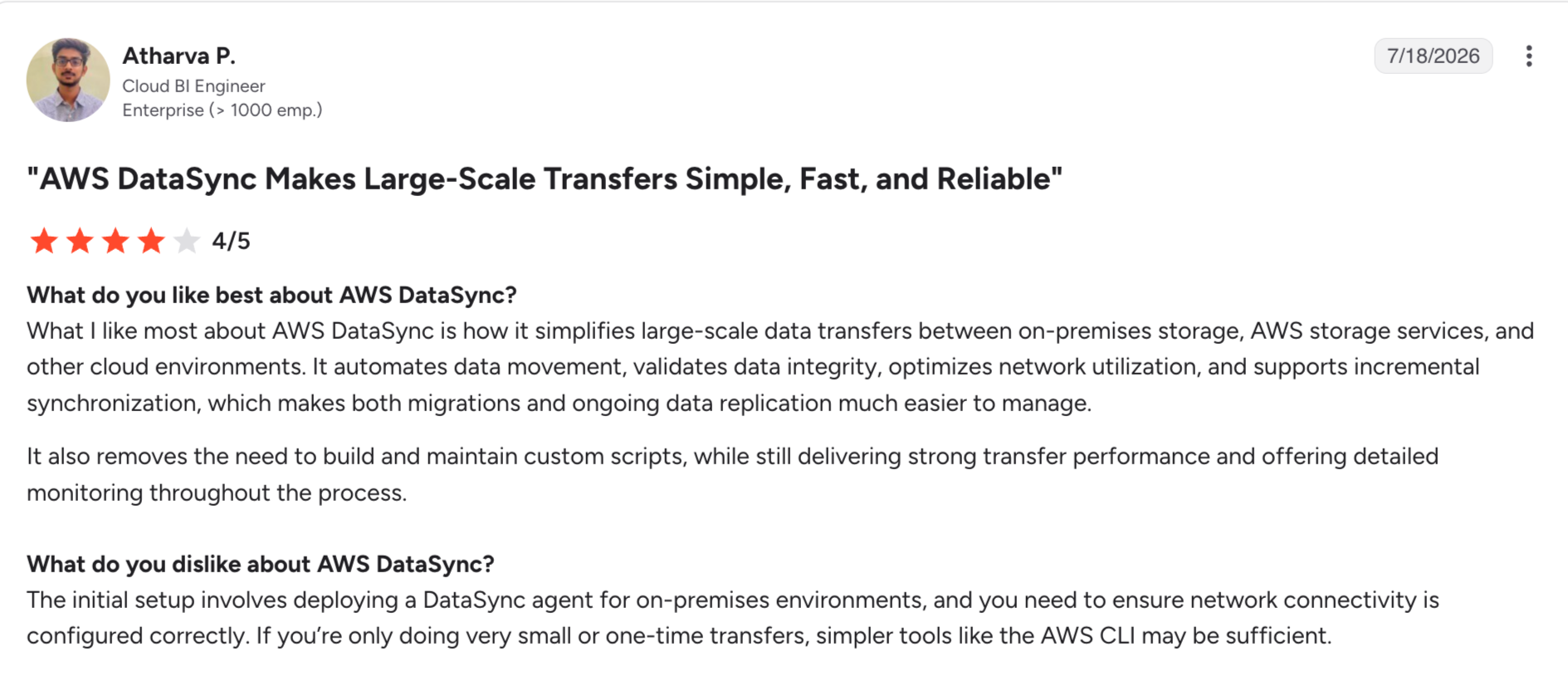
"It simplifies large-scale data transfers between on-premises storage, AWS storage services, and other cloud environments." – Atharva P., Cloud BI Engineer, G2
Pricing
Basic mode costs $0.0125/GB. Enhanced mode costs $0.015/GB plus $0.55 per task execution.
Bottom line
Use DataSync for file data even if MGN moves the servers around it. A copy with a task report is far easier to defend in an audit than a replicated disk.
It also helps to be clear on the difference between replication and backup: a migration copy shows the data moved, while recovering it weeks later is a different guarantee.
Third-party cloud migration tools
Third-party tools fill the gaps native tools leave. They're listed in workload order: servers and VMs, then mail and collaboration data, then validation.
7. OpenText Migrate: Best for any-to-any server moves
What it does: OpenText Migrate replicates whole servers at the byte level between physical, virtual, and cloud environments, then cuts over in seconds or minutes.
Best for: Hybrid and multi-cloud programs that need one tool across several destinations.
OpenText Migrate is the product many lists still call Carbonite Migrate. It's the only server tool here that works with any destination, so a program sending part of an estate to AWS, part to Azure, and part to a colocation facility can run all of it under one replication model.
Key features
- Any-to-any moves: Physical-to-virtual, cloud-to-cloud, and cloud-back-onsite, per the data sheet.
- Test cutovers: Run as many as you want without touching production.
- Reversion: Returns to the original system if the target doesn't hold up.
- Transfer controls: AES 256-bit encryption, bandwidth throttling, and compression.
Pros
- ✅ One console and one runbook across VMware, Hyper-V, AWS, Azure, and Google Cloud targets.
- ✅ Multi-tier application cutovers run in a repeatable sequence, which cuts human error on complex apps.
Cons
- ❌ Budgeting starts with a sales call.
- ❌ Clustered Windows servers can fail mid-migration and need extra planning.
Pricing
OpenText doesn't publish pricing. You'll need to contact sales for a quote.
Bottom line
Pick it when your destinations are mixed. If everything goes to one hyperscaler, that cloud’s free native tool usually wins on cost.
And if you’re keeping a mixed-destination estate after the move, the same sprawl needs managing day to day, which is what multi-cloud management platforms are for.
8. VMware HCX: Best for moving vSphere workloads into VMware-based clouds
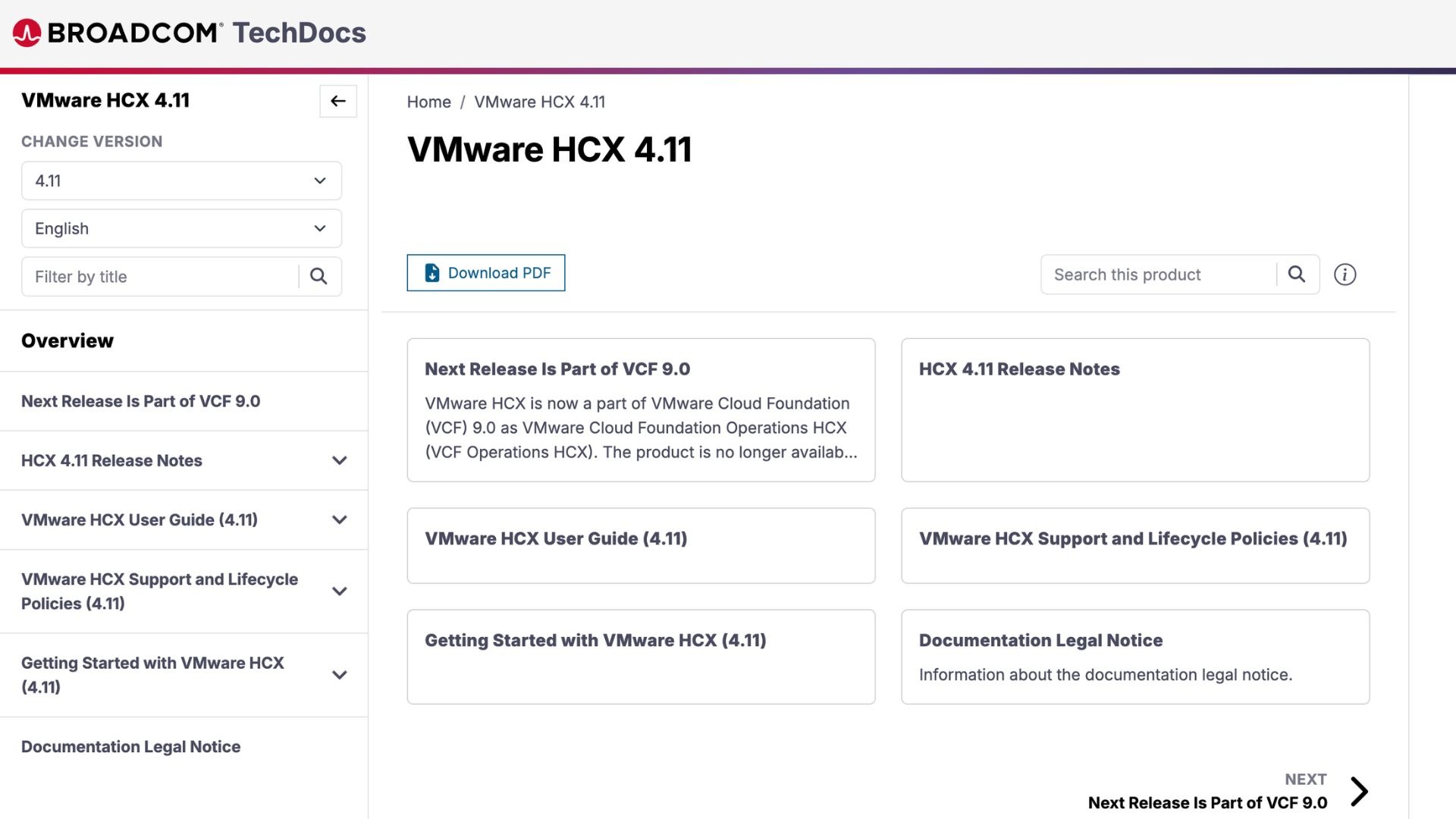
What it does: VMware HCX moves VMs between vSphere environments and extends networks between sites so VMs keep their IP addresses.
Best for: Enterprises moving vSphere estates into VMware-based clouds such as Google Cloud VMware Engine or VMware Cloud Foundation on a hyperscaler.
HCX is the tool you reach for when the target is still VMware. It's how many teams relocate whole data centers into a VMware environment in the cloud without changing a single VM, and Google's own documentation uses it for VMware Engine migrations.
Key features
- Five migration types: Bulk, vMotion, Cold, Replication Assisted vMotion, and OS Assisted migration.
- Zero-downtime moves: vMotion migration moves a running VM with no service interruption.
- Network extension: Stretches networks between sites so VMs keep their addresses.
- Guest VM support: OS Assisted Migration brings non-vSphere VMs into vSphere environments.
Pros
- ✅ Apps don't need re-IPing, which removes the riskiest part of most data center exits.
- ✅ Live migration means some workloads move with no maintenance window at all.
Cons
- ❌ The target has to be vSphere, so it won't rehost onto native EC2, Azure VMs, or Compute Engine.
- ❌ Outside VCF, the full feature set needs NSX Enterprise Plus plus a separately sold HCX Enterprise add-on.
Pricing
HCX is included for vCenter environments licensed for VMware Cloud Foundation 5.1.1 and later. Hyperscaler VMware services supply activation keys, and a 60-day evaluation mode allows up to 20 VM migrations per type.
Bottom line
If you're keeping VMware in the cloud, HCX is the natural fit. If you're leaving VMware, use your target cloud's native tool instead.
9. MigrationWiz: Best for Microsoft 365 and Google Workspace migrations
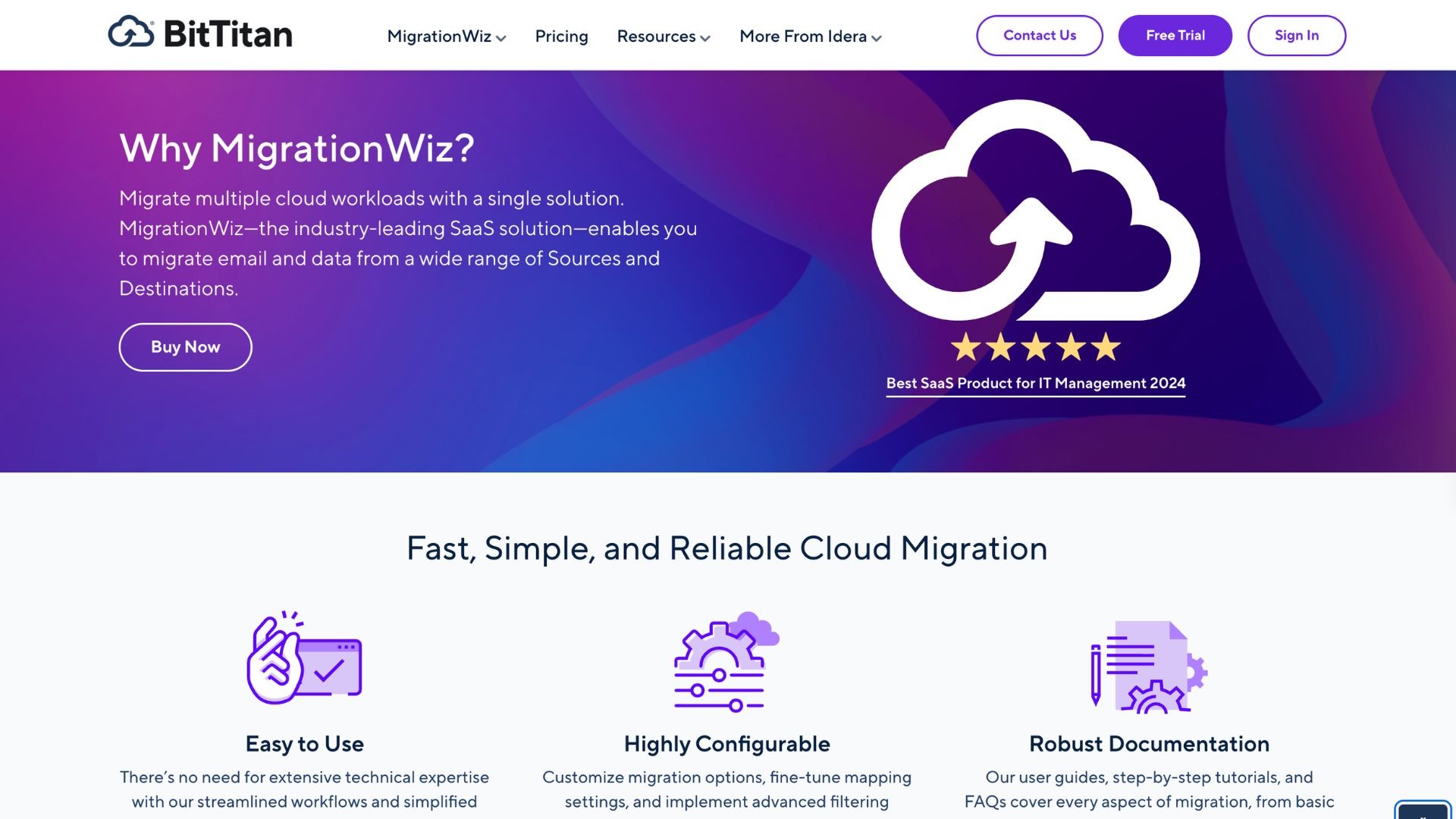
What it does: MigrationWiz moves mailboxes, documents, Teams, public folders, and archives between Microsoft 365, Google Workspace, Dropbox, and legacy email systems.
Best for: IT teams handling tenant-to-tenant moves after mergers, divestitures, or platform consolidation.
Mail and collaboration moves need a SaaS-to-SaaS tool, and it's the one category Gartner reviews as its own market. MigrationWiz (from BitTitan, now part of Idera) is built for that job, with nothing to install.
Key features
- Pre-stage and delta passes: Moves most of the data early, then catches up at cutover.
- Broad coverage: Mailboxes, OneDrive and SharePoint, Teams, PSTs, and Active Directory objects.
- Scale: From five seats to 50,000, with unlimited concurrent migrations.
Pros
- ✅ Pre-stage passes keep the cutover window short, so users barely notice the switch.
- ✅ Mail and documents run side by side in the same project.
Cons
- ❌ File migrations can struggle to pick up changes, which may mean re-running users.
- ❌ Per-user and per-library licensing adds up on large tenants.
What users say
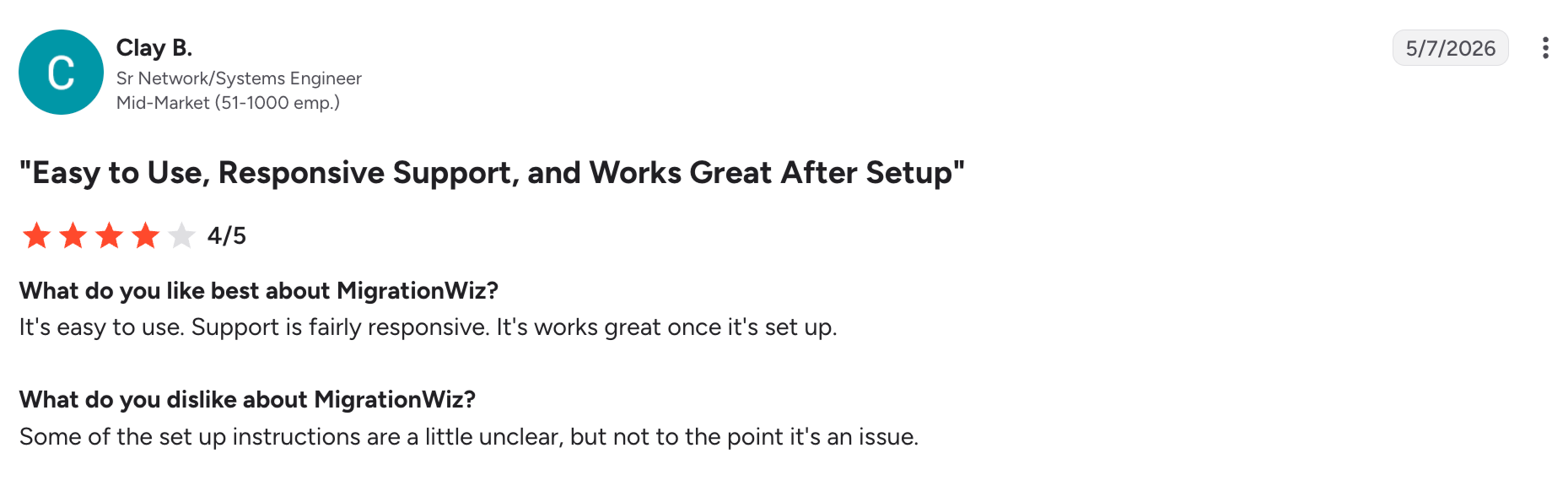
"It's easy to use. Support is fairly responsive." – Clay B., Sr Network/Systems Engineer, G2
"The tool doesn't update or sync files based on modifications." – James M., small-business IT user, G2
Pricing
Mailbox licenses start at $14/user. The User Migration Bundle, which adds archives, documents, and Teams chat, costs $17.50/user.
Bottom line
It's the tool we'd reach for on a tenant consolidation. Pilot a handful of heavy OneDrive users first.
Moving a tenant doesn’t protect what lands in it, and backing up Microsoft 365 is a separate requirement that outlasts the migration.
10. Datadog: Best for validating performance before, during, and after cutover
What it does: Datadog monitors infrastructure, applications, logs, and network traffic across on-premises and cloud environments, so you can baseline performance before the move and compare it after.
Best for: Teams that need proof a migrated application performs at least as well as it did before.
Datadog doesn't move anything, but it sees both environments at once. A workload that boots in the new cloud but runs 30% slower is a failed migration nobody has noticed yet, and Datadog is how teams catch it.
Key features
- Dependency mapping: Service Map and Network Map show how services and infrastructure talk to each other.
- Hybrid visibility: One view across on-premises, public cloud, and private cloud hosts.
- Long retention: Metrics at full granularity for 15 months on paid plans.
- Anomaly detection: Flags regressions without hand-set thresholds.
Pros
- ✅ Dependency maps feed wave planning, so services that talk to each other move together.
- ✅ Pre-migration baselines stay available long after cutover, which settles "was it always this slow?" arguments.
Cons
- ❌ Costs grow with hosts and features, and log volume can make bills hard to predict.
- ❌ The feature set takes time for new users to learn.
What users say
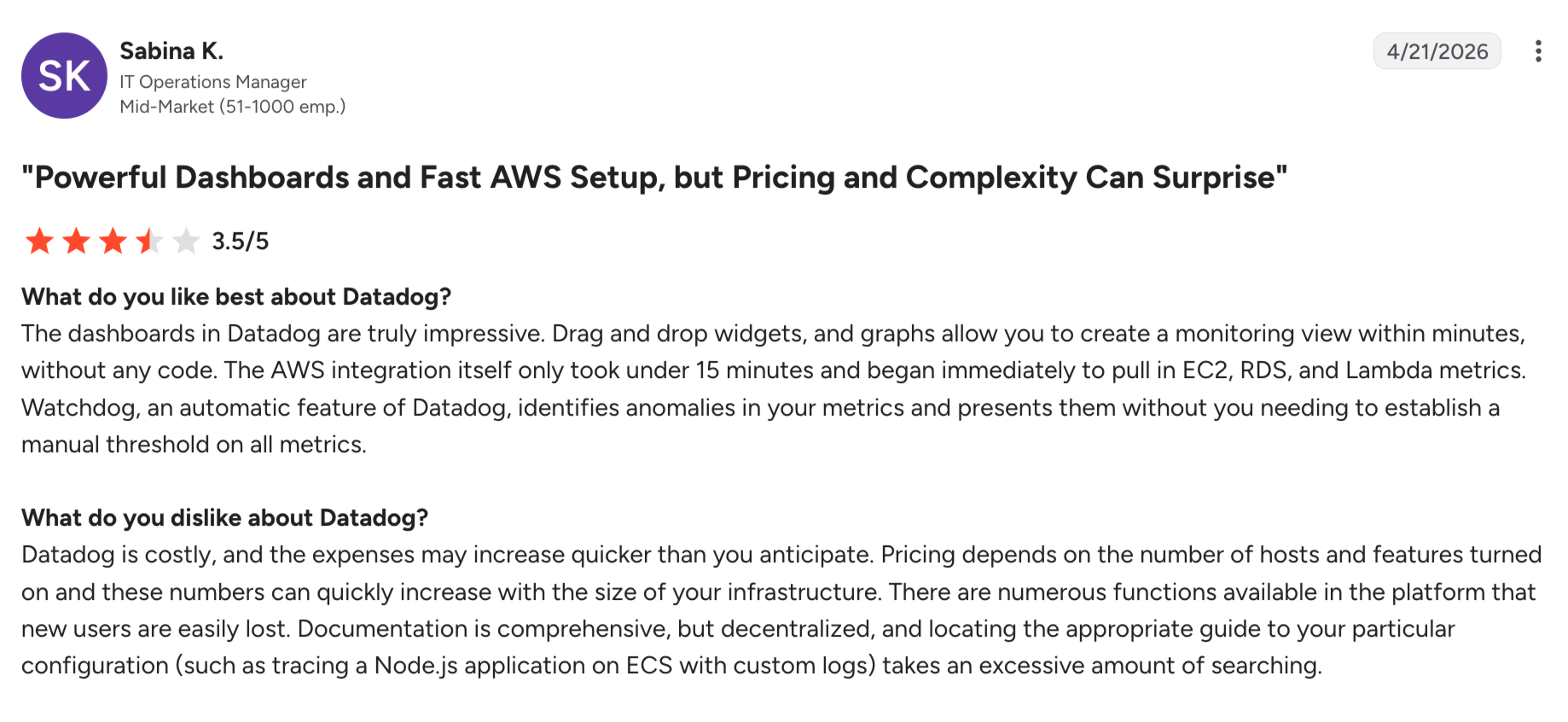
"The AWS integration itself only took under 15 minutes." – Sabina K., IT Operations Manager, G2
"Sending application logs to Datadog can lead to unpredictable costs." – Anshuman S., Advanced software engineer, G2
Pricing
Infrastructure Monitoring Pro costs $18/host/month on demand ($15/host/month billed annually). A free tier covers up to five hosts with one-day retention, and APM starts at $31/host/month billed annually.
Bottom line
Put Datadog on the source environment weeks before the first wave, so you have a baseline to compare against when the cutover lands.
Which migration tool should you choose?
Start with what you're moving and where it's going:
- Servers into AWS: AWS Transform MGN, with AWS Transform for planning
- Servers, SQL Server, and web apps into Azure: Azure Migrate
- VMware or other-cloud VMs into Google Cloud: Google Cloud Migration Center
- Servers going to several destinations: OpenText Migrate
- vSphere into a VMware-based cloud: VMware HCX
- Databases changing engine on the way into AWS: AWS DMS
- SQL Server into Azure SQL: Azure Database Migration Service
- File shares and buckets into AWS: AWS DataSync
- Microsoft 365 or Google Workspace tenants: MigrationWiz
- Proof the move didn't hurt performance: Datadog
Skip dedicated migration tools if you're rebuilding into containers or serverless from scratch (a refactor, in 7 Rs terms), where pipelines and infrastructure-as-code do most of the work.
After cutover, the next pressure is usually cost, so it’s worth working through cloud cost optimization in general, and AWS cost optimization tools if the estate landed on AWS.
Final verdict
Most enterprise programs land on the destination cloud's native tools, plus one or two third-party tools for the jobs natives don't cover. Whichever mix you pick, write the backup policies for the target environment before the first wave moves.
Protect your data before and after the cutover
Every tool above ends its job at cutover. None of them decide which new resources get backed up, with what retention, in which region, or whether a restore would actually work.
In our 2026 Cloud Data Infrastructure Report, 63% of cloud IT leaders said they frequently or sometimes uncover unprotected workloads because of policy misconfiguration. A migration wave is exactly when that happens: new accounts, new regions, new tags, and backup policies written for the old environment.
Three things usually break during a migration:
- Coverage lags the move: Resources land faster than anyone assigns backup policies, and tagging conventions from the source environment rarely survive the trip.
- Retention goes quiet: Data under a seven-year retention requirement on premises arrives in the cloud with whatever default the target account had.
- Snapshots pile up: Test launches and cutovers leave native snapshots behind, and they sit on the bill long after anyone remembers why.
How Eon keeps backup posture in step with a migration
This is the problem we built cloud backup posture management (CBPM) to solve.
Before the cutover, CBPM discovers the resources in your cloud accounts and shows which are protected by Eon, which are covered by other services such as native snapshots, and which aren't protected at all. That gives you a clean inventory to plan against.
During and after the cutover, CBPM keeps discovering new resources across accounts, projects, and regions, classifies them by environment and data type (production, PII, financial), and applies the matching backup policy with no manual tagging. A server that lands in a new account on Monday is covered as soon as Eon discovers it.
Posture controls check the result. You can require a minimum number of copies, a copy in another region or account, or minimum and maximum retention, and Eon flags violations on the dashboard, which is usually the hardest part of cloud security compliance to prove. If you can’t prove coverage, you don’t have coverage.
Backups land in Eon-managed vaults that are logically air-gapped and immutable. Granular recovery brings back a single file, table, or record without rehydrating an environment, and backed-up databases stay queryable with SQL, so you can reconcile source and target data with no restore.
Global, vault-side deduplication typically cuts backup storage costs by 30 to 50%.
Sigdo Koppers used Eon while moving key workloads into Google Compute Engine. The team kept systems under compliance across projects and regions without treating each migration wave as a separate backup project, and projected about 38% lower backup costs than native GCP snapshots.
Eon won't move servers for you, so you'll still need the tools above. It connects through read-only discovery and adds no agents, appliances, or clusters to the environments you're migrating.
If posture management is new to your team, cloud data protection covers how backup, recovery, and posture fit together across cloud environments.
Is your backup posture ready for the next migration wave?
A migration doesn't happen once. It happens in waves, and every wave creates resources your backup policies have never seen. Eon discovers each new resource as it lands, applies the matching policy automatically, and flags anything left unprotected before the next wave starts, so protection moves at the same speed as the migration.
Ahead of a move, it’s worth pressure-testing readiness against a disaster recovery audit checklist.
Book a demo to see how Eon protects data through your migration.
Frequently asked questions
What are the best cloud migration tools?
It depends on what you're moving. AWS Transform MGN, Azure Migrate, and Google Cloud Migration Center lead for servers into their own clouds, AWS DMS and Azure DMS handle databases, and MigrationWiz handles Microsoft 365 tenants. OpenText Migrate and VMware HCX cover multi-cloud and VMware-to-VMware moves.
What's the difference between native and third-party migration tools?
The main difference is where they can deliver. Native tools come from AWS, Microsoft, or Google, are mostly free, and only migrate into their own cloud. Third-party tools cost more but handle any-to-any moves, SaaS data, and cross-environment monitoring.
Are native migration tools free?
Yes, for the service itself. AWS Transform MGN is free for 2,160 hours per server, Azure Migrate's server migration is free for 180 days per machine, and Migrate to Virtual Machines has no service charge. You still pay for the compute, storage, and data transfer the migration uses.
Is CloudEndure still available?
No. CloudEndure Migration is end of life in all regions, and CloudEndure Disaster Recovery was discontinued in most regions in March 2024. AWS Transform MGN and AWS Elastic Disaster Recovery replaced them.
Do I need backups during a cloud migration?
Yes. Migration tools replicate data for cutover. They aren’t built to enforce retention, keep long-term recovery points, or give you a clean copy if corruption or ransomware hits either side. Backup is also only one piece of a broader cloud disaster recovery plan your team still owns.