

Data backup and recovery is what you fall back on when someone drops the wrong table, a script deletes a bucket, or ransomware encrypts a volume. A recent, clean backup lets you put the data back and keep working. A backup that’s missing, too old, or stored in the same account the attacker controls leaves you rebuilding by hand.
In cloud environments, the copying part is usually automated. The restore is where teams get surprised. A native tool brings back the whole database when you needed 200 rows, or a new resource never made it into a backup policy at all.
Cloud data protection and recovery is what we work on at Eon: keeping the resources we protect under a policy, and getting the exact files, records, or tables back from those backups after something breaks. The test for any setup is whether it could return exactly what your last incident destroyed, and nothing more.
What is data backup and recovery?
Data backup and recovery is the process of copying data to a separate location on a schedule and restoring it from that copy when the original is lost, corrupted, or encrypted.
It applies to almost everything a business runs on: databases, virtual machine disks, file shares, object storage buckets, Kubernetes volumes, and SaaS apps such as Microsoft 365 and Google Workspace.
In the cloud, the provider keeps the infrastructure running, and the data stays your job. AWS’s shared responsibility model puts customers in charge of managing their own data, so a deleted table or an encrypted bucket falls on your side of that line.
Where those copies live and how often data backup runs are decisions separate from the restore side.
Phones and laptops do a version of this automatically. Android, for example, backs up app data, contacts, call history, settings, and texts to your Google Account and restores them when you set up a new phone. Business and cloud data don’t get that default, so the steps below fall on your team.
How backup and recovery works
Backup and recovery works in five steps: find the data, copy it, store the copy somewhere separate, keep versions for a set time, and restore from the right version when you need it.
1. Find and classify the data to protect
Every backup starts with a list of what exists. In one account with a fixed set of servers, that list barely moves. In a cloud estate, teams launch instances, buckets, and databases every day, and anything that never lands in a backup policy has no copy at all.
63% of cloud IT leaders in our 2026 Cloud Data Infrastructure Report frequently or sometimes find unprotected workloads caused by policy misconfiguration.
Classification (production or staging, customer PII or debug logs) then decides how often each resource gets backed up and how long its copies stay.
2. Copy the data on a schedule
The backup tool takes a full copy first, then usually copies only what changed. In AWS, an EBS snapshot is an incremental backup that saves only the blocks that changed since the most recent snapshot.
How often you copy sets your recovery point objective (RPO), the most data you can afford to lose. A nightly backup means up to a day of lost writes if the database fails just before the next run.
3. Store the copy somewhere separate
A copy on the same server, in the same account, or under the same admin credentials can fail along with the original. CISA’s ransomware guidance is to “maintain offline, encrypted backups of critical data,” because many ransomware variants look for reachable backups and delete or encrypt them.
In the cloud, that means a different account with its own credentials, often in a second region.
4. Keep versions for a set retention period
Each backup is a point in time, and retention decides how far back you can go. Thirty days of daily copies covers corruption someone spots three weeks later; seven days leaves you nothing to go back to.
Retention also drives storage cost, so most teams set it by workload. A backup retention policy sets those numbers per tier, so the low-value workloads aren’t paying for the strictest rule.
5. Restore from the right version
Recovery means picking a clean point in time, finding the data inside it, and writing it back where your apps can use it. Depending on the tool, that could be a single file, a few database records, a whole volume, or an entire server.
How long that takes is your recovery time, which you measure against your recovery time objective (RTO): the longest a system can be down and recovering before the business takes real damage.
Types of backup
The three main types of backup differ in what each run copies, which changes how long backups take, how much storage they use, and how much work a restore needs.
Full backup
A full backup copies every selected file, volume, or database each time it runs. Each copy stands on its own, so a restore needs only that one backup.
The cost is time and storage. Backing up 10 TB in full every night means moving and storing 10 TB every night, which gets expensive fast on large systems.
Incremental backup
An incremental backup captures only what changed since the previous run, whether that run was a full backup or another incremental. Each job stays small and finishes fast.
The trade-off lands at restore time. A traditional restore needs the last full backup plus every incremental after it, in order, and one damaged link in that chain can stop the restore.
Cloud snapshots are incremental too, but the provider tracks the chain. Each EBS snapshot contains all the information needed to restore that data to a new EBS volume as it was at that moment.
Differential backup
A differential backup measures changes against the last full backup. Each one reaches further back than the one before it, until the next full backup resets the baseline.
Restores need two pieces, the last full backup and the latest differential, so there is no long chain to keep intact. The trade is storage: every differential carries the changes the one before it already held.
Other backup methods
Four variations change when the full copy gets made, or how often changes get captured:
- Incremental forever: One full copy, then incrementals from then on. This is how most cloud snapshot services work.
- Synthetic full: The backup system builds a new full copy from the last full plus later incrementals, so the source system doesn’t get read in full again.
- Continuous data protection (CDP): Every change is captured as it happens, which pushes RPO close to zero and uses more storage and bandwidth.
- Replication: A live copy kept in sync with the source. It keeps systems running during a failure, and it also copies deletions and encryption, which is where replication and backup part ways.
Full vs incremental vs differential compared
Most teams mix them. A common pattern is a weekly full backup with daily incrementals, or a single full followed by incremental snapshots for cloud volumes.
| ㅤ | Full | Incremental | Differential |
|---|---|---|---|
| What each run copies | Everything selected | Changes since the last backup of any kind | Changes since the last full backup |
| Backup speed | Slowest | Fastest | Moderate, slows as changes pile up |
| Storage use | Highest | Lowest | Moderate, grows until the next full |
| Restore effort | One backup | Last full plus every incremental since | Last full plus the latest differential |
| Common use | Weekly or monthly baseline | Daily or hourly runs, cloud snapshots | Daily runs where restores need few steps |
Types of data recovery
Data recovery types differ by scope: how much you bring back in one restore. The smallest scope that fixes the problem leaves good data alone and usually finishes fastest.
File-level and object recovery
File-level recovery brings back individual files, folders, or storage objects. It’s the most common kind of restore: a deleted spreadsheet, an overwritten config file, or a few objects removed from a bucket. Whether you can do it at all depends on whether the tool can see inside a backup.
With a raw EBS snapshot, you create a new volume from it and attach that volume to an instance before you can copy a single file out. AWS Backup narrows that: index a snapshot and you can restore individual files or folders straight into an S3 bucket, up to five paths from the console, though not from archive-tier snapshots and never back in place.
Database and application-level recovery
Database recovery brings back a whole database, a table, or specific records in a consistent state. Native cloud tools tend to work at the instance or table level.
Amazon RDS point-in-time restore creates a new DB instance and leaves the source alone. DynamoDB point-in-time recovery offers up to 35 days of recovery points and restores to a new table. To recover 200 deleted rows, you restore everything next to production, then query and copy those rows back yourself.
Granular recovery skips that detour by restoring only the records, tables, or files you need, which is the capability native tooling is least likely to have.
System-level recovery
System-level recovery brings back a whole server, virtual machine, or volume: the operating system, apps, and data together. You’d reach for it when an instance is corrupted beyond repair or a disk fails outright.
Bare-metal recovery is the on-premises version, restoring a full system image onto new hardware with nothing installed on it.
Full disaster recovery
Full disaster recovery brings back entire applications or environments, often in a different region or site, after a region outage, a data center loss, or a ransomware attack that hit many systems at once. It uses backups, and it also needs failover plans, runbooks, and people who know their roles.
Backup vs recovery vs disaster recovery
Backup, recovery, and disaster recovery get used interchangeably, and each one answers a different question.
| ㅤ | Backup | Recovery | Disaster recovery |
|---|---|---|---|
| What it does | Copies data to a separate location | Restores data from a copy | Brings back whole environments and the services on them |
| When it runs | On a schedule, all the time | On demand, after loss or damage | After a region outage, site loss, or a multi-system attack |
| Measured by | RPO: how much data you can lose | RTO: how long you can be down | RTO for the whole environment at once |
| Common failure | Unprotected resources, short retention, copies an attacker can reach | Untested restores, full-instance-only tools, missing permissions | Untested failover, stale runbooks, no named owner |
Your backup schedule is what makes the recovery point objective reachable, and your restore process is what has to meet the RTO.
Disaster recovery is the wider plan around both: failover to another region or site, communication, roles, and the order systems come back in. Backup and recovery supplies the clean data that plan depends on.
Failover to a replica keeps systems running through a hardware or region failure. Replicas copy deletions and encryption along with good writes, though, so a ransomware event still ends in a restore from backup. That split is why backup and disaster recovery get planned as two layers with one handoff between them.
Common reasons restores fail
Most failed recoveries trace back to a short list of causes, and few of them surface until someone needs the data:
- Nobody tested the restore: 75% of executives in our 2026 Cloud Data Infrastructure Report say their teams rely on assumptions rather than verified testing when estimating recovery time, and 60% of respondents need six or more hours for a full restore.
- The resource was never in a policy: A database launched without the right tag has no backups, and 61% of leaders in the same survey only find unprotected resources after an incident, audit, or failed restore.
- The backup sat where the attacker could reach it: Ransomware that takes the production account takes the copies with it, and the team finds out while it is looking for a clean restore point.
- The restore brought back everything: A tool that only restores a full instance turns a 10-minute fix into hours of rebuilding and copying data back.
- Retention ran out: The copy you needed expired before anyone knew the data was wrong.
- The copy was already compromised: Restoring a point taken after the attack brings the problem straight back, so the restore has to start from a clean recovery point someone has actually checked.
Backup and recovery best practices
Each of these backup and recovery best practices closes one of the ways a restore fails. Most apply anywhere, and a few are specific to cloud environments.
1. Set RPO and RTO for each workload tier
Group workloads by how much data loss and downtime each can take. A payments database might need a 15-minute RPO and a one-hour RTO, while a staging environment can lose a day without anyone noticing.
Those two numbers set backup frequency, retention, and the restore method each tier needs, so RPO and RTO get written down per tier before any tool is chosen.
2. Follow the 3-2-1 rule, adapted for cloud
Keep three copies of your data, on two types of storage, with one copy off-site. In the cloud, “different storage” and “off-site” usually translate to a separate account and region, with separate credentials.
Many teams now extend it to 3-2-1-1-0: one immutable or offline copy, and zero errors after restore testing. The original 3-2-1 backup rule predates the cloud, where a single account can end up holding all three copies.
3. Keep one immutable, logically air-gapped copy
An immutable copy can't be changed or deleted until its retention period ends, and real immutability means that holds for an admin too, so check which lock mode your vault is set to.
A logically air-gapped vault sits in a separate account or tenant that production credentials can’t reach. With both in place, an attacker who takes over your cloud console still can’t touch that copy.
Backups are carrying more of the load in ransomware recovery. 66% of encrypted-data cases ended in a backup-based recovery in 2026, up 12 percentage points from 2025, per Sophos’s State of Ransomware 2026.
Immutable backups run as a storage-layer setting, and the two decisions that count are retention length and which account holds the vault.
4. Cover new resources automatically
Tag-based coverage holds only as long as every team remembers the tag. Assign backup policies by rules (environment, data type, account, region) so anything new that matches is covered from the day it launches.
Pair that with an alert for resources no policy covers. A backup policy that holds up names scope, classification, retention, access, testing, and evidence, so an auditor can check it without opening four consoles.
5. Test restores on a schedule
Run restores into an isolated account, check that the data is complete and usable, and time each restore against your RTO. For tier-1 systems, we’d start at a monthly granular restore and a quarterly full restore, then tighten it once you know what each one actually takes.
Keep the results as evidence for audits. Write the pass criterion before the test runs, since testing backups without one only re-confirms that the job finished.
6. Plan for granular restores
Most incidents touch a slice of the data: a few tables, a folder, a set of objects. Check that your tools can restore at that level, and that the person on call knows how to find the right file or record inside a backup.
Run at least one granular restore drill per tier. The teams we work with default to whatever they have practiced, so a team that has only ever restored full instances will reach for a full instance under pressure, even when one table would do.
7. Encrypt backups and limit who can delete them
Encrypt backups in transit and at rest, use separate credentials for backup administration, and require MFA on those accounts. Keep delete permissions with as few people as possible.
An attacker who gets backup admin rights can wipe every copy at once, so treat backup consoles with the same care as production root accounts.
How to choose backup and recovery services
Backup and recovery services range from native cloud tools, such as AWS Backup and Azure Backup, to third-party platforms that protect several clouds and SaaS apps from one place.
Compare them on these points:
- Workload coverage: Every database, VM, bucket, Kubernetes volume, and SaaS app you run, across each cloud you use
- Restore granularity: Single files, records, and tables, in addition to full instances
- Isolation: Immutable copies in a logically air-gapped vault that production credentials can’t reach
- Policy automation: Rules that cover new resources on their own, plus a view of what’s unprotected
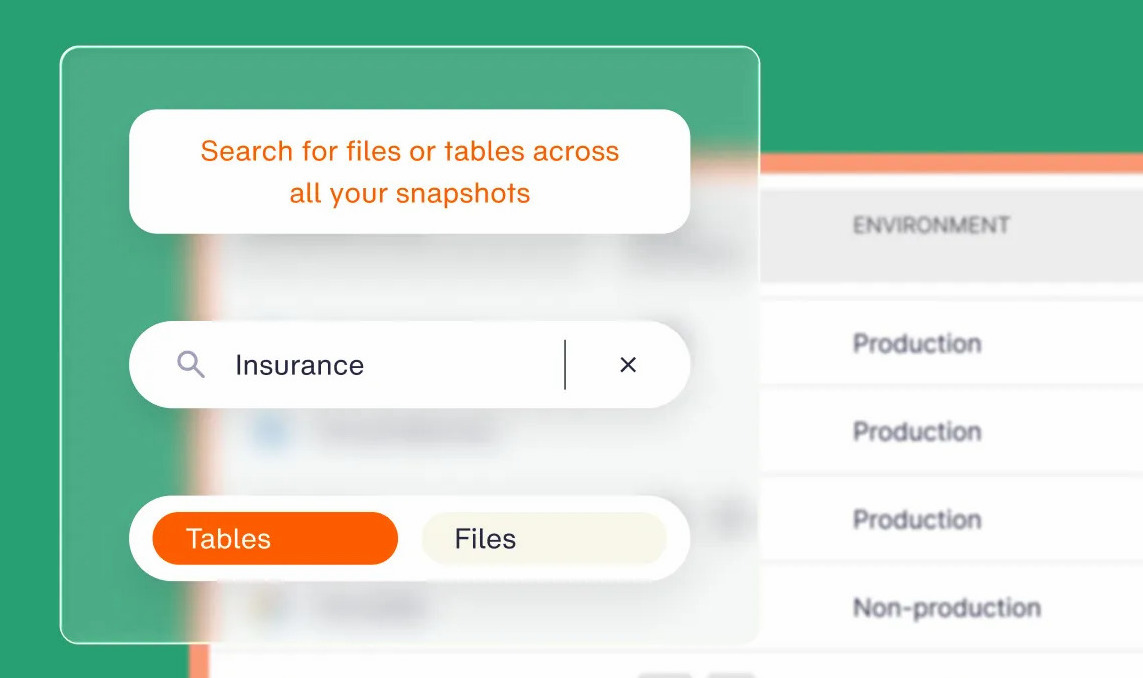
- Search: Finding a file or record across backups before you restore anything
- Cost model: How storage, restores, and data transfer are billed as data grows
Native tools work well for a single cloud with a simple account structure. Teams running several clouds or many accounts usually add a platform that applies one policy set everywhere, which is what cloud-native backup and recovery buys over per-cloud tooling.
Granular recovery for cloud backups
Backup and recovery holds up when three things are true: every resource sits under a policy, at least one copy is out of an attacker’s reach, and your team has restored from it recently. Lose any one of them, and the restore is where you find out.
We built Eon to keep all three true for cloud data.
Cloud Backup Posture Management (CBPM), the category we created, continuously discovers and classifies cloud resources, then assigns backup policies by data type and environment without manual tagging.
New databases and buckets are covered as soon as they're discovered, and the backups sit in immutable, logically air-gapped vaults. It also shows where coverage has drifted across accounts and regions, so you can prove what is protected instead of assuming it.
Ransomware detection (add-on) covers managed databases, object storage, and VMs. For a managed database, it reads the logical contents of the backup, including row counts, schema shifts, and cardinality changes that a file-level scan cannot see, and points to the last clean recovery point.
When something breaks, Global Search finds the affected files and database records in seconds. Granular restore brings back just those records, tables, or files, with no full-environment rehydration.
Restore time still scales with how much data you bring back: NETGEAR’s 10TB SQL Server database came back in under three hours, down from 24. Between incidents, those same copies stay queryable in open formats, so an audit or an investigation can read backup data in place without a restore.
Could you restore 200 deleted rows without restoring the whole database? Book a demo and see how Eon restores a single record from your own data.
Frequently asked questions
What is the process of data backup and recovery?
The process of backing up and recovering data has five steps: identify the data to protect, copy it on a schedule, store the copy in a separate, protected location, keep versions for a set retention period, and restore from a clean version when data is lost or damaged. Regular restore tests confirm the process works before you need it.
How much does data recovery usually cost?
Data recovery cost depends on whether you have a usable backup. Restoring from a backup mostly costs staff time plus the storage and data transfer involved. Without one, professional recovery of a single failed hard drive can run from $300 to more than $3,000.
Business incidents cost far more: the average ransomware recovery cost, excluding any ransom paid, reached $1.7 million per incident in 2026, per Sophos.
Where is the safest place to back up your data?
The safest place to back up business data is an isolated location separate from production: a different account and region, ideally an immutable, logically air-gapped vault that production credentials can’t change or delete. Follow the 3-2-1 rule as well, so at least one copy survives if another location fails.
What is the best backup and recovery software?
The best backup and recovery software depends on where your data lives. For cloud workloads on AWS, Azure, and Google Cloud, Eon restores individual files, records, or tables from logically air-gapped vaults holding databases, VMs, and object storage. Native tools such as AWS Backup suit teams in a single cloud that mostly restore full instances.
What are the 3 types of backup?
The three types of backup are full, incremental, and differential. A full backup copies everything selected, an incremental backup copies changes since the last backup of any kind, and a differential backup copies changes since the last full backup.
Is backup the same as disaster recovery?
No, backup isn’t the same as disaster recovery. Backup creates copies of data, and disaster recovery is the wider plan for failing over, restoring systems, and getting the business running again after a major outage.