





The data was there. Nobody could reach it.
Think about what a day and a half without Microsoft 365 means for a typical company. A sales rep can’t open the signed order form a customer sent last week. Finance can’t find the vendor invoice it has to pay today. Legal can’t pull up the last version of the contract it’s negotiating.
None of that data was deleted, encrypted or corrupted. It sat exactly where it always had, behind a service that wasn’t answering.
Most Microsoft 365 data protection conversations are about loss (e.g., accidental deletion, ransomware, a compromised admin account, an employee who leaves). Outages are a different problem as the data is fine but the access is gone.
Where most backups fall short
Having a third-party Microsoft 365 backup doesn’t automatically keep employees working during an outage. It depends on how people can access that copy:
- Restores depend on Microsoft 365: If the recovery path is to restore data into the tenant, employees must wait until the service can accept it.
- Access depends on IT: Even when a backup supports direct downloads, an admin-only console leaves employees asking IT to retrieve one email or file.
- The workflow is built for recovery, not immediate access: During an outage, employees often don’t need data restored. They need to open an invoice, read a contract, or download a file.
Eon gives employees that access directly. They can search and download their own backed-up data without an IT ticket or restoring anything into Microsoft 365.
Why native retention doesn’t help in an outage
Microsoft 365 has useful built-in protections including SharePoint and OneDrive recycle bin, recoverable Items in Exchange, retention policies, and litigation holds. (Learn more about what they do and don’t cover.)
All of these built-in protections live inside the service they protect. They guard against changes made within Microsoft 365. However, they can’t help when Microsoft 365 itself is unavailable, because those copies are behind the same outage as the live data.
Microsoft keeps the service running. Keeping your data protected and reachable is your side of the shared responsibility model.
What outage-ready Microsoft 365 protection looks like
If you’re reviewing your Microsoft 365 plan after last week, here’s what to check:
- Keep an independent copy outside the service. A copy that lives in Microsoft 365 goes down with Microsoft 365.
- Keep the copy out of the blast radius. Store it in an isolated, encrypted, logically air-gapped vault, and consider another cloud entirely.
- Let employees reach their own data. Self-service search and download beats a ticket queue when everyone is blocked at once.
- Carry over existing permissions, and nothing more. People should see exactly what they could open in Microsoft 365, and an outage must never widen access.
- Make outage access read-only and audited. If nobody can change data, there’s nothing to reconcile when the service comes back, and every action is on record.
- Back up every day and keep the history. Daily snapshots let people grab yesterday’s copy, or the one before a problem started.
- Rehearse it before you need it. Run a game day: tell one team Exchange is down, and see how long it takes them to find what they need.
How Eon keeps Microsoft 365 data safe and reachable
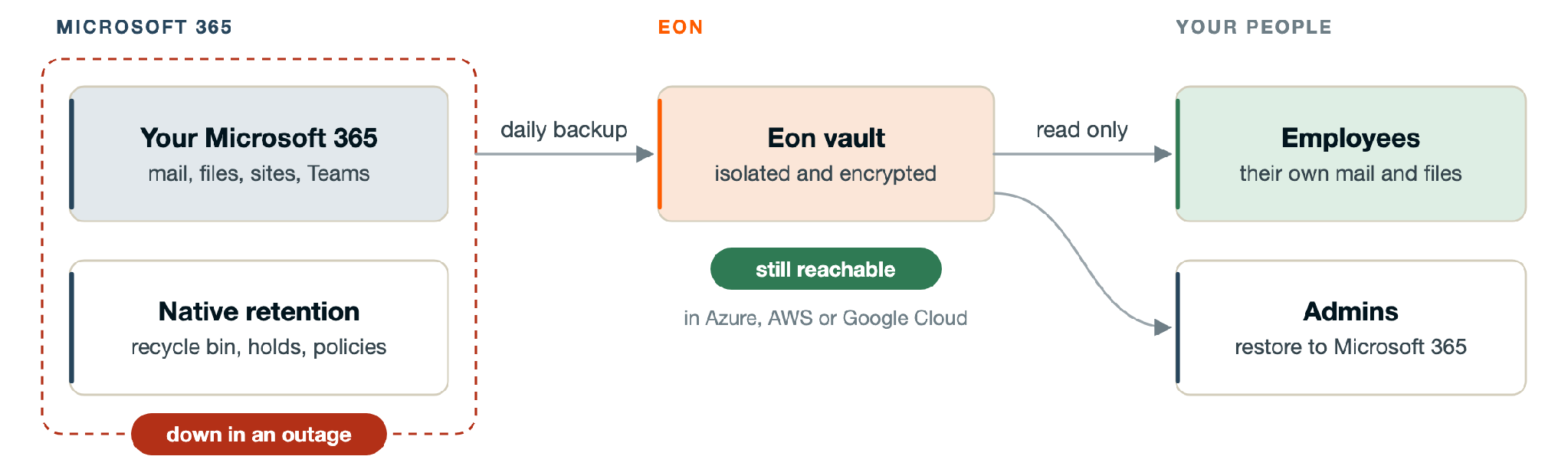
Eon protects Microsoft 365 with an independent copy that stays reachable when Microsoft 365 isn’t.
Automatic, daily backup
Eon backs up Exchange mailboxes, OneDrive, SharePoint sites and Teams every day, with up to unlimited retention. New users and teams are picked up automatically, so coverage doesn’t drift as the organization changes. Eon also protects Microsoft Entra ID: users, groups, roles and licenses.
An isolated vault, in the cloud you choose
Backups land in a logically air-gapped, encrypted vault in your dedicated Eon environment. Keep it in Azure, or in AWS or Google Cloud to stay fully outside Microsoft 365.
Employee access during an outage
When Microsoft 365 is down, every employee signs in to Eon and works from the backup directly. No IT ticket needed.They can:
- Search email by subject, sender or recipient, and files by name
- Pick any retained daily snapshot
- Browse their mailbox folders and OneDrive
- Download email as .eml files, files as they are, and folders as .zip
Granular restore when Microsoft 365 is back
Once the service recovers, admins restore exactly what’s needed: a single email or file, a folder, a mailbox or drive, or a whole user. Built-in ransomware detection for OneDrive and SharePoint helps you pick a clean snapshot when the problem is an attack rather than an outage.
Microsoft 365 permissions carry over to Eon
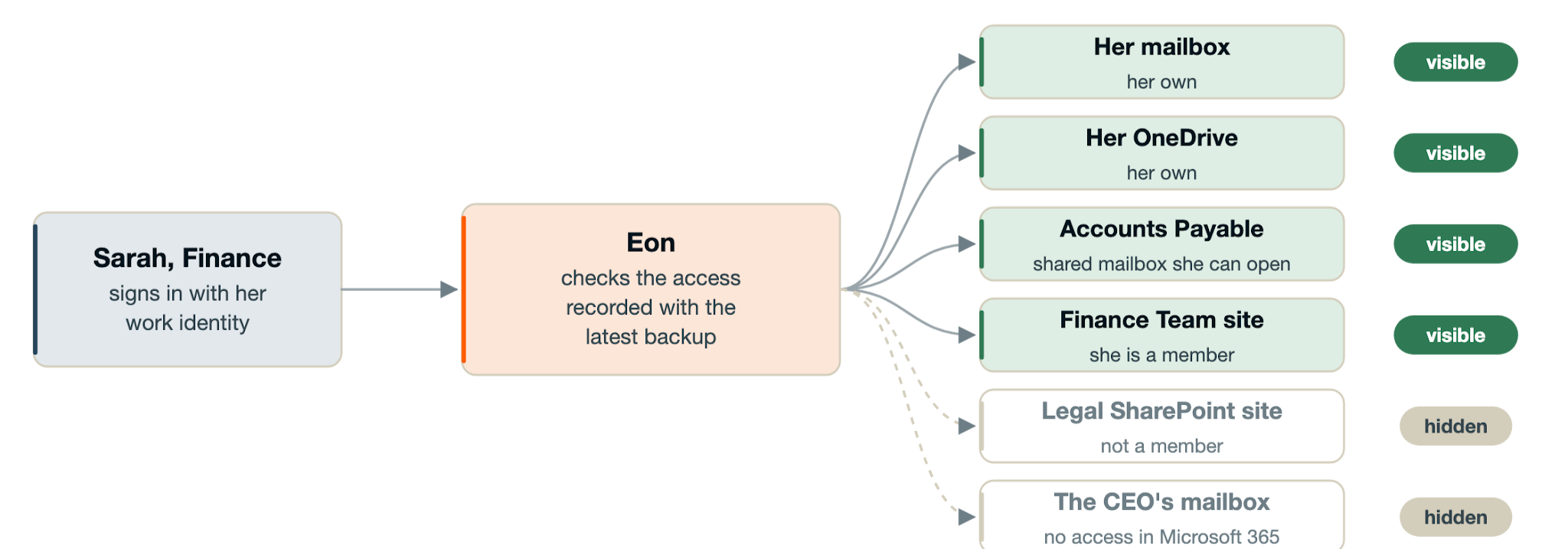
Employees sign in with their work identity, and Eon enforces the Microsoft 365 permissions captured in each backup. Access changes carry over after the next daily backup. Admins control whether shared mailboxes and SharePoint sites are included. Employees can view and download, but can’t overwrite live data or delete anything. Every search and download is logged and streamed to your SIEM.
What an outage day looks like with Eon
Here’s how it plays out for Sarah, who works in finance at a company that runs Eon.
- 9:05 AM: Outlook won’t load. Sarah has to release a vendor payment today and needs the vendor invoice that arrived earlier in the week.
- She signs in to Eon with her work identity. She lands on her own mailbox and OneDrive as Eon backed them up, plus the Accounts Payable shared mailbox and the Finance Team SharePoint site she can open in Microsoft 365.
- She searches “invoice”. Eon shows every matching email and file across the snapshots from the last 30 days, with sender, date, mailbox and folder.
- She downloads what she needs. The email comes down as an .eml file, and the month-end close checklist she needs from the Finance Team site comes down as is.
- IT watches, without handling tickets. Every search and download lands in the Eon audit log, which streams to the SIEM.
- Microsoft 365 comes back, and there’s nothing to clean up. Eon was read-only throughout, so the live tenant was never touched.
See it in action
Keep your employees working through the next outage
Your backup should do more than preserve data. It should let employees reach what they need when Microsoft 365 is unavailable.
If your only copies of Microsoft 365 data live inside Microsoft 365, or only IT can reach them, last week is what the next outage looks like too. Book a demo and we’ll walk through how Eon can keep your team working.
FAQ
Does Microsoft 365 back up my data?
Microsoft 365 keeps deleted items for limited windows and applies the retention policies you set, all inside the service. That protects against some deletions, but it isn’t an independent copy, and it’s unavailable whenever the service is.
Can employees get to their email during a Microsoft 365 outage?
With Eon, yes. Employees sign in to Eon, search their backed-up mailbox and OneDrive, and download what they need. Employee access is in early access today.
How current is the data during an outage?
It’s as of the last daily backup before the outage. Mail that arrives while Microsoft 365 is down isn’t in the backup.
Will employees see data they couldn’t see in Microsoft 365?
No. Eon applies the access recorded with each backup, so people see their own mailbox and OneDrive, plus the shared mailboxes and SharePoint sites they already had access to, when admins choose to include them. Microsoft 365 admin roles don’t carry over.
Can employees change, restore or delete anything?
No. Employee access is view and download only. Restores back to Microsoft 365 stay with admins, and every search and download is audited.
Where is my Microsoft 365 backup stored?
In a logically air-gapped, encrypted vault in your dedicated Eon environment, in Azure, or in AWS or Google Cloud to stay fully outside Microsoft.