

An employee leaves, IT deletes the account a few weeks later, and nobody notices until a client contract that only lived in that person’s My Drive is gone. Google Workspace backup is what turns that into a quick restore, and most teams learn whether they have one on the day they need it.
Google’s own contract splits the work: keeping the service available is Google’s job, and keeping recoverable copies of your data is yours. The redundant infrastructure behind Gmail and Drive doesn’t change that.
That split usually goes unnoticed until someone tests it. In our 2026 Cloud Data Infrastructure Report, 61% of cloud IT leaders said they discover protection gaps only after an incident, audit, or failed restore. The fastest way to stay out of that 61% is to know which Workspace apps your restore tickets involve, then pick a tool that covers them.
What is Google Workspace backup?
Google Workspace backup is a separate, versioned copy of your organization’s Gmail, Drive, Shared drives, and other Workspace data, stored outside Google’s production systems so you can restore items, users, or whole drives after they’re deleted, overwritten, or encrypted.
Separate is the word doing the work there, and it’s the same logic behind the 3-2-1 backup rule: keep three copies of your data, on two different types of storage, with one copy off-site.
Most Workspace backup tools run as SaaS services that connect to Google’s APIs, pull data on a schedule, and store it in the vendor’s cloud. A few run on servers or NAS hardware you manage yourself.
Google’s redundancy vs. a backup
Google replicates customer data in near-real time across multiple disks, multiple servers, and multiple data centers, so no single failure takes it offline.
Replication protects you against Google’s own outages. It copies a user’s deletion to every replica in near-real time, so the deleted file is gone from all of them at once.
The same goes for a sync client that overwrites good files with encrypted ones, or an admin who removes the wrong account. If you want a version from before the mistake, it has to exist somewhere replication can’t reach. Only a separate, versioned copy makes an earlier state recoverable, which is the difference between cloud storage and cloud backup.
The Google Workspace shared responsibility model
Google’s Cloud Data Processing Addendum lists “backing up or retaining copies of its Customer Data as appropriate” among the customer’s security responsibilities. Google’s side is uptime, infrastructure security, and replication across data centers. Everything below is yours:
- Accidental deletion: Once the trash and admin restore windows close, Google deletes the data for good.
- Ransomware and bad syncs: Encrypted or corrupted files sync up and replace good versions like any other edit.
- Departed users: A removed user’s Drive files go with the account unless someone transfers them first.
- Admin mistakes and compromised accounts: A third-party app or AI agent with too much access counts here too.
Gartner predicted in 2024 that by 2028, 75% of enterprises would prioritize backup of SaaS applications as a critical requirement, up from 15% at the time, and named “confusion over the native SaaS vendor’s responsibility for data protection” as one reason.
Google’s native recovery options: Trash, Vault, Takeout, and Data Export
Google gives admins four built-in ways to recover or copy Workspace data. All of them come with your subscription (Vault depends on edition), which is why free native options come up so often in this search.
Trash and the admin restore window
Every Workspace account has a short safety net:
- Drive: Deleted files sit in the trash for 30 days. After a user empties the trash, admins can restore Drive data within 25 days. The restore brings back everything removed in the date range you pick, to its original location, and you can’t select individual files.
- Gmail: Deleted mail stays in the trash for 30 days, then admins get another 25 days to restore it. Deleted spam, drafts, and labels can’t come back.
- Deleted users: Admins have up to 20 days to restore a deleted user’s account and data.
- Shared drives: Admins can restore a Shared drive deleted within the last 25 days.
- Groups: There’s no window at all. Delete a group, and it can’t be restored.
Once those windows close, there’s no native way back.
Google Vault
Google Vault is an eDiscovery and retention tool that lets admins retain, hold, search, and export Workspace data. It’s included in Business Plus, Enterprise Standard and Plus, Enterprise Essentials and Enterprise Essentials Plus (domain-verified only), Frontline Standard and Plus, G Suite Business, and all Education editions.
Vault covers Gmail, Drive, Groups, Chat, Calendar, Voice, Meet recordings, Sites, and Gemini in both the app and Workspace. Contacts isn’t on that list. Exports come out as PST or mbox files for mail, and Drive files convert to DOCX, XLSX, and PPTX.
Google is blunt about the limits. Its own FAQ says Vault “isn’t designed to be a backup or archive tool” and has no automated recovery tools. Getting data back into a mailbox means importing export files by hand.
Google Takeout
Takeout lets each user download a copy of their own Workspace data. Admins can allow or block it for the whole organization, an organizational unit, or a group under Data > Data import & export > Google Takeout.
The core services (Drive, Gmail, Calendar, Contacts, and others) share one Data export permission, so you can’t allow Takeout for Drive but block it for Gmail. A handful of additional services, including Photos and YouTube, do have their own Takeout switch.
It’s useful for one person’s archive. There’s no path to restore a Takeout file back into Workspace, and it doesn’t scale past a handful of users.
The Admin console Data Export tool
The Data Export tool copies your whole organization’s data to a Google Cloud Storage bucket. You’ll need a super admin account that’s at least 30 days old with 2-Step Verification turned on. The path:
- Sign in to the Admin console as a super admin.
- Go to Menu > Data > Data import & export > Data export.
- Click Set up new export and enter a name.
- Choose the scope: your whole organization, or a group, organizational unit, or set of users if your edition allows filtered exports.
- Click Start export.
- Wait for the email. The export is available no earlier than 48 hours after you start, typically takes about 72 hours, and can take up to 14 days.
- Open the Cloud Storage bucket and download the zip files (one per user, split by service). For many files, Google points you to the gcloud storage CLI.
A few limits shape how often you can use it. Exported data is deleted automatically 60 days after the export starts. Only Assured Controls, Enterprise Essentials Plus, Enterprise Plus, Education Standard and Education Plus can run back-to-back full exports; every other edition must wait at least 30 days between them. Data that’s already deleted isn’t included unless Vault is retaining it, and once an export starts you can’t cancel it from the Admin console.
Native options compared: What each one restores
| Option | What it covers | Who runs it | Restores back into Workspace? |
|---|---|---|---|
| Trash + admin restore | Gmail, Drive, Shared drives | Users, then admins | Yes, within 25 days, by date range |
| Google Vault | Gmail, Drive, Groups, Chat, Calendar, Voice, Meet recordings, Sites, Gemini | Admins on Business Plus, Enterprise, Frontline, Education, and G Suite Business editions | No, export only |
| Google Takeout | One user’s data | Each user, if allowed | No, download only |
| Data Export tool | Whole organization | Super admins | No, export to Cloud Storage |
Google’s tools can undo a recent deletion in bulk and hand you export files. After those windows close, none of Google’s tools keeps an independent, point-in-time copy you can restore a single file, mailbox, or group from, and for a deleted group there is no window to begin with. That’s the job the tools below do.
How does Workspace backup work?
Third-party tools follow roughly the same six steps, whatever they call them:
- Authorize access: In the Admin console, a super admin grants the backup service domain-wide delegation for the Gmail, Drive, and directory APIs. Eon splits that across two service accounts, discovery and backup, under a dedicated super admin login.
- Discover what exists: The tool lists your users, groups, and Shared drives so a policy can cover them.
- Take a full backup, then incrementals: The first run copies everything. Later runs copy only what changed.
- Store the copy somewhere else: Usually the vendor’s cloud (AWS, Google Cloud, Azure, or its own data centers) or a bucket you control. Immutable backups add a lock so nobody, including a compromised admin, can delete or change them early.
- Keep versions on a schedule: Backup frequency sets how much work you could lose, which is your recovery point objective. Your backup retention policy decides how far back you can go.
- Restore through the same APIs: Good tools restore a single message, a folder, a mailbox, a whole user, or a Shared drive, in place or to a different account.
The best Google Workspace backup solutions at a glance
- Eon: Best for enterprises that need Shared drives and Groups restored with members and structure intact.
- Backupify (Datto SaaS Protection): Best for organizations that buy backup through a managed service provider.
- Spanning: Best for teams that want end-user self-restore and uncapped retention.
- SysCloud: Best for organizations that need Classroom, Forms, and Chat covered.
- Afi: Best for teams that want 3x-daily backups on a published per-user price.
- Spin.ai: Best for teams that want ransomware response and backup from one vendor.
- Druva: Best for enterprises protecting Microsoft 365 and Workspace on one license.
- AvePoint: Best for teams that want the shortest window between copies.
- OpenText CloudAlly: Best for the Workspace apps everyone else skips.
- Keepit: Best for teams that don’t want their backup on a hyperscaler.
- IDrive: Best for teams with large Drive archives on a tight budget.
Google Workspace backup solutions: Quick comparison
All back up Gmail, My Drive and Shared drives. The coverage column shows what each adds beyond that.
| Tool | Also backs up | Frequency | Stored | Restores | From (per user/mo) | Best for | Main limitation |
|---|---|---|---|---|---|---|---|
 Eon |
Groups | 12 hours | Google Cloud, single-tenant | Item, user, drive, group; cross-user | Usage-based, per GB | Shared drive and Groups recovery | No Calendar or Contacts |
 Backupify |
Calendar, Contacts | 3x daily | Kaseya cloud, 6 countries | Point-in-time, cross-user, export | Custom quote | MSP-managed backup | No real-time failure alerts |
 Spanning |
Calendar, Contacts | Daily | AWS, 5 regions | Point-in-time, cross-user, self-serve | Custom quote | End-user self-restore | One backup a day |
 SysCloud |
Calendar, Contacts, Chat, Forms, Classroom | Daily | AWS, 7 countries | Point-in-time, cross-user, PST/MBOX | $3.00 (36/yr, 100-license min) | Classroom, Forms, Chat | New Shared drives need opt-in |
 Afi |
Calendar, Contacts, Chat, Classroom; Groups directory only | 3x daily | Afi cloud (GCP + AWS) | Point-in-time, cross-user, PST/MBOX | $3.00 (36/yr) | Frequent backups, published price | Calendar restores notify users |
 Spin.ai |
Calendar, Contacts, Chat, Spaces | Daily (3x on SpinOne) | AWS, GCP, Azure or yours | Point-in-time, cross-user, mbox/PST | $3.00 (5,000/yr min) | Backup plus ransomware response | Fixed storage pool per license |
 Druva |
Calendar, Contacts | Admin-set | Druva cloud | Point-in-time, cross-user | Custom quote | Workspace plus Microsoft 365 | Federated Search is Elite-only |
 AvePoint |
Calendar, Contacts, Chat, Classroom, Groups | Up to 4x daily | AvePoint cloud, 14 data centers | Granular or bulk, in place | $3.15 (37.80/yr) | Tightest recovery point | 4x daily only if configured |
 CloudAlly |
Calendar, Contacts, Sites, Chat, Tasks, metadata | Automated plus on-demand | AWS S3, 11 data centers | Point-in-time, cross-user, non-destructive | Custom quote | Tasks, Sites and Chat | No Groups or Google Photos |
 Keepit |
Calendar, Tasks | 2x daily | Keepit cloud, 7 regions | In-place, cross-user, download, links | Custom quote | Backup outside the hyperscalers | No Contacts or Groups |
 IDrive |
Calendar, Contacts, Classroom | 3x daily | IDrive cloud, 7 regions | Snapshot or item, cross-user, zip | $1.67 (20/yr) | Large Drive archives | Weak full-mailbox restores |
How we evaluated these tools
We assessed each solution against its own product pages, documentation, and pricing. We checked every tool across the same dimensions: which Workspace apps it covers, how often automated backups run, where the copy is stored, how restores work, and what it costs where the vendor publishes a price.
Prices change often, so check the vendor’s current page before you budget.
Two names you might expect aren’t here. Veeam has no Google Workspace product as of November 2026. Dropsuite was acquired by NinjaOne in June 2025 and is now marketed as NinjaOne SaaS Backup.
1. Eon: Best for enterprises that need Shared drives and Groups restored intact
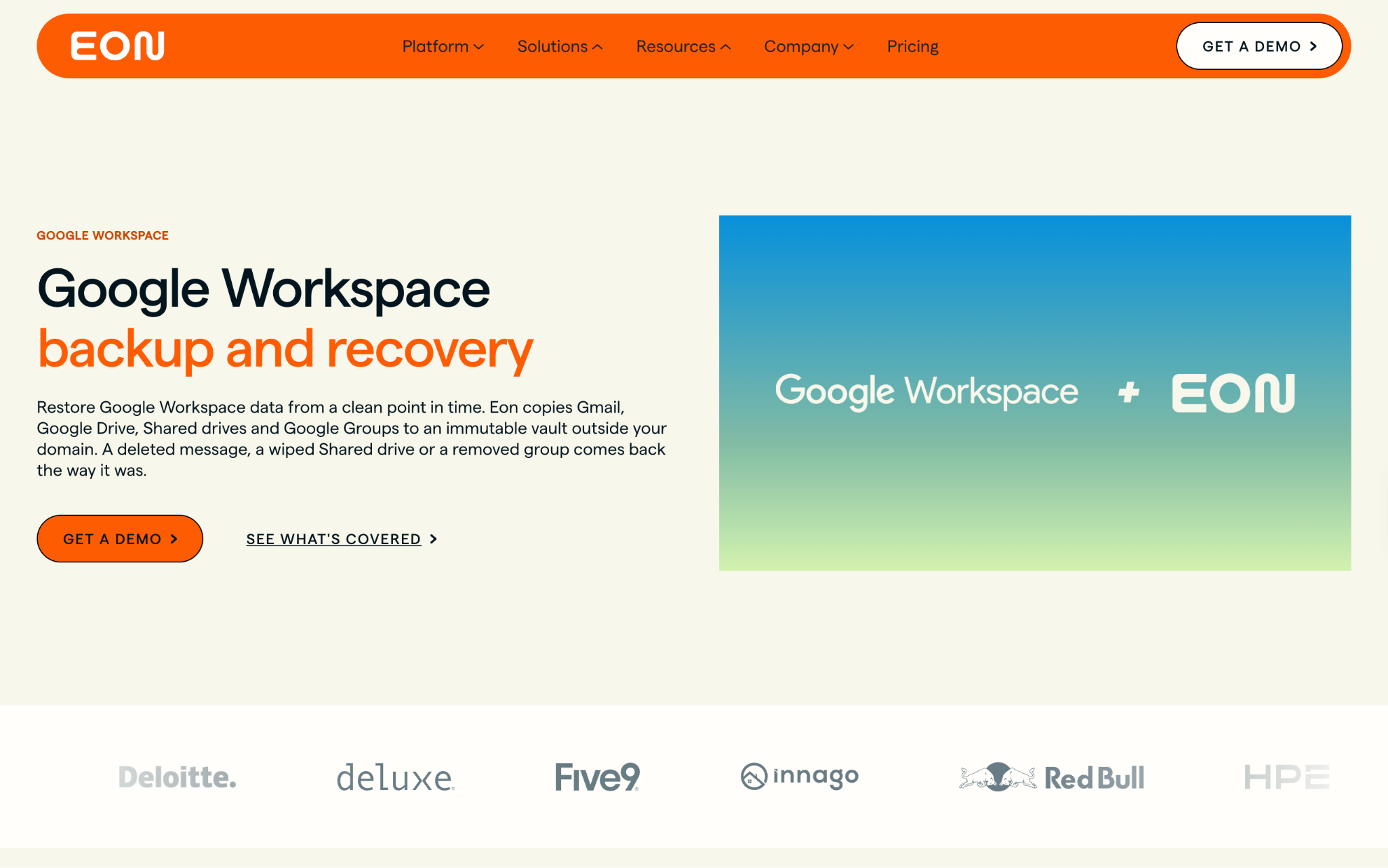
What it does: Eon backs up Gmail, My Drive, Shared drives, and Google Groups about every 12 hours into an immutable, single-tenant vault on Google Cloud, in the region you choose.
Best for: Cloud-first enterprises that want Workspace protected under the same policies as their AWS, Azure, Google Cloud, and Microsoft 365 data.
Google can’t restore a deleted group at all, and once the 25-day Shared drive window closes, there’s no native way to bring a drive back with its structure and members as they were. That’s where Eon fits.
Setup uses domain-wide delegation, and Eon then discovers every user, group, and Shared drive in the domain and adds them to an inventory you cover with a backup policy.
It’s the same policy-driven model behind Cloud Backup Posture Management (CBPM), a category Eon created for cloud workloads, and Workspace joined that platform with automated backup and granular restore in June 2026.
Key features
- Logically air-gapped vault: Recovery points land in a dedicated, immutable environment on Google Cloud that a compromised admin account, app, or AI agent has no path to.
- Searchable recovery points: Browse or search any recovery point to find a lost item before you restore it.
- Group restore: A deleted Google Group comes back with its members, settings, and full conversation history.
- Granular Gmail and Drive restore: One message, a batch, or a whole mailbox goes back in place or to another mailbox, and files, folders, or whole drives return with their sharing settings.
Pros and cons
Pros:
 Help desks stop rebuilding mailing lists and Shared drive permissions by hand after someone deletes the wrong thing.
- Workspace recovery points sit in the same vault and policy reports as your cloud backups, so an auditor’s request for proof of coverage pulls from one place.
- Global deduplication runs across the whole vault for up to 50% lower cost.
Cons:
 Calendar and Contacts aren’t on Eon’s published Workspace coverage list.
- Recovery points land about every 12 hours, so a busy mailbox can go half a day between copies.
Pricing
Eon uses usage-based pricing, billed per GB of protected storage per month with flexible spending commitments. There’s no tier ladder and no per-user price list, so a quote is sized to your domain.
Bottom line
Choose Eon if your hardest restores are Shared drives and Groups, or if you want Workspace in the same vault as the rest of your cloud data. On that cloud side, SoFi cut a full-day recovery to under five minutes.
2. Backupify (Datto SaaS Protection): Best for organizations that buy backup through an MSP
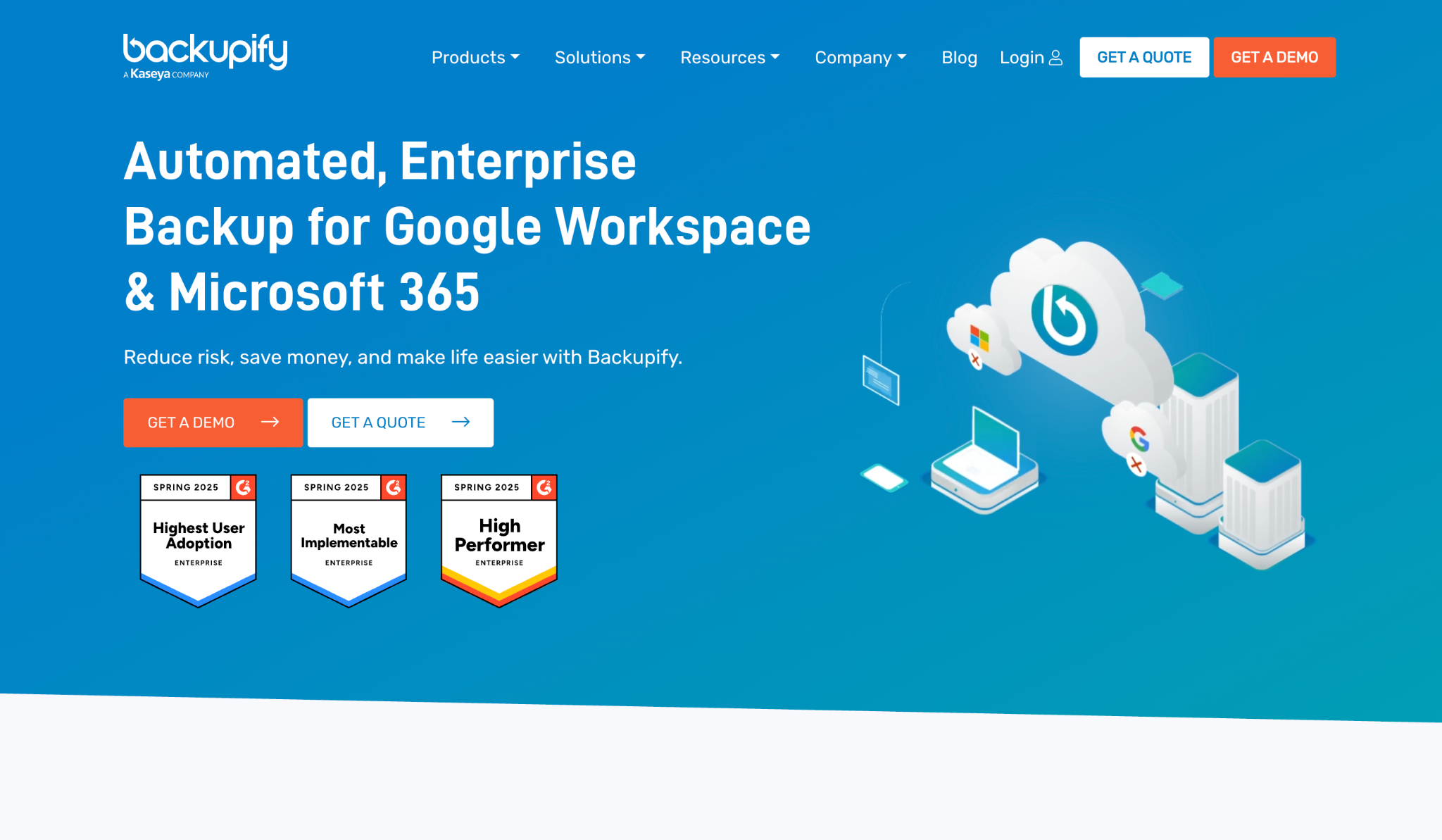
What it does: Backupify, now sold by Kaseya as Datto SaaS Protection, backs up Gmail, Drive, Shared drives, Calendar, and Contacts three times a day into Kaseya’s private cloud.
Best for: Organizations that buy backup through a managed service provider and want several client domains handled from one partner portal.
Kaseya rebranded Backupify as Datto SaaS Protection in April 2025, and that product page now reads "formerly Backupify." It’s built for MSPs, so most companies buy it through a partner. Data sits in Kaseya-run data centers in the US, Australia, Canada, Germany, Singapore, and the UK.
Key features
- 3x-daily backups: Automatic backups three times a day, plus on-demand runs.
- Point-in-time restore: Restore to the original user or a different one, from any saved point.
- Standard export formats: Mail exports as MBOX, calendars as ICS, contacts as VCF, and files in native formats.
- Retention choice: Infinite retention or time-based retention up to one year.
Pros and cons
Pros:
- A partner’s volume across all its clients sets the per-license price, so a 40-seat domain can land on rates a direct buyer that size would never see.
- Restores are non-destructive and land somewhere new rather than over the top: Drive content into My Drive, mail and contacts under a label, calendar items as a separate calendar.
- An on-demand backup right before offboarding captures a departing user’s latest mail and files before the account is removed.
Cons:
- Failed jobs don’t trigger real-time alerts. Errors show up in a daily summary report and have to be traced through the activity logs.
- Retention is set once for the whole tenant, with no per-user or per-group rules.
Pricing
Custom quote. Datto prices SaaS Protection per license, sold through MSP partners with volume discounts across a partner’s clients.
Bottom line
Backupify fits teams that already work with a Kaseya or Datto partner. If you buy software directly and need per-user retention rules, look elsewhere on this list.
3. Spanning: Best for teams that want end-user self-restore and uncapped retention
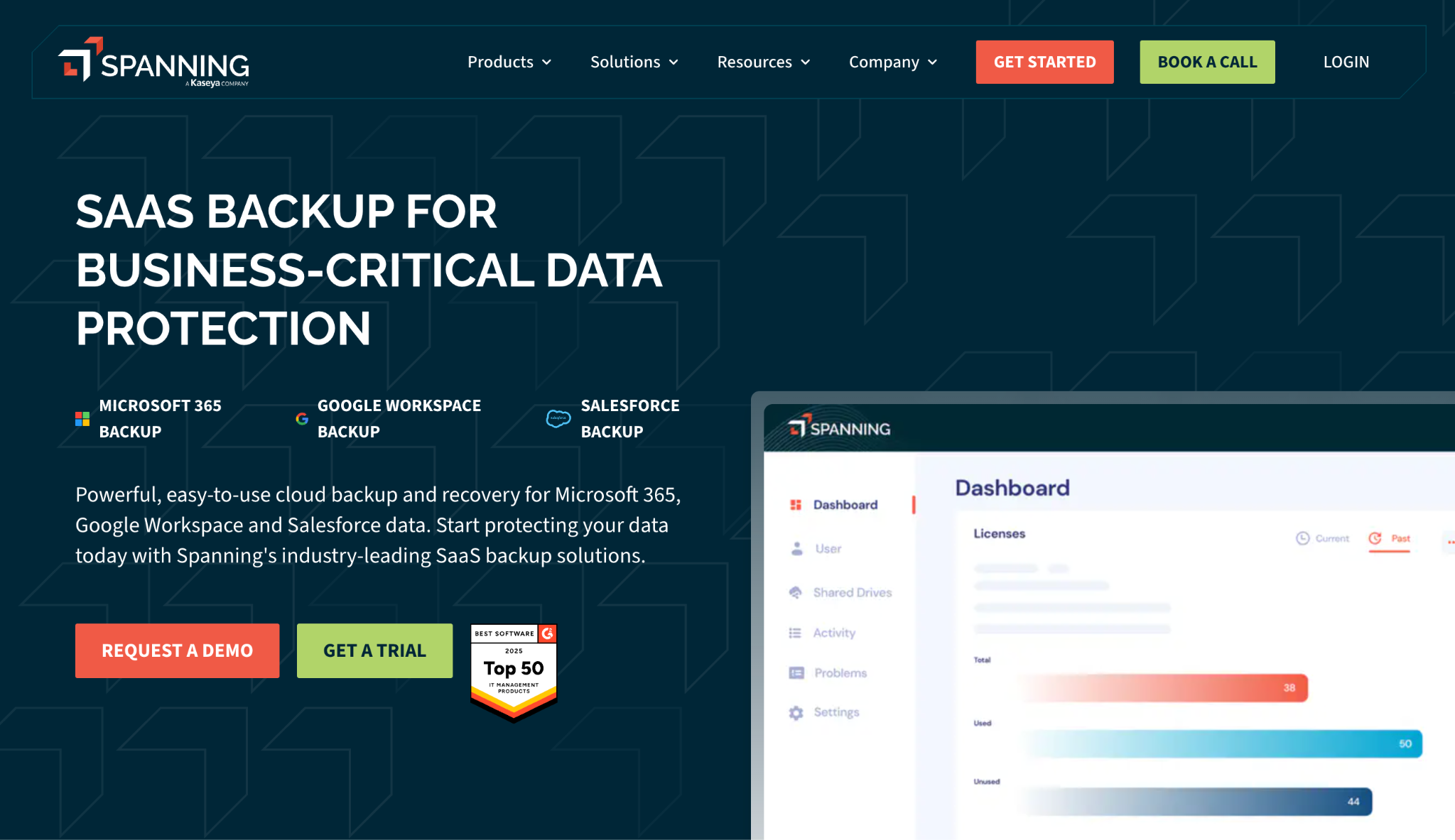
What it does: Spanning Backup for Google Workspace, a Kaseya company, runs a daily incremental backup of Gmail, Drive, Calendar, and Contacts to AWS, with Shared drives as a separate daily backup you switch on.
Best for: Teams that want users restoring their own files and every backup version kept indefinitely.
Spanning stores data in AWS data centers in the US, Canada, the EU, the UK, and APAC. It also protects Microsoft 365 and Salesforce, which suits companies that want more than one suite backed up by one vendor.
Key features
- Daily incremental backup: One automated backup a day, plus unlimited on-demand backups.
- Search-based restore: Find an item, then restore it from any point in time.
- Cross-user restore: Admins can restore one user’s data into another user’s account.
- Export: Export a whole account or single items in standard formats.
Pros and cons
Pros:
- Users restore their own deleted files, which takes the “I deleted a folder” tickets off IT’s queue.
- Admins can restore one specific email straight into a folder in the user’s inbox, so recovering a lost thread doesn’t mean restoring the whole mailbox.
- Version history never expires and carries no extra charge, so a file overwritten two years ago can still be rolled back.
Cons:
- Only one automated backup runs per day, so a morning deletion can cost a full day of edits.
- Billing and support have slowed since the Kaseya acquisition, with renewal problems and slow ticket responses showing up through 2026.
Pricing
Custom quote. Spanning prices per user, and a free trial is available.
Bottom line
Spanning suits teams that want long version history and self-service restores and can live with one backup a day.
4. SysCloud: Best for organizations that need Classroom, Forms, and Chat covered
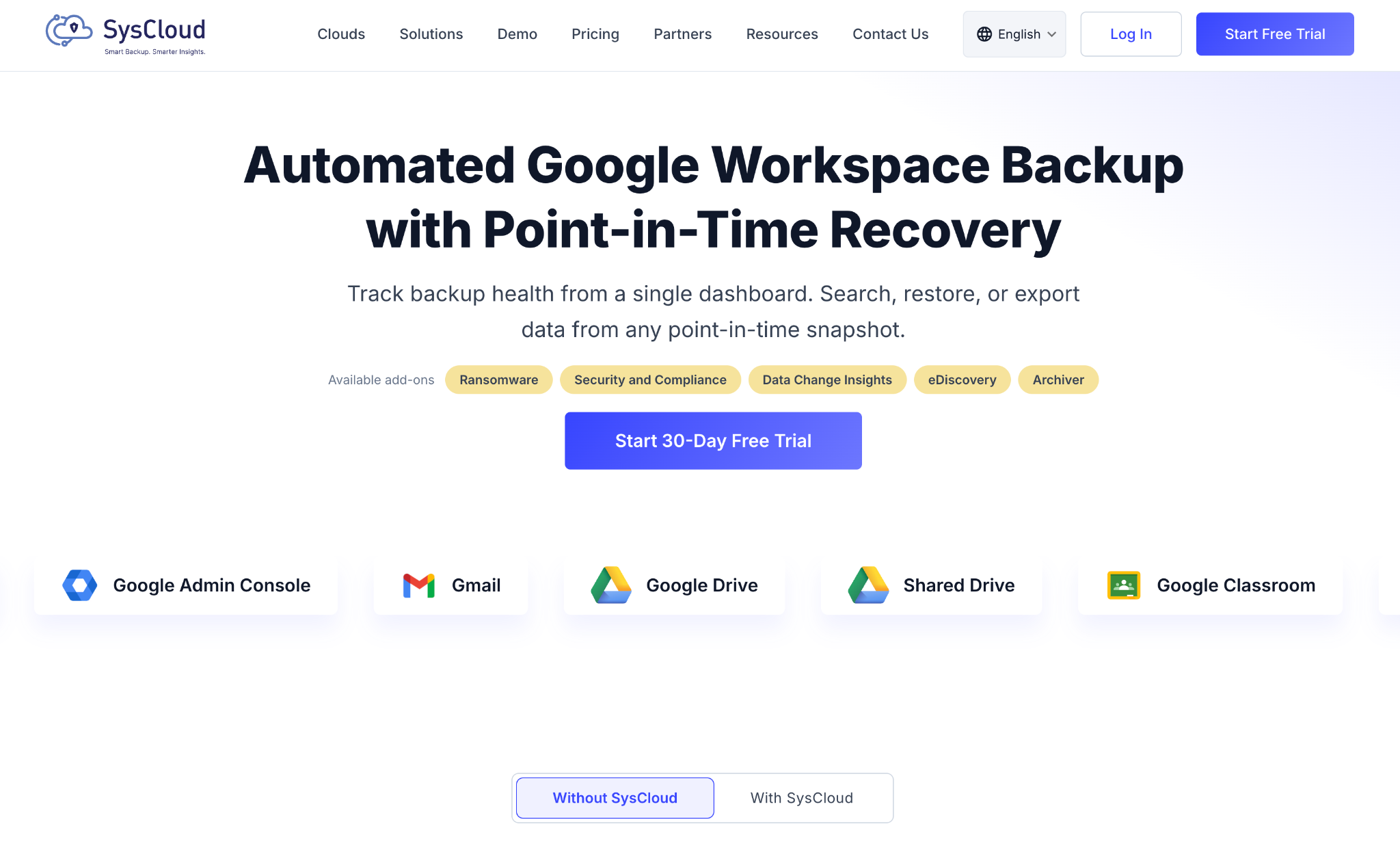
What it does: SysCloud backs up Gmail, Drive, Shared drives, Calendar, Contacts, Chat, Forms, and Classroom once a day to AWS.
Best for: Education and operations teams whose Workspace footprint runs past Gmail and Drive into Classroom, Forms, and Chat.
SysCloud stores backups in AWS regions in the US, the UK, Canada, Australia, Germany, Singapore, and Japan. Storage is uncapped under a fair-use policy that SysCloud assesses against 100 GB per paid license, pooled across the whole subscription, and paid plans are sold yearly to new customers.
Key features
- Daily incremental backup: One automated backup a day, plus unlimited on-demand manual backups.
- Point-in-time restore: Restore to the original user or a different one.
- Export: Mail exports as PST or MBOX, and you can export data for import into a different domain.
- Self-service restore: End users can recover their own items.
Pros and cons
Pros:
- Classroom and Forms coverage is rare among backup vendors, so coursework and intake data don’t need a second product.
- Storage is uncapped under fair use and pooled across licenses, so a domain with a few heavy Drive users doesn’t get a storage overage bill on top of the seat price.
- End users can recover their own items, so routine "I deleted a folder" tickets don’t have to reach IT.
Cons:
- New Shared drives are only protected if an admin turns on auto-backup for them. Leave that setting off and a drive someone creates next month isn’t backed up.
- Exports are capped at 1 TB per account per 12 months, and extra export costs $1,000 per TB, which adds up during large offboarding or legal requests.
Pricing
SysCloud lists $36 per license per year, a 25% discount off the $48 list price, with volume discounts. New paid accounts need at least 100 licenses across all backed-up apps. Ransomware detection is an add-on, and Admin Console backup is licensed separately, priced per user per year.
Bottom line
SysCloud is a strong fit when Classroom, Chat, and Forms are part of daily work. Turn on Shared drive auto-backup on day one.
5. Afi: Best for teams that want 3x-daily backups on a published per-user price
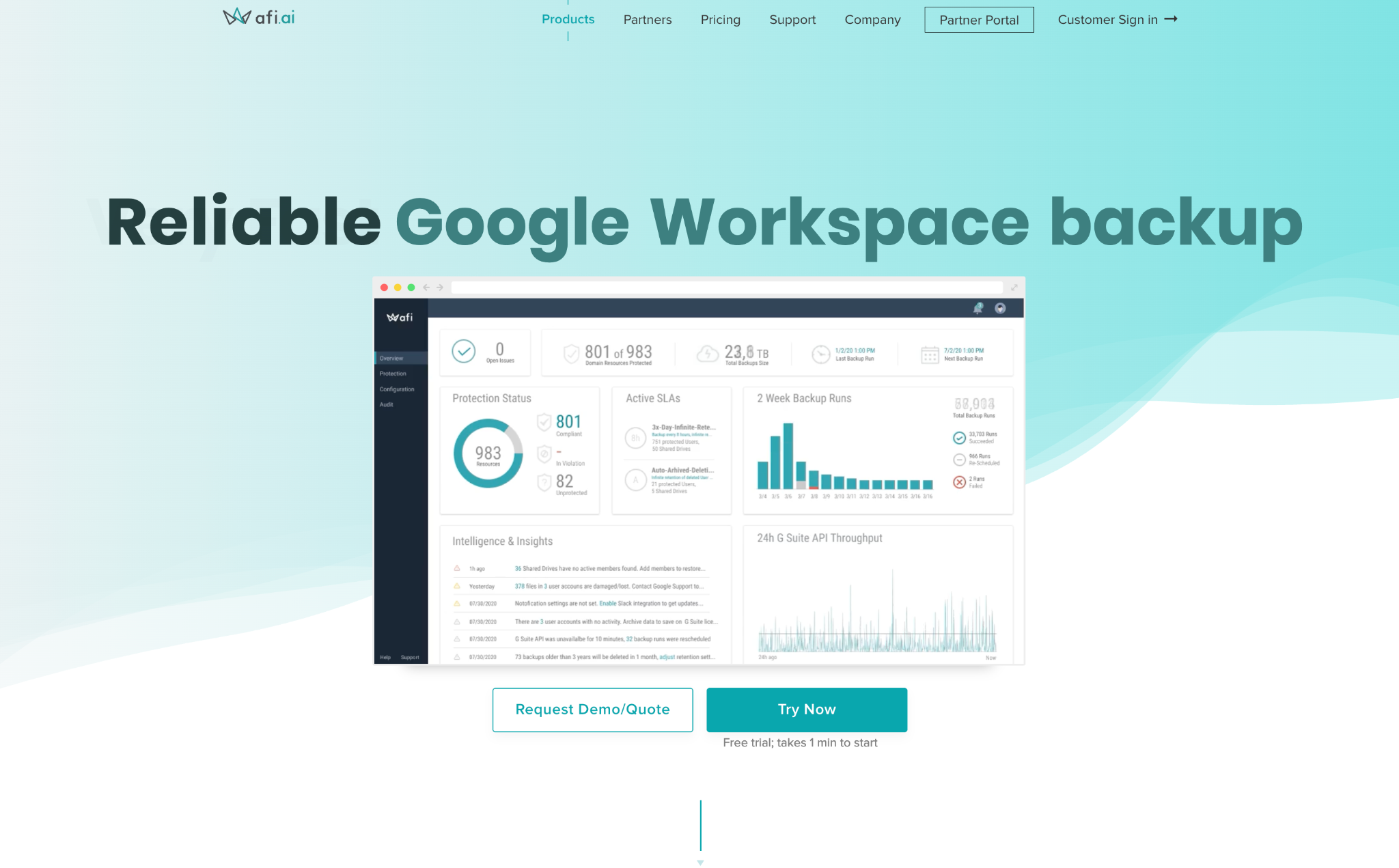
What it does: Afi backs up Gmail, Drive, Shared drives, Calendar, Contacts, Chat, and Classroom, plus directory users, groups, and organizational units, up to three times a day.
Best for: Teams that want frequent automated backups and a per-user price they can budget against without a sales call.
Afi hosts Google Workspace tenants on Google Cloud, with regions in the US, the Netherlands, Germany, Switzerland, the UK, Canada, and Australia. The custom-priced Data Platform plan runs more than 24 backups a day for teams that need tighter recovery points.
Key features
- Flexible schedule: Once or three times a day on the SaaS Backup plan, set per policy.
- Point-in-time restore: Restore in place or to a new folder, to the same account or another one.
- Wide export support: PST, MBOX, EML, ICS, and VCF.
- Retention rules: Unlimited by default, with version, GFS, or item-level rules if you want them.
Pros and cons
Pros:
- Full-text search covers mail bodies inside each protected account, so an admin can find a lost message without restoring a whole mailbox to look for it. Drive search matches file and folder names, not file contents.
- Departed employees’ backups stay on file with no license attached, so offboarding doesn’t add seats to the bill.
- A departing user’s files can be restored straight into a Shared drive, which hands their work to the team in one step.
Cons:
- Overwrite restores of Calendar send event notifications to all recipients, so a bulk in-place calendar restore can flood inboxes. Restoring to a separate folder avoids it.
- Multi-region storage is only on the custom-priced Data Platform plan, so a single-region copy is what the published price buys.
Pricing
The SaaS Backup plan costs $3 per user per month, or $36 per user per year, starting from five users. Domains over 500 users get custom volume pricing.
Bottom line
Afi is the easiest tool here to price and buy. Teams that need copies in more than one region should budget for the custom plan.
6. Spin.ai: Best for teams that want ransomware response and backup from one vendor
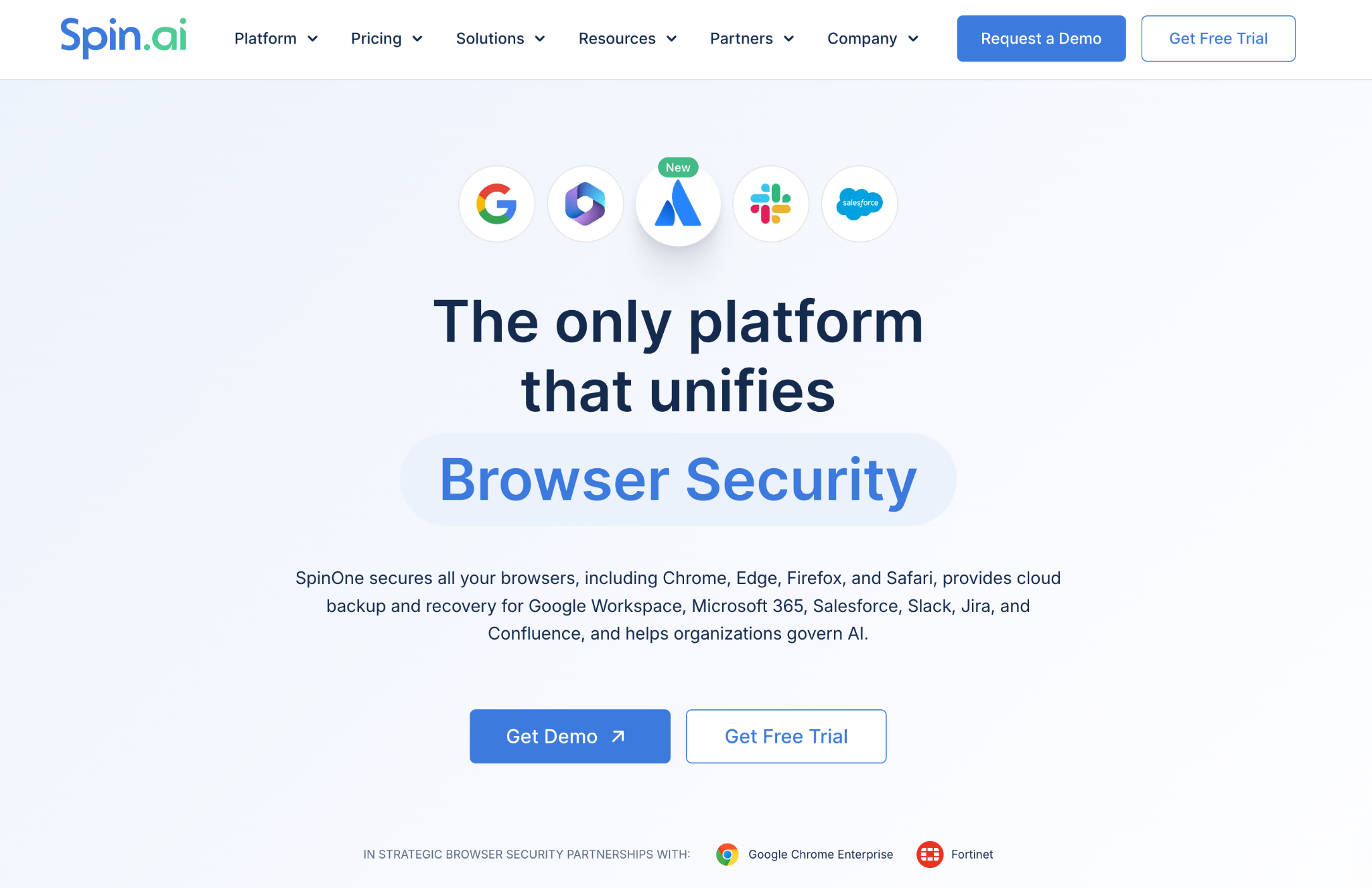
What it does: Spin.ai backs up Gmail, Drive, Shared drives, Calendar, Contacts, Chat, and Spaces to AWS, Google Cloud, or Azure, or to storage you bring yourself.
Best for: Teams where security owns the backup budget and wants one console covering restores, OAuth app risk, and incident response.
The entry SpinBackup plan runs one backup a day. SpinOne, the higher tier, adds 1x or 3x daily options and 24/7 ransomware detection for Google Workspace, with a 2-hour incident response SLA.
Key features
- Choice of cloud: Store backups in AWS, Google Cloud, or Azure, or bring your own storage.
- Point-in-time restore: Spin restores data as it existed at a chosen timestamp.
- Cross-user restore and export: Restore to another licensed user, or download Gmail as mbox or PST.
- Ransomware detection and rollback: On SpinOne, Spin isolates the attack and rolls back to the last clean backup.
Pros and cons
Pros:
- Storage location and retention can be set per organizational unit, so different teams can keep copies in different regions.
- SpinOne also flags risky OAuth apps and browser extensions with access to Workspace, so one console handles backup and app risk.
- Teams that already standardize on one cloud can keep backups there, or in their own storage account.
Cons:
- Each license carries a fixed storage pool (30 GB on SpinBackup, 50 GB on SpinOne) and backed-up data can’t be deleted, so storage growth is hard to forecast.
- New backups stop once a Workspace license is removed, though existing backups stay restorable under the retention policy. Deactivating a user is the destructive one: those backups are deleted after 7 days.
Pricing
SpinBackup is listed at $3 per user per month with a $5,000 annual minimum on Spin’s pricing page, though its Google Workspace page lists a $1,080 annual minimum for the same rate. SpinOne and Enterprise plans are quote-based.
Bottom line
Spin.ai makes the most sense on the SpinOne tier, where ransomware response and backup come together. If you only need backup, plan around the annual minimum.
7. Druva: Best for enterprises protecting Microsoft 365 and Workspace on one license
What it does: Druva backs up Gmail, Drive, Shared drives, Calendar, and Contacts with forever-incremental backups to its fully managed SaaS platform.
Best for: Enterprises that protect Microsoft 365 and Google Workspace together and want one fully managed SaaS service for both.
Druva’s SaaS Universal License covers Microsoft 365 and Google Workspace under one per-user license with pooled storage. Admins set backup frequency from a schedule list, and region changes go through your Druva account manager. A 30-day free trial is available.
Key features
- Forever-incremental backup: After the first run, only changes are copied.
- Point-in-time restore: Pick a snapshot and restore to the same user or a different one, in place or to a new timestamped folder.
- Shared drive coverage: My Drive and Shared drives are backed up along with their trash and comments.
- Restore to device: Send Drive files straight to a user’s device.
Pros and cons
Pros:
- Companies running both Microsoft 365 and Google Workspace buy one license type, and storage pools across users so heavy and light users even out.
- On the Elite plan, compliance teams get detailed retention controls and legal hold for Workspace data, which helps when litigation or an audit freezes specific accounts.
- Drive backups include trash and comments, so a restored document comes back with its comment history, not just the file.
Cons:
- Federated Search, which finds a message across every mailbox at once, is on the Elite plan only, so Enterprise customers search user by user.
- Changing the storage region goes through your Druva account manager rather than a setting you control.
Pricing
Custom quote. Druva’s Enterprise and Elite productivity plans are priced per user, with the quarantine bay priced as an add-on on both.
Bottom line
Druva fits enterprises standardizing SaaS backup on one vendor. Beyond SaaS, the Eon vs Druva decision turns on what each one is built around, since Druva leads with endpoint and SaaS protection while Eon focuses on databases, file systems and object storage in public cloud.
8. AvePoint: Best for teams that want the shortest window between copies
What it does: AvePoint Cloud Backup backs up Gmail, Drive, Shared drives, Calendars, Contacts, Chat, Google Groups, and Google Classroom up to four times a day into AvePoint’s own cloud storage.
Best for: Organizations whose recovery point objective is measured in hours rather than a day, and who want a say in which country the copy sits in.
Four runs a day is the tightest automated schedule on this list, which narrows the window a bad sync or a ransomware event has to work in. AvePoint pairs that with a choice of 14 data centers, so a company with regional data rules can pin the copy where its auditors expect to find it.
Storage comes bundled, so a domain with a few very heavy Drive users doesn’t get a separate storage line on the invoice.
Key features
- 4x-daily backups: One automated run a day by default, configurable up to four, the highest published frequency among the hosted tools here.
- 14 data centers: Pick the region that satisfies your data residency rules at setup.
- Unlimited included storage: Built-in cloud storage with no separate capacity charge. Default retention is one year.
- Right-to-be-forgotten tooling: Find, select and delete a user’s Drive, Gmail, Contacts and Calendar backup data to satisfy GDPR Article 17 requests.
Pros and cons
Pros:
- At the maximum of four runs a day, less than a shift’s work sits between copies, which cuts what a ransomware event or bad sync can take with it.
- Compliance teams can answer a deletion request against the backup set itself, which most tools here leave as a support ticket.
- Storage is bundled, so a 40-seat domain with two multi-terabyte Drive users budgets the same as one without.
Cons:
- One automated backup a day is the default. Four a day is the ceiling, and an admin has to configure it.
- Google Vault protection is an add-on you have to ask a rep to switch on.
Pricing
AvePoint’s pricing page is quote-only, but it lists Cloud Backup for Google Workspace at $3.15 per user per month ($37.80 per user per year) on its Microsoft Marketplace listing.
Bottom line
AvePoint suits teams whose recovery point target is tight and whose data has to live in a named country. If you need Groups protected, start with Eon. If you need a price you can budget against today, start with Afi or IDrive.
9. OpenText CloudAlly: Best for the Workspace apps everyone else skips
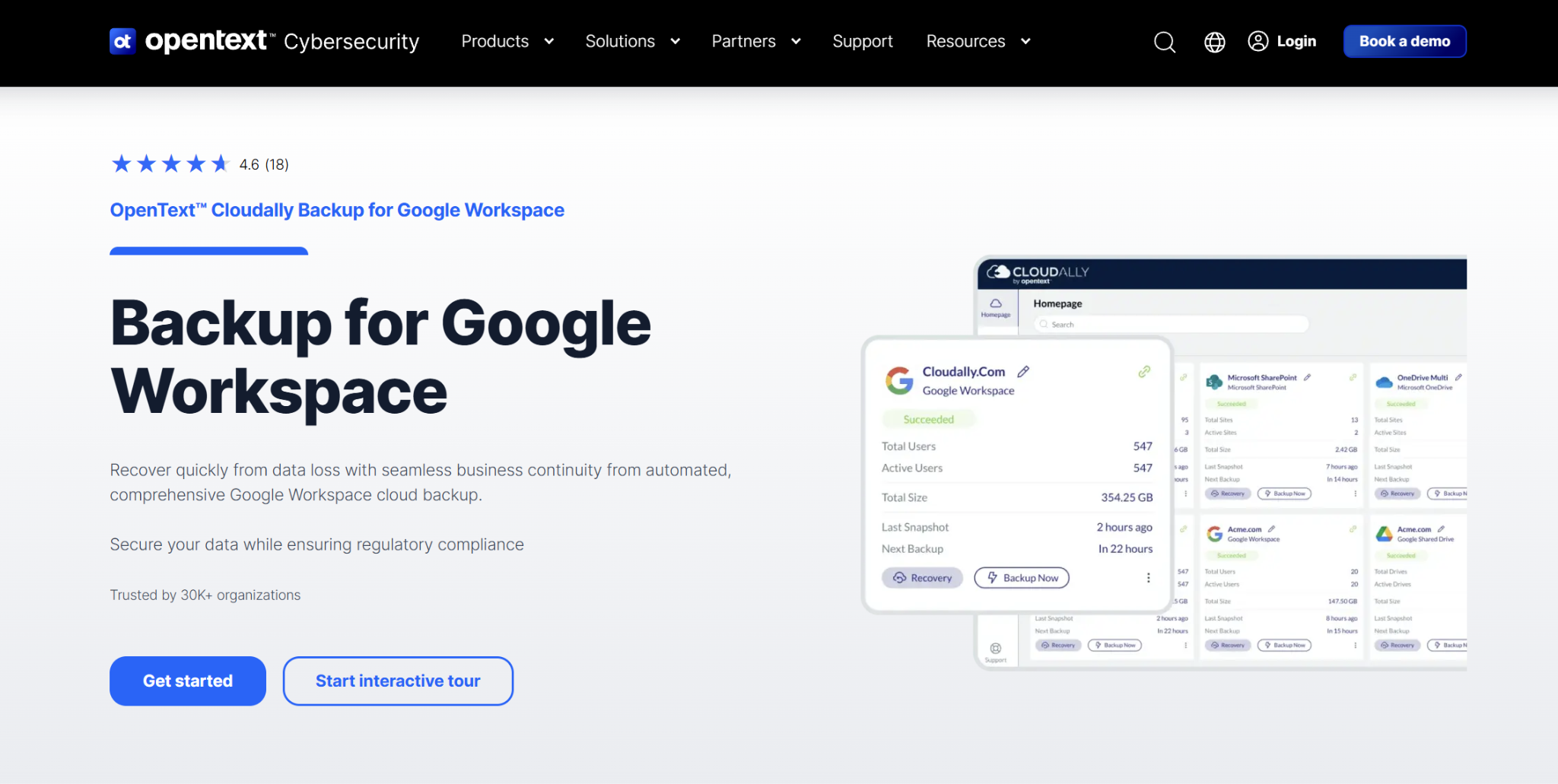
What it does: CloudAlly, now sold under OpenText Cybersecurity, backs up Gmail, Drive, Shared drives, Calendar, Contacts, Sites, Chat, Tasks and metadata to Amazon S3 with unlimited retention.
Best for: Domains where real work lives outside Gmail and Drive, in Tasks, Sites or Chat, and teams who want the archive exportable to storage they own.
Tasks and Sites are the giveaway. Keepit is the only other tool here that covers Tasks, and the only rival claim on Sites is Afi’s marketing copy, which its own workload docs don’t back up. A domain that runs project tracking in Tasks or an intranet on Sites has no native way back once those are gone.
CloudAlly also lets you export the archive to your own S3, Azure, Box, or Dropbox account rather than only downloading a zip, which gives a compliance team somewhere to put a long-term copy that isn’t the vendor’s platform. Retention is uncapped on every plan, so there’s no tier where version history quietly stops.
Key features
- Wide app coverage: Gmail, Drive, Shared drives, Calendar, Contacts, Sites, Chat, Tasks and metadata.
- Export to your own storage: Send archived data to your S3, Azure, Box or Dropbox account, or download it as a zip.
- Unlimited retention and storage: No version cap and no retention ladder across plans.
- Auto-activation: New Workspace users are detected and protected without an admin step.
Pros and cons
Pros:
- Teams running Tasks, Sites, or Chat get them protected without buying a second product.
- A departing employee’s data can stay backed up after their Workspace license is released, which takes seats off the Google bill without losing the archive.
- Object Lock immutability is available, but only on backups held in your own Amazon S3 storage, not on CloudAlly’s.
Cons:
- Google Photos is explicitly excluded from Drive backup.
- Google Groups isn’t on the published coverage list.
Pricing
Custom quote. OpenText prices CloudAlly per user or by data volume depending on the environment, on monthly or annual terms.
Bottom line
CloudAlly makes sense when your Workspace footprint runs past mail and files. If the archive only ever needs to hold Gmail and Drive, cheaper published-price options on this list will do the same job.
10. Keepit: Best for teams that don’t want their backup on a hyperscaler
What it does: Keepit backs up Gmail, Drive, tenant-wide Shared drives, Calendar and Tasks twice a day into its own data centers rather than onto AWS, Azure or Google Cloud.
Best for: Regulated buyers who have to show an auditor that the backup copy sits outside the hyperscaler estate entirely.
Keepit runs its own data centers, seven regions with two mirrored sites apiece, and sells that independence as the product. For a buyer whose risk register already lists cloud concentration, where the copy lives is part of the specification. Storage is always hot, and the seat price covers egress and restores too.
Key features
- Vendor-independent infrastructure: Seven regions (Denmark, Germany, Switzerland, UK, USA, Canada, Australia), each running two mirrored data centers.
- Immutable backups with deletion retention: Configured backup connections carry at least a month of deletion retention on top of the policy.
- Retention up to unlimited: Retention is unlimited by default, set per account, with an optional lower cap per connector.
- Restore paths beyond in-place: In-place, cross-user, download for inspection before committing, and secure shareable links to a user’s own data.
Pros and cons
Pros:
- The backup copy sits outside AWS, Azure and Google Cloud, which closes the concentration-risk question an auditor raises about cloud-to-cloud backup.
- Egress, restores and transaction activity are in the seat price, so a large recovery doesn’t arrive with a bill attached.
- Storage is hot only, so a restore from a three-year-old point starts as fast as one from yesterday.
Cons:
- Contacts and Google Groups aren’t on the published coverage list.
- Backups run twice a day, so a busy mailbox can go twelve hours between copies.
Pricing
Custom quote. Keepit uses seat pricing with unlimited always-hot storage included and no separate charges for ingress, egress, restores, or transactions.
Bottom line
Keepit fits when where the copy lives is itself a requirement. If you need Groups or Contacts protected, check the coverage list before you shortlist it.
11. IDrive: Best for teams with large Drive archives on a tight budget
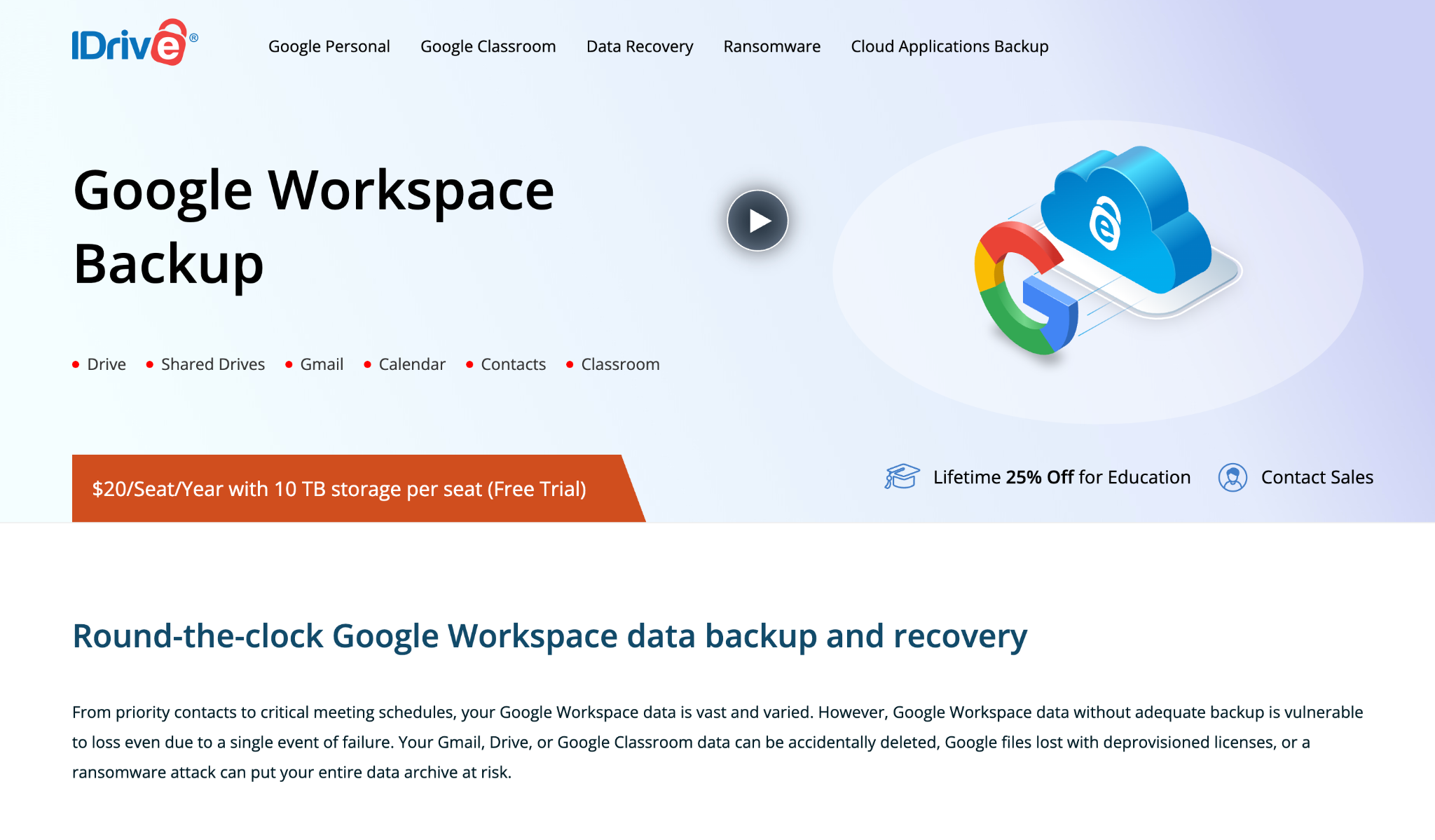
What it does: IDrive backs up Gmail, Drive, Shared drives, Calendar, Contacts, and Google Classroom three times a day, with 10 TB of storage per seat.
Best for: Cost-conscious teams with large Drive archives that want hosted 3x-daily backups.
You pick a storage region when you turn the service on: Oregon, Ireland, Frankfurt, London, Canada, Tokyo, or Paris. Data is encrypted with AES 256-bit in transit and at rest, and deleted users can be kept in the backup as archived accounts.
Older backups get thinned: all three daily backups are kept for 30 days, then one a day to 90 days, one a week to a year, and one a month after that.
Key features
- 3x-daily backups: Up to three automated backups a day on a fixed org-wide schedule, plus manual runs.
- Snapshot or item restore: Restore a point in time or selected items, to the same user or a different one.
- Non-destructive restore: Restore into a new folder, or overwrite if you choose.
- Zip export: Export to a storage destination such as Google Drive or Azure Blob.
Pros and cons
Pros:
- Users with multi-terabyte Drive archives fit inside the base seat price, since each seat includes 10 TB.
- Google Forms is covered inside Drive at no extra cost, which is uncommon at this price point.
- Restores can land in a new folder instead of overwriting, so a recovery doesn’t wipe out work done after the deletion.
Cons:
- Full-mailbox restores are slow rather than missing, so run one during the 7-day trial before you rely on it.
- Users on Google’s Archived User license aren’t backed up until you reactivate the account in the Admin console, though anything already backed up stays restorable.
Pricing
IDrive charges $20 per seat per year (about $1.67 per user per month) with 10 TB per seat, with monthly plans available at $2 per seat. Extra storage costs $5 per TB per month.
Bottom line
IDrive is the cheapest way on this list to get hosted, 3x-daily backups. Check its retention thinning against your own retention rules before you commit.
How to choose a Workspace backup tool
Use the fields from the comparison table to narrow the list:
- Coverage: List the apps your restore tickets actually involve. If Groups are on that list, check the wording, since most tools cover Groups only as directory entries or skip them.
- Backup frequency: Four times a day is the ceiling here (AvePoint), then 3x daily (Backupify, Afi, IDrive, SpinOne), twice a day (Eon, Keepit), and once a day (Spanning, SysCloud, SpinBackup). Druva and CloudAlly set the cadence for you, so ask what the floor is. Pick the interval your team can afford to redo, which is your RPO.
- Storage location: Check which region holds the copy and whether the vendor documents immutability. If you have data residency rules, settle the region before setup.
- Restore options: Look for cross-user restore for departed employees, Shared drive restore with members for team data, and PST or MBOX export for legal requests.
- Price in one unit: Five vendors publish a per-user rate (SysCloud, Afi, SpinBackup, IDrive, and AvePoint through its Marketplace listing). The rest are quote-only, and Eon bills per GB of protected storage, so normalize before you compare. Watch the extras too, like Spin.ai’s $5,000 annual minimum and SysCloud’s 100-license floor.
If you need copies on hardware you own, self-hosted tools such as CubeBackup and Synology Active Backup for Google Workspace exist, but they put patching, storage, and the off-site copy on your team.
A managed service spanning cloud workloads as well as SaaS is a different purchase, and the best BaaS providers compete on how many workload types they cover, not on Workspace depth.
How to get started with Workspace backup
Most teams can go from shortlist to a tested backup in a few days of work. The order we’d follow:
- List what has to be covered: apps (Gmail, Drive, Shared drives, Groups, Calendar, Contacts), active users, suspended and departed users, and any Shared drives whose owners have left.
- Set your targets. Decide how much work you can afford to lose and how long each type of data has to be kept. Your backup policy should write both down.
- Start a trial with a dedicated admin account. Create a super admin account just for the backup connection, turn on 2-Step Verification, and grant the scopes the vendor asks for.
- Run the first full backup. Check the job report for skipped users or file types before you trust the schedule.
- Test three restores: one email, a whole mailbox to a different user, and a full Shared drive. Time each one, and check that permissions and folder structure came back. Knowing how to test backups only helps if the test runs on a schedule and not in the week before an audit.
- Turn on alerts and review coverage monthly. Failed backups should land in a channel someone watches, and new users and Shared drives should show up under a policy.
Final verdict
The right Google Workspace backup tool depends on which apps your restore tickets involve, how often you need a fresh copy, and where that copy has to live.
A Shared drive vanishes, or a compromised admin account deletes a Google Group, and the only thing that counts is whether it comes back exactly as it was, from a copy nobody in your domain can touch.
How long would it take your team to rebuild a deleted Group by hand? Book a demo and see how Eon restores a full Shared drive with its members intact.
Frequently asked questions
What’s the difference between Google Drive and Google Workspace?
The main difference is scope. Google Drive is the file storage app, while Google Workspace is Google’s paid business suite that bundles Drive with custom-domain Gmail, Calendar, Meet, admin controls, and more storage. The paid tier adds custom business email, double the storage, 24/7 support, and admin controls the free apps don’t include.
Will I lose my emails if I cancel Google Workspace?
You will lose your emails only if you choose to delete them. Canceling ends access to Gmail, Calendar, and Meet, then Google makes you pick: let users keep their My Drive data, which converts their accounts to unmanaged consumer accounts, or delete all user data, which takes up to 90 days. Shared drive data is deleted either way.
Export everything first with the Data Export tool or a third-party backup, before you cancel the subscription.
What’s the best Google Workspace backup solution?
For Google Workspace backup, Eon is the strongest pick if your hardest restores are a deleted Google Group, which Google can’t bring back at all, or a Shared drive that has to return with its structure and members intact. Afi and IDrive publish per-user prices you can budget against today, and Spin.ai pairs backup with ransomware response.
How do I back up Gmail in Google Workspace?
Use a third-party backup tool that copies every mailbox on a schedule and restores messages back into Gmail. Native options are limited: admins can restore deleted mail for 25 days after the 30-day trash period, and Vault, Takeout, and Data Export only produce export files with no automated way back in.
Does Veeam back up Google Workspace?
No, not as of November 2026. Veeam Data Cloud covers Microsoft 365, Entra ID, Salesforce, and Azure, and Veeam hasn’t released a Google Workspace product.